Licences & Software
All Microsoft licences from a single source – simple, secure and reliable.

I often encounter companies that have already implemented LAPS but still provide users in the helpdesk, service desk, etc. with personalised accounts so that they can carry out their activities. In my opinion, this (domain-wide personalised local administrator accounts) should be reduced/eliminated through the use of LAPS.
The most common counterargument is that using LAPS Admin takes too much time (retrieving the password / correctly transferring the password / frequency of cases). In my opinion, the last point is where the misunderstanding lies. In the context of current possibilities, LAPS should no longer be the tool of choice for performing all support activities that require administrative rights on a client. And this is exactly where EPM comes into play. With EPM, we can assign rules to individual programmes or files that specify the requirements under which they can be started with local administrator rights.
Local Administrator Password Solution: Move away from centralised accounts with static passwords that have local administrator rights on all clients, towards an administrator account with automatic password rotation and audited password retrieval.
Endpoint Privilege Management: Retrieval of local administrator rights for individual processes/executions. Optionally automatic via specification of a reason or in the form of a request with subsequent approval/denial.
Now let's move on to the interesting part – configuration.
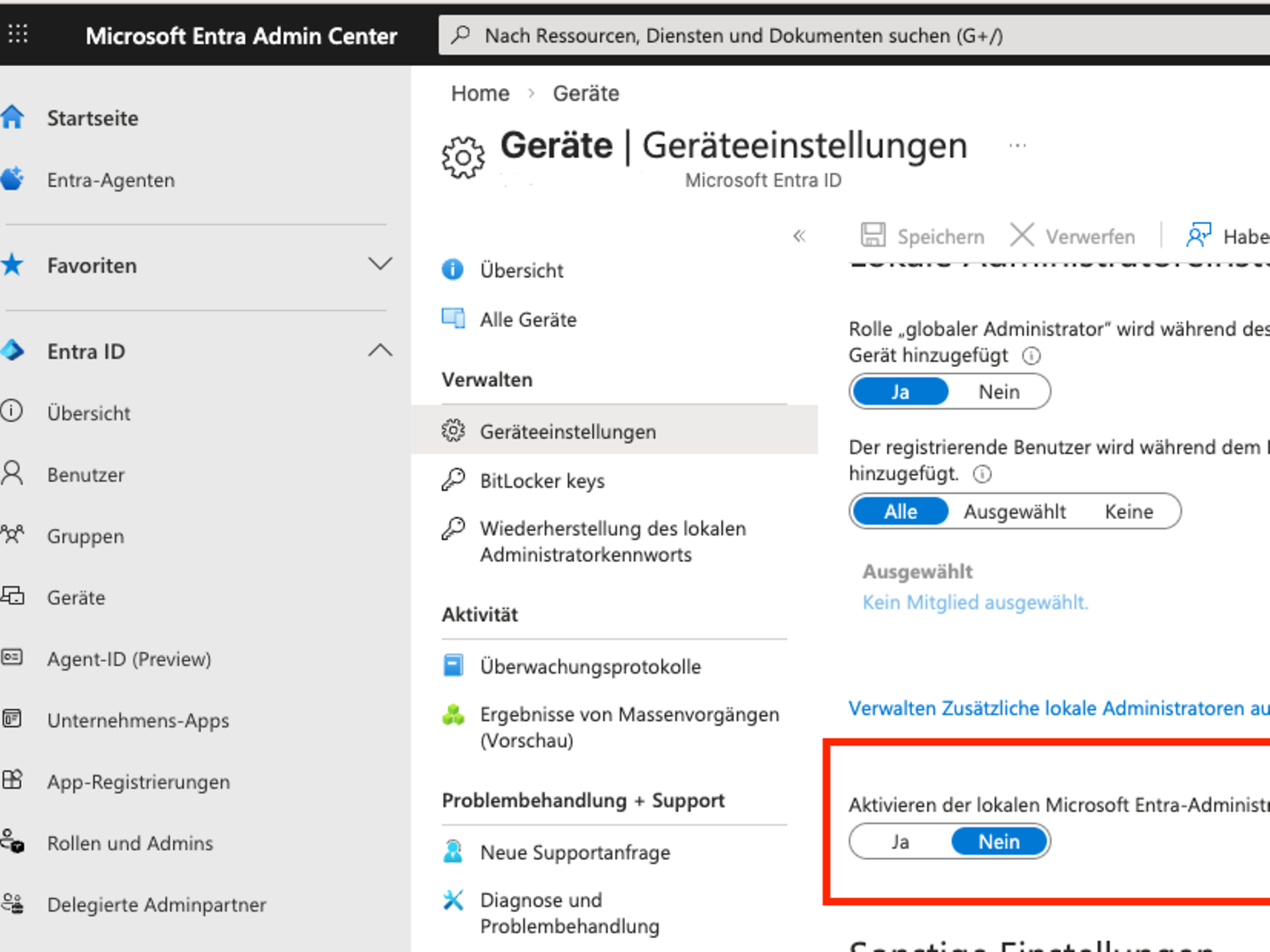
Step 1: Log in to the Microsoft Entra Admin Centre and navigate to Devices / Overview / Device settings.
Step 2: Click "Yes" under "Enable the Local Microsoft Entra Administrator Password Solution (LAPS)".
We then switch to Intune and are faced with the fundamental question of whether we want to use the built-in administrator (deactivated in accordance with CIS and other frameworks) or an administrator account for LAPS that needs to be created separately.
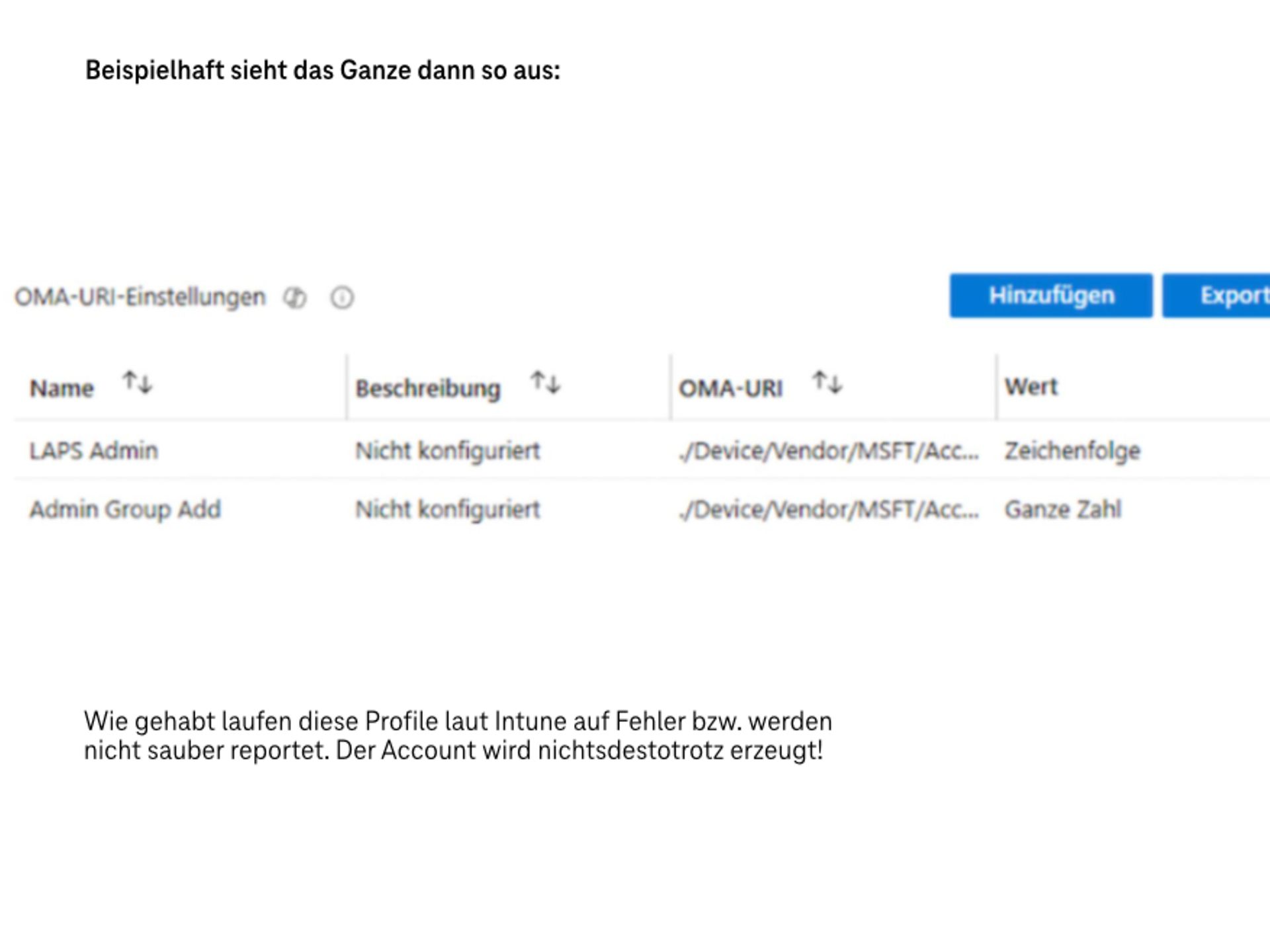
If we want to use a separate account, we can do so using a custom profile, for example: Windows 11 23H2 and older
./Device/Vendor/MSFT/Accounts/Users/someLAPSAdminName/PasswordType
: String
Value: somePassword
Add to the group of administrators: ./Device/Vendor/MSFT/Accounts/Users/someLAPSAdminName/LocalUserGroup
Type:
IntegerValue: 2
From W11 24H2 onwards, LAPS is able to create and manage the account itself. These settings can now be found in the general LAPS configuration under Endpoint Security / Account Protection.
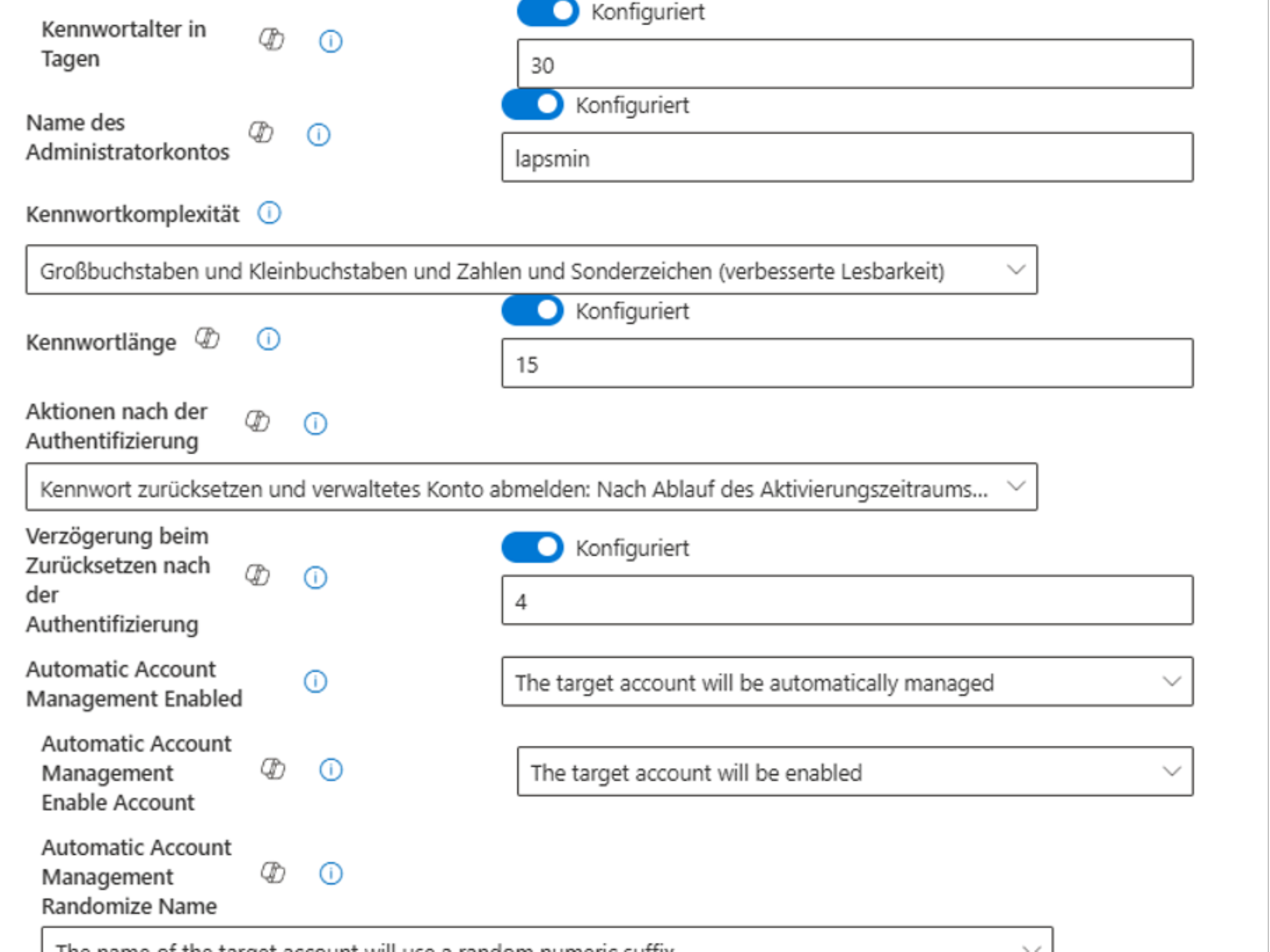
(If the LAPS configuration still refers to 23H2 or older, the "Automatic Account Management Enabled" option should be deactivated or set to "Target account is not automatically managed".)
In the next step, we assign this configuration to the relevant device group. After a short wait, we can now find the password and login name for LAPS login either centrally in Entra (Devices Restore local administrator password) or in Intune on the affected device under "Local administrator password". If, unexpectedly, no password is generated, it is worth taking a look at the event log under Clients Application and Service Logs - Microsoft Windows LAPS/Operational.
The configuration options can be found in Intune – Endpoint Security – Endpoint Permission Management. The next step is to create an EPM settings policy. This activates EPM and defines how requests for which there are no dedicated policies should be handled.
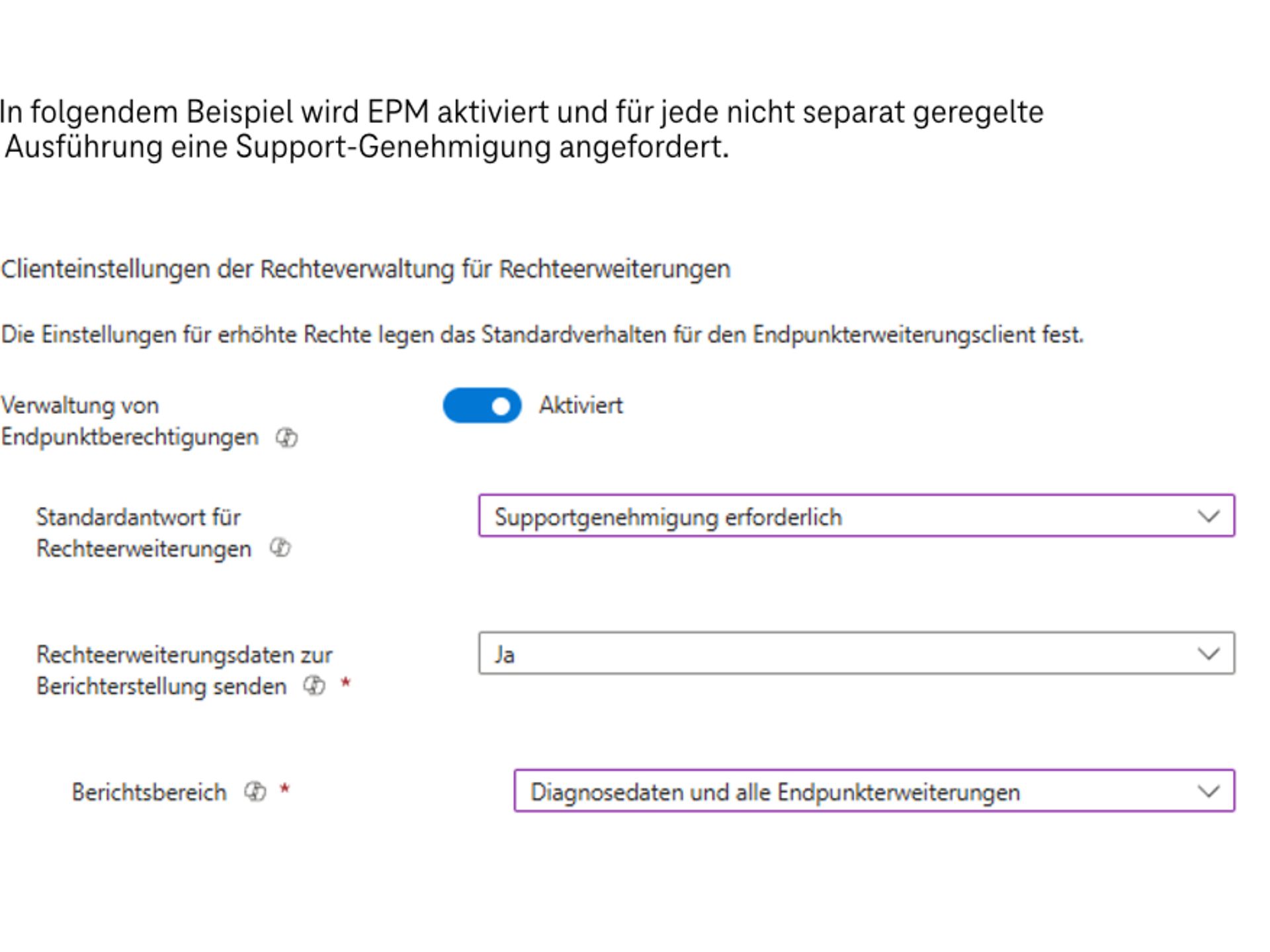
The support requirements can also be found in Intune in endpoint authorisation management, where they can be confirmed or rejected by IT. Individual rules should now be created for each programme/file. Here is an example for 7-Zip.
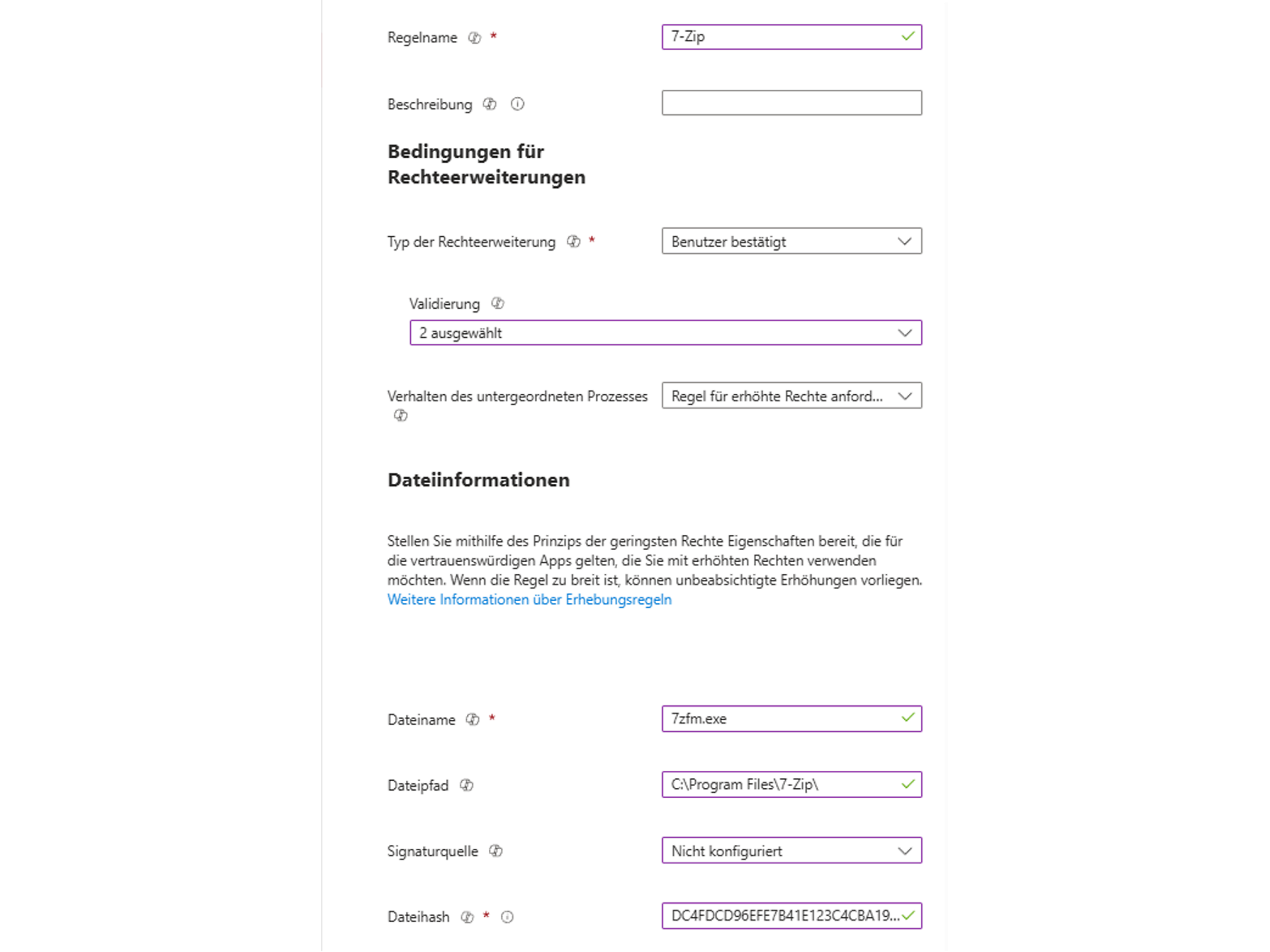
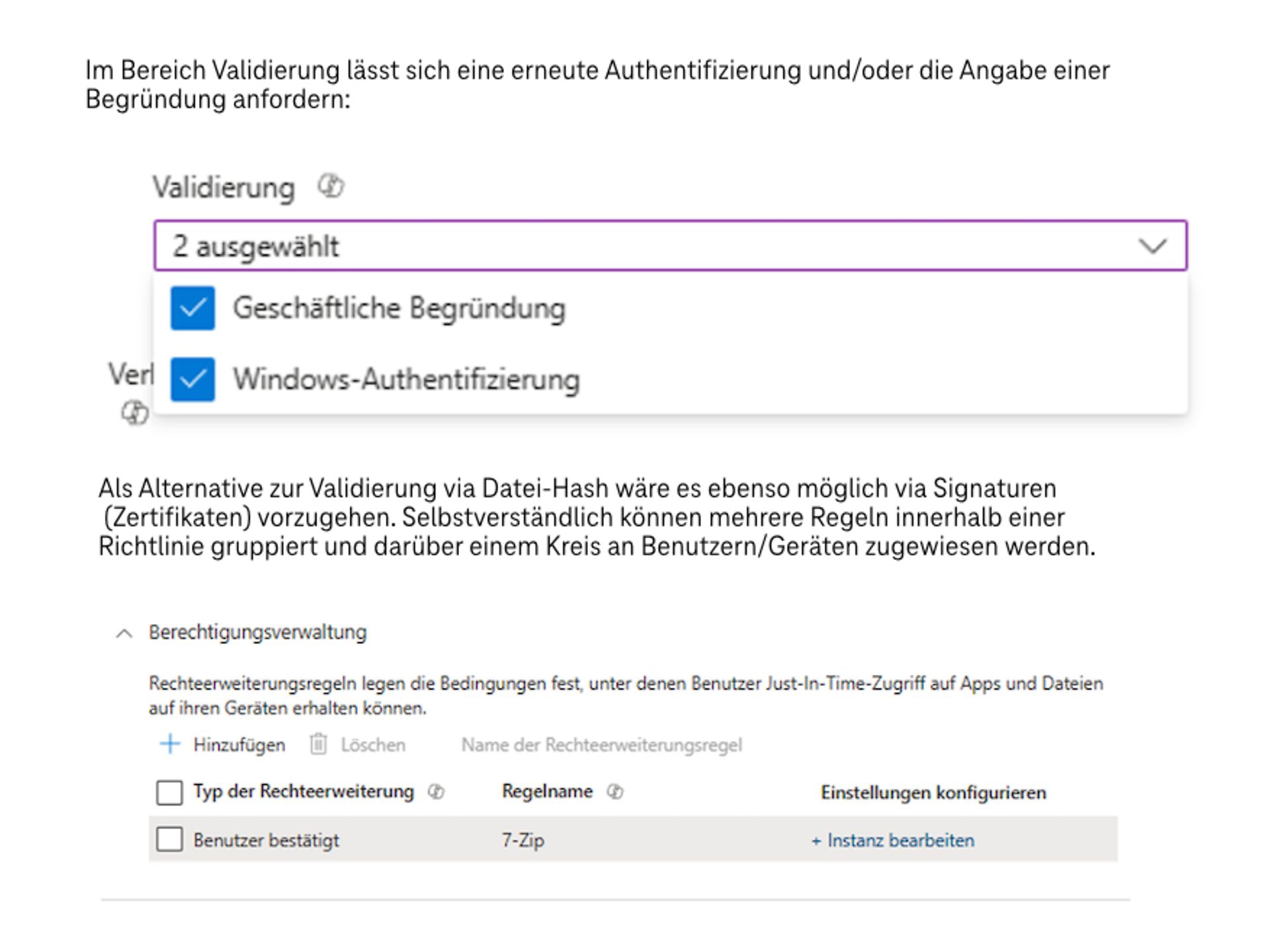
The user now has the following options for requesting an increase in rights:
The next step is to request a justification (if required by the directive).
The application then starts with administrative rights, all in self-service mode.
• https://learn.microsoft.com/en-us/windows-server/identity/laps/laps-scenarios-azure-active-directory•
https://learn.microsoft.com/en-us/intune/intune-service/protect/epm-overviewhttps://learn.microsoft.com/en-us/intune/intune-service/protect/epm-policies
All Microsoft licences from a single source – simple, secure and reliable.
Certified experts support you with tailor-made solutions for your business.
We are always there for you: quick assistance, personal support – at no extra cost.
ISG and Microsoft-certified services for maximum security and reliability.
