Copilot für Microsoft 365
Informieren Sie sich zur KI-Lösung und buchen Sie Lizenzen
With powerful features, the various versions of Microsoft Copilot offer you and your colleagues more than just support in your everyday work – from faster working in Excel to compact summaries of email threads in Outlook and intelligent writing assistance in Word. Benefit from a smooth workflow, efficient communication options and creative solutions – all within your familiar Microsoft environment.
Telekom, your trusted Microsoft partner, is happy to assist you – take a look at our comprehensive range of consulting and services. On this page, we have compiled the most important questions about Microsoft Copilot, Microsoft Copilot for Microsoft 365, Microsoft Copilot for Sales and Microsoft Copilot for Service for you.
With powerful features, the various versions of Microsoft Copilot offer you and your colleagues more than just support in your everyday work – from faster working in Excel to compact summaries of email threads in Outlook and intelligent writing assistance in Word. Benefit from a smooth workflow, efficient communication options and creative solutions – all within your familiar Microsoft environment.
Telekom, your trusted Microsoft partner, is happy to assist you – take a look at our comprehensive range of consulting and services. On this page, we have compiled the most important questions about Microsoft Copilot, Microsoft Copilot for Microsoft 365, Microsoft Copilot for Sales and Microsoft Copilot for Service for you.

Informieren Sie sich zur KI-Lösung und buchen Sie Lizenzen
About Microsoft Copilot
Holen Sie sich Unterstützung von den Experten der Telekom.
Assessment: Successfully implementing Microsoft Copilot
Sie haben Fragen oder Anliegen, nutzen Sie unser Kontaktformular.
Sign up now
CopilotMicrosoft Copilot is an AI-powered digital assistant that helps users with various tasks and activities on their devices in real time. This includes creating content, suggesting text rephrasing, inserting images, generating presentations, and many other helpful features.
Microsoft offers Copilot in different versions:
In summary, the various versions of Microsoft Copilot operate according to the same principle:
You can accept Copilot's answers as they are or adjust them at any time. You also have the option of providing feedback on the result and asking Copilot to revise it. As a general rule, you should check all content created by AI for plausibility and accuracy.
Microsoft offers Copilot solutions for a wide range of its technologies and is continuously expanding its portfolio. Currently, Copilot is available for solutions such as Microsoft 365, Microsoft Azure, GitHub, Power BI (Preview) and Microsoft Fabric, and for target groups such as sales and service For example, a Copilot variant for OneDrive is planned.
Microsoft Copilot is specifically integrated with various Microsoft solutions and uses data from Microsoft Graph, for example, to provide personalised and productivity-enhancing support. Its capabilities go beyond general chat functions such as ChatGPT by embedding itself in the daily workflow and performing automated tasks in conjunction with Microsoft applications.
Telekom supports you with various offerings – from webinars and content consulting to assistance with preparing and implementing Microsoft Copilot.
CopilotCopilot for Microsoft 365 is an intelligent productivity tool that works as an add-on with popular Microsoft 365 and Office 365 apps such as Word, Excel, PowerPoint, Outlook, and Microsoft Teams. It provides real-time assistance to enhance users' creativity, productivity, and capabilities.
The add-on is available for all Business editions of Microsoft 365 and most Enterprise editions of Microsoft 365 and Office 365, among others. The Copilot features are then available for all applications included in the respective edition. The range of features offered by Copilot for Word or Copilot for Excel, for example, is identical across all Microsoft editions.
Microsoft Copilot for Microsoft 365 revolutionises the way we work by combining powerful language models with Microsoft Graph data and Microsoft 365 apps. This integration particularly promotes the three pillars of creativity, productivity and individual professional development among employees.
Microsoft Copilot in the browser is an AI service based exclusively on data from the public web in the Bing search index. It does not have access to organisational resources or content. Microsoft Copilot for Microsoft 365 adds three basic features:
You can use Microsoft 365 Copilot in the following applications, among others:
Copilot for Microsoft 365 supports German and English as well as French, Spanish, Portuguese, Italian, Japanese and Chinese (simplified). The only exception is Copilot for Excel, which is currently only available in English. There are also plans to expand to other languages.
Microsoft Copilot for Sales complements the features of Microsoft Copilot for Microsoft 365 with new capabilities for your sales workflows. By leveraging CRM data, large language models, and information from Microsoft Graph, Microsoft 365 apps, and the internet, Microsoft Copilot for Sales helps sales teams save time, generate innovative ideas, and build more effective customer relationships. The following features are available for this purpose:
Microsoft Copilot for Sales is an AI assistant designed specifically for sales, combining the features of Microsoft Copilot for Microsoft 365 with sales-specific insights and workflows.
On 1 February 2024, Sales Copilot was replaced by Microsoft Copilot for Sales. This innovation combines the power of Microsoft Copilot for Microsoft 365 with role-specific insights and actions for sales. In terms of licensing, a new Microsoft Copilot for Sales licence was introduced, which includes a Microsoft Copilot for Microsoft 365 subscription.
The Microsoft Copilot for Sales subscription replaces the standalone Microsoft Sales Copilot subscription. The features of Sales Copilot remain unchanged and are enhanced with the features of Microsoft Copilot for Microsoft 365.
Note: Customers who have already purchased a standalone Sales Copilot subscription can retain their existing subscriptions and access the current features during the contract period. An upgrade to the new licensing model is required if customers want to use the new features in Microsoft Copilot for Sales.
Yes, Microsoft Copilot for Sales requires a connection to a CRM.
At present (as of March 2024), Microsoft Copilot for Sales is compatible with Microsoft Dynamics 365 Sales and Salesforce Sales Cloud (Professional and above).
No, Microsoft Copilot for Sales is not included in a Dynamics 365 Sales subscription, as it includes Microsoft Copilot for Microsoft 365 (e.g. Copilot in PowerPoint, Copilot in Word, and more).
Note: Dynamics 365 Sales (Enterprise and Premium) customers still have access to standard AI features (formerly known as Viva Sales or Sales Copilot) at no additional cost.
In addition to German and English, Microsoft Copilot for Sales also supports many other languages, including French, Spanish, Portuguese, Italian, Japanese and Chinese (simplified).
Microsoft Copilot for Sales extends the capabilities of Microsoft Copilot for Microsoft 365 by enabling the creation of copilots for service and frontline employees and contact centres to increase productivity and improve efficiency in the service process.
These copilots provide instant, real-time responses from various sources, including websites, SharePoint pages, offline files and external sources. In addition, Copilot for Sales enables direct integration with third-party knowledge bases such as Salesforce, ServiceNow and Zendesk.
When you create a co-pilot with Copilot for Service, you can:
At the moment, Copilot for Service supports document creation by copilots for a large number of languages, including German, English, French and Spanish. However, Copilot itself is currently only available for conversations in EnglishAdditional languages are planned for a future version.
No, there is currently no trial version of Copilot for Microsoft 365, Copilot for Sales or Copilot for Services.
Copilot for Microsoft 365 is available as an add-on only for eligible Microsoft 365, Office 365, and various other plans. These are a prerequisite for licensing Copilot for Microsoft 365. You can find out which plans are eligible in the following FAQ.
To place an order via the Telekom Cloud Marketplace, you will also need a marketplace account. You can find out how to create one in this FAQ.
You can add the three add-ons Copilot for Microsoft 365, Copilot for Sales, and Copilot for Service to the following Microsoft 365 and Office 365 plans:
Microsoft 365
Office 365
Microsoft Teams
Exchange
SharePoint
OneDrive for Business
Planner and Project
Visio
Further plans
The add-on is also available for various Microsoft 365 and Office 365 education plans:
Microsoft 365 Copilot, Microsoft 365 Copilot for Sales, and Microsoft 365 Copilot for Service are currently only available as annual subscriptions.
Until December 2024, billing was only possible annually and as an advance payment. Since 1 December 2024, more flexible billing options have been available. You can continue to pay for your Microsoft Copilot licences annually in advance or switch to monthly billing. The term of the Copilot subscription remains one year, even with monthly billing. Please note that the licence costs are around 5 per cent higher with monthly billing.
It is possible to switch from annual to monthly billing when renewing your Copilot subscription.
You can purchase any number of licences, starting with a single licence. The only restriction is that you should not purchase more licences for any of the three Copilot variants than your company has suitable base licences for Microsoft 365 or Office 365, which are required to run Microsoft 365 Copilot.
For example, if a company has 25 licences for Microsoft 365 Business Standard, 50 licences for Microsoft 365 Business Premium and 100 licences for Office 365 E3, it can purchase and use between 1 and 175 licences for Microsoft 365 Copilot.
There are several ways to purchase Copilot for Microsoft 365 for your organisation. Firstly, you have the option of booking Copilot for Microsoft 365, Copilot for Sales or Copilot for Service via self-service. To do so, follow these steps:
Step 1: Log in to the Telekom Cloud Marketplace with the account that already contains the Office 365 or Microsoft 365 subscription for which you want to purchase Microsoft 365 Copilot as an add-on.
Step 2: Go to the Microsoft 365 Copilot product page in the Telekom Cloud Marketplace.
Step 3: Click on the "Order now" button to access the order form for Microsoft 365 Copilot.
Step 4: Enter the desired number of licences (1) and complete the order process by clicking "Continue" (2) and following the usual steps.
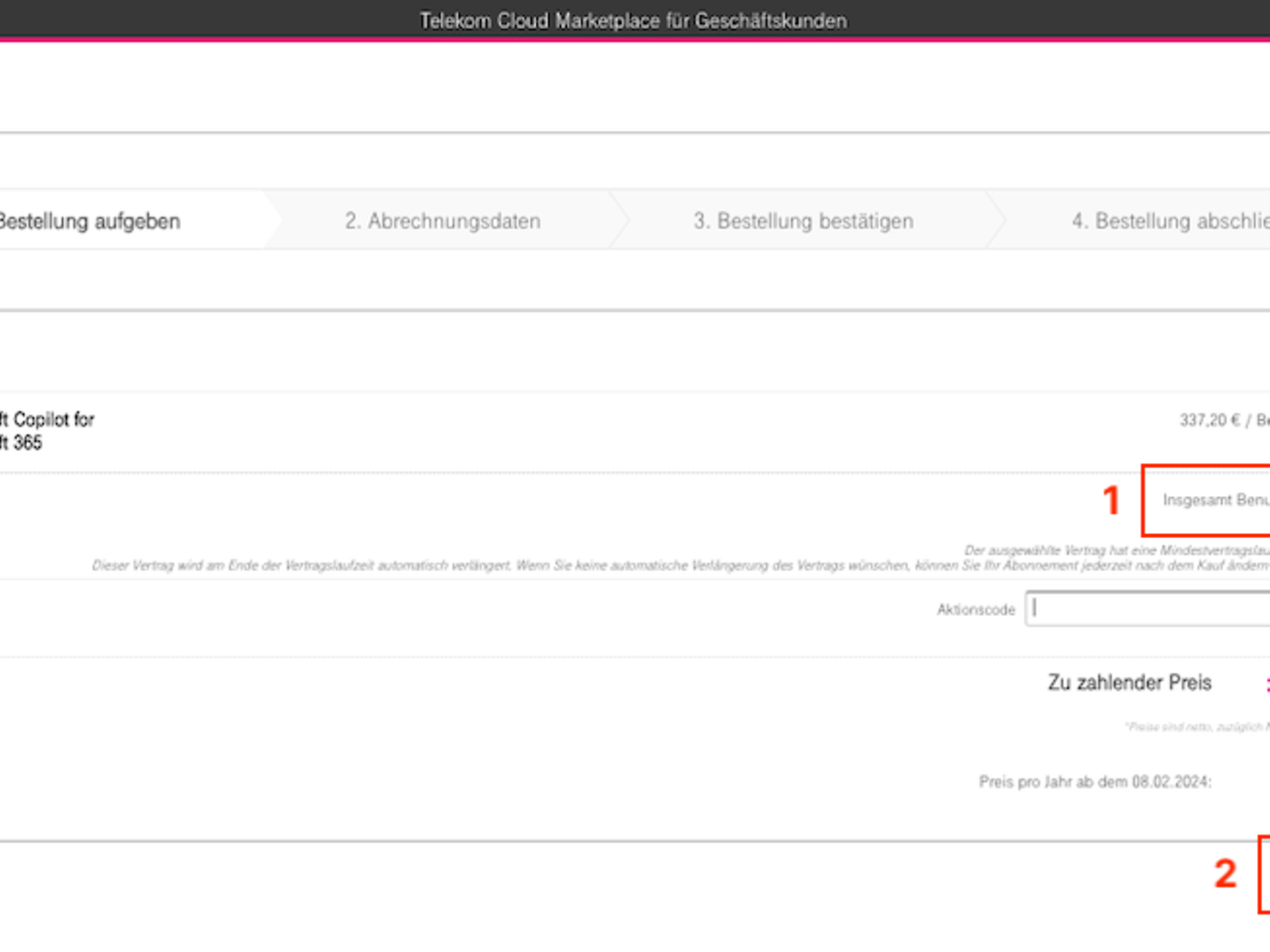
Step 5: Once the booking has been successfully completed, the licences will be made available to you as usual via the Microsoft 365 Admin Centre, where you can assign them to your employees.
Alternatively, you can also have the add-on added to your Microsoft 365 subscription via your Telekom sales representative or Service, the Telekom support team.
It is possible to adjust the term of the Copilot for Microsoft 365, Copilot for Sales or Copilot for Service booking to match the underlying Microsoft 365 or Office 365 subscription. The most important prerequisite for this is that the subscription has a term of 12 months or 1 year.
When booking, you must follow these steps:
Step 1: Log in to the Telekom Cloud Marketplace with the account that already contains the Office 365 or Microsoft 365 subscription for which you want to purchase Microsoft 365 Copilot as an add-on.
Step 2: Go to the Microsoft 365 Copilot product page in the Telekom Cloud Marketplace.
Step 3: Click on the "Order now" button to access the order form for Microsoft 365 Copilot.
Step 4: There, you can specify the desired number of licences (1) as well as the subscription with which you want to synchronise your Microsoft 365 Business booking. If you have a valid subscription with a term of one year (12 months), you can select it under "Term synchronisation options" (2). You can then follow the booking as usual.
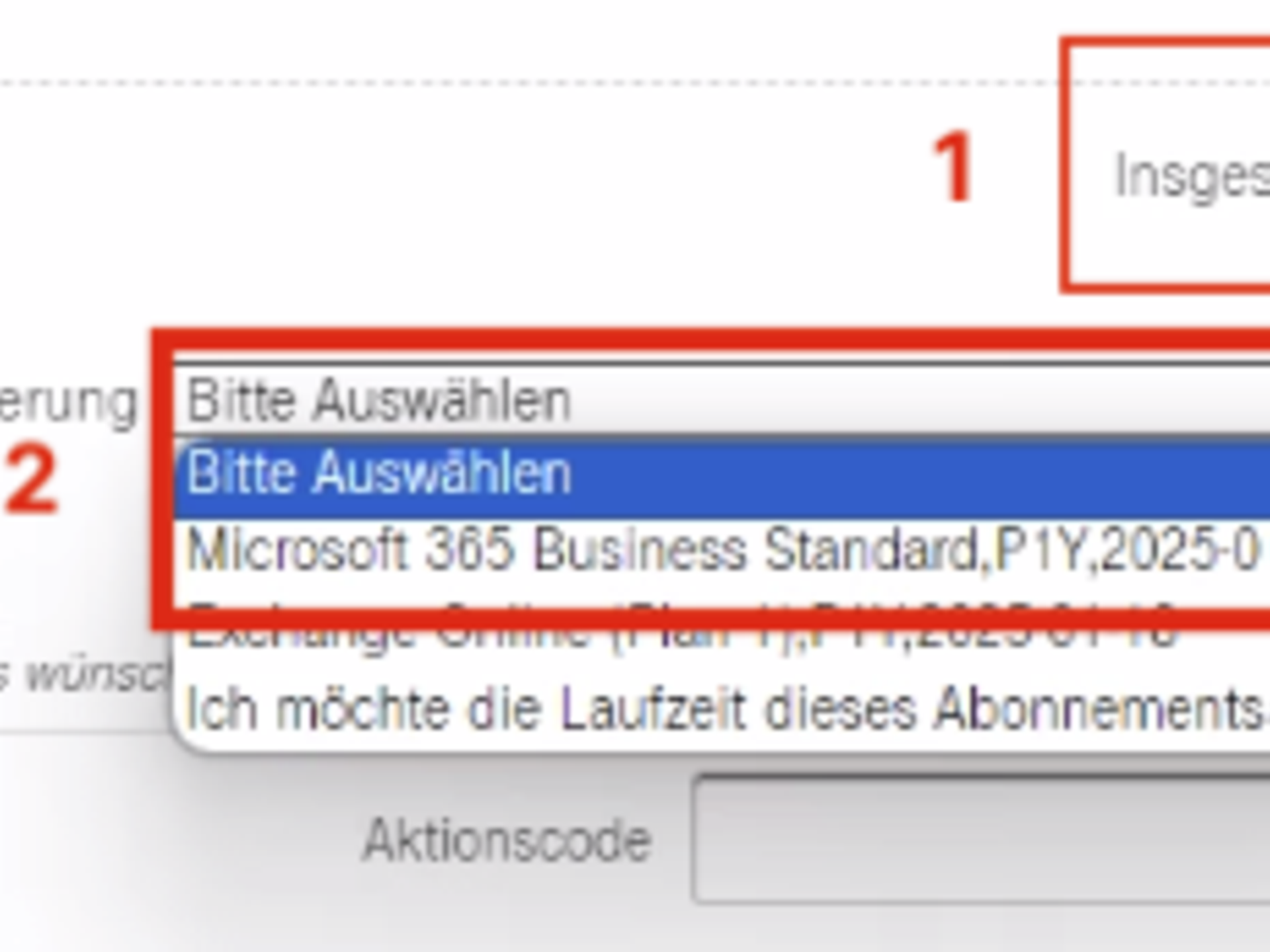
Step 5: Once the booking has been successfully completed, the licences will be made available to you via the Microsoft 365 Admin Centre, where you can assign them to your employees.
Alternatively, you can also have the add-on added to your Microsoft 365 subscription via your Telekom sales representative or Service, the Telekom support team.
If you want to add additional user licences to your Microsoft 365 Copilot subscription, you can do so easily and conveniently via your Telekom Cloud Marketplace account. Follow these steps to add new licences to your subscription:
Step 1: Log in to the Telekom Cloud Marketplace with the account that contains the Microsoft 365 Copilot subscription you want to add to.
Step 2: Navigate to the menu item My Cloud | Management | Account and then to the Products tab.
Step 3: Click 'Manage product' for your Microsoft 365 Copilot product.
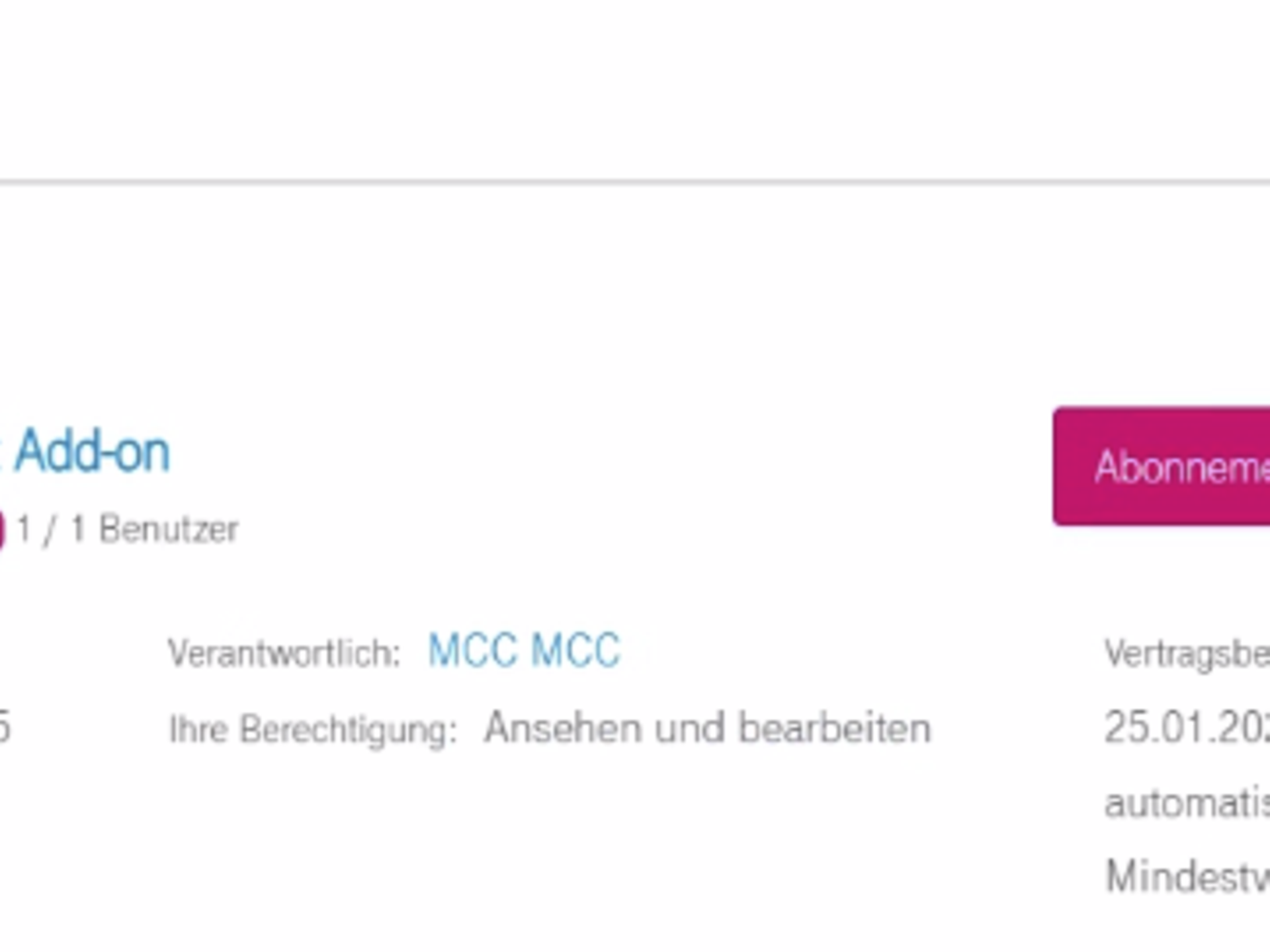
Step 4: For the subscription you wish to add to, switch to the "Update subscription" tab.
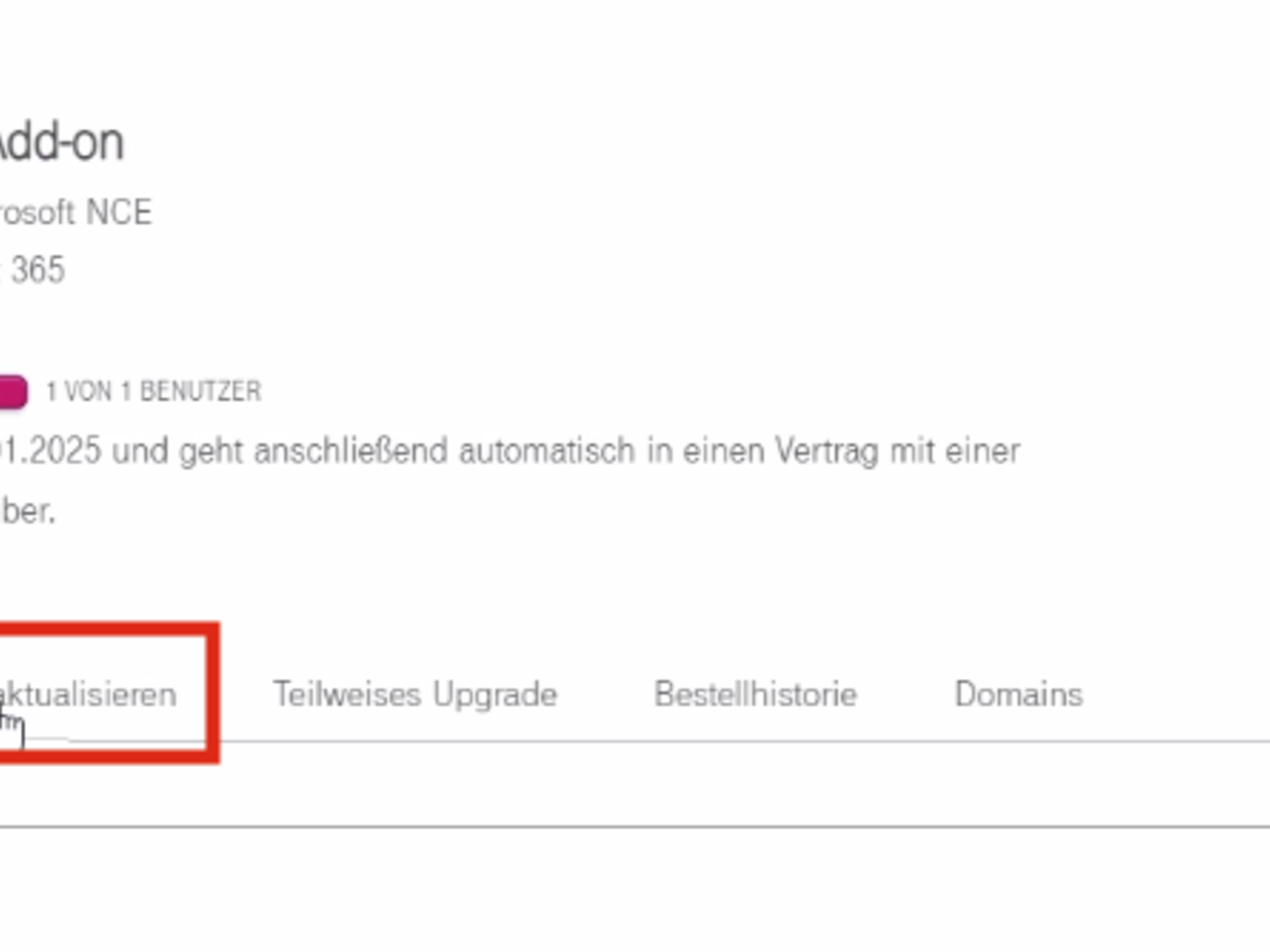
Step 5: In the "Update subscription" tab, you will find an overview of your current booking for the selected product. Under "Total users", you will find the number of licences you currently have booked.
Step 6: To add additional user licences, you must change the number of licences accordingly. For example, if you currently have 25 licences and now need 10 more licences, you must enter 35 (25 + 10) in the number of users field.
Note: Existing licences will be displayed as a "credit" during the purchase process because they have already been booked and invoiced. Only the newly added licences will be invoiced.
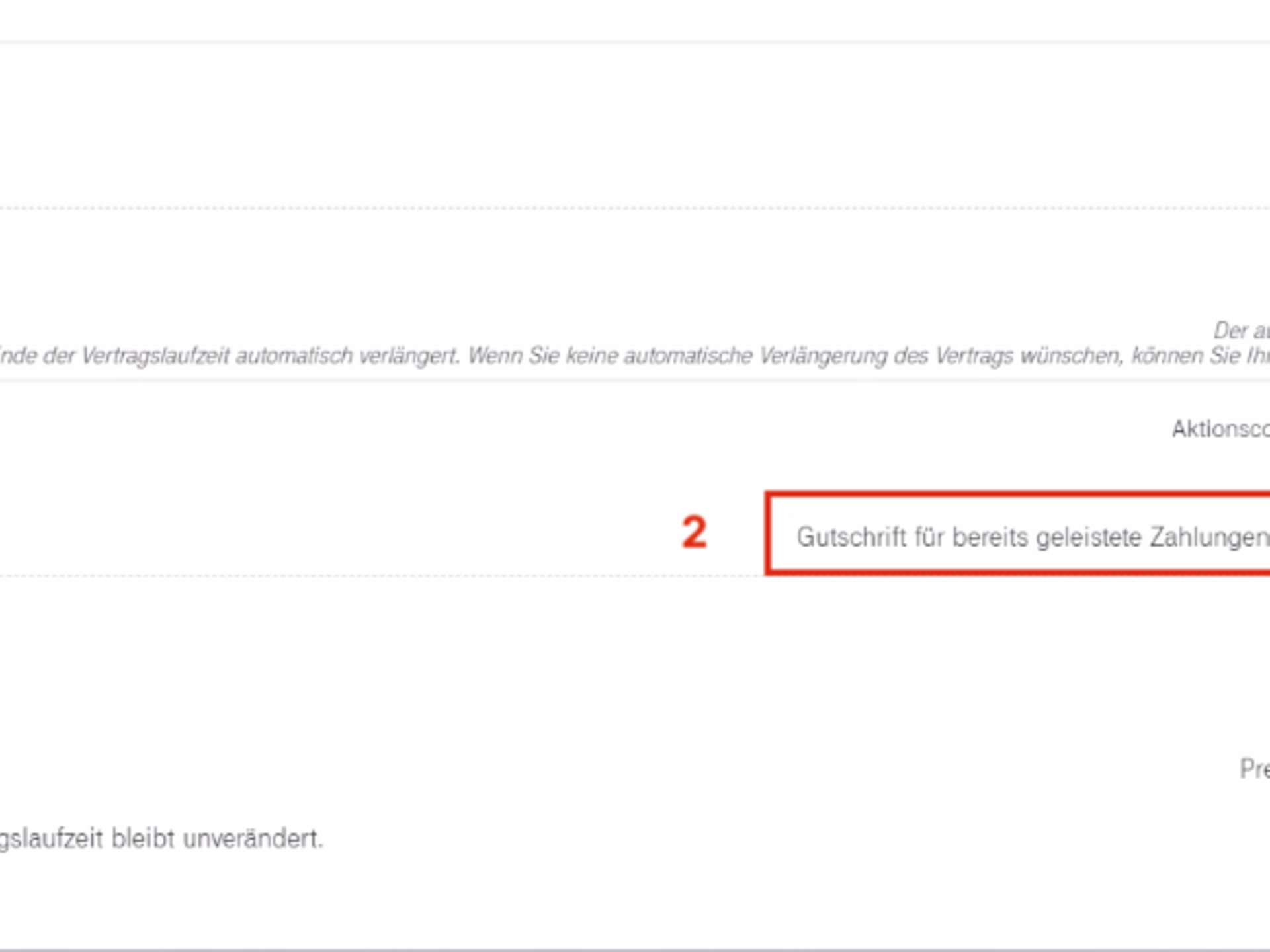
Step 7: Click Continue and follow the purchase process.
Alternatively, you can also have the additional licences added to your subscription via your Telekom sales representative or Services, the Telekom support team.
Step 8: Once the booking has been successfully completed, the additional licences will be made available to you via the Microsoft 365 Admin Centre, where you can assign them to your employees.
If you have purchased Microsoft Copilot for Microsoft 365 in the Telekom Cloud Marketplace, you have the option to upgrade your subscription to Microsoft Copilot for Sales or Microsoft Copilot for Service:
Step 1: Log in to the Telekom Cloud Marketplace with the account that contains the Microsoft Copilot for Microsoft 365 subscription you want to change.
Step 2: Navigate to the menu item My Cloud | My Products
Step 3: For the Microsoft Copilot for Microsoft 365 you have booked, click Settings | Manage product.
Step 4: Please select Update subscription from the tabs at the bottom.
Step 5: Under "Select the application you want to upgrade," you can select Microsoft Copilot for Sales or Microsoft Copilot for Service for the upgrade.
Step 6: You can then follow the normal booking process on the Telekom Cloud Marketplace and complete the upgrade.
According to Microsoft documentation, Microsoft 365 Copilot complies with existing data protection, security and compliance obligations towards Microsoft 365 customers, including the General Data Protection Regulation (GDPR) and the European Union (EU) data restriction. Microsoft provides detailed information on security, data protection and compliance in Microsoft 365 Copilot on this page..
According to Microsoft documentation, the permissions model in your Microsoft 365 tenant ensures that data is not accidentally disclosed between users, groups and tenants. Microsoft Copilot for Microsoft 365 only shows users the data they can access by using the same data access controls that are used in other Microsoft 365 services. For more information on this topic, see Microsoft's documentation. Microsoft has also has published further information on the topic of protecting customer data in the AI era in this blog post has published further information on the topic of protecting customer data in the AI era.
No, prompts, responses, and data accessed via Microsoft Graph are not used to train foundational LLMs, including those used by Microsoft Copilot for Microsoft 365.
The answers generated by Generative AI are not always 100% accurate. Although efforts are constantly being made to improve accuracy, it is important that users make their own assessment before sharing results with others. Microsoft Copilot for Microsoft 365 offers useful drafts and summaries to make your work easier – but Microsoft recommends reviewing the results generated by AI rather than automating tasks completely.
Copilot creates content based on language patterns found on the internet. Sometimes, the results may resemble existing internet content. Or, if several people ask Copilot the same question in the same way, it may generate the same or very similar content for everyone.
Microsoft Copilot for Microsoft 365 is managed via the Copilot page in the Microsoft 365 Admin Centre. On this page, you can check licensing, view current information and view additional resources. To view the Copilot page, you must have the role of global administrator.
The dashboard on the Copilot page provides access to important resources for effective use of Copilot, including the management of Copilot licences, such as assigning and revoking licence assignments for users. You can assign licences to both individual users and user groups. For more information about assigning licences in the Microsoft Admin Centre, see the Microsoft documentation.
There are a few requirements for the smooth operation of Microsoft Copilot for Microsoft 365:
Additional requirements include the need for a OneDrive account for certain Copilot features and the use of the new version of Outlook (for Windows and Mac) in order to use Copilot in Outlook (in future, it should also be possible to use the "old" version of Outlook). Microsoft Teams requires configuration in the Admin Centre, and Copilot in Teams requires the activation of transcriptions or meeting recordings.
Integrations with other services such as Microsoft Loop and Whiteboard require separate activations in the Admin Centre. Network requirements should be adapted to the principles of Microsoft 365 network connectivity to ensure an optimal Copilot experience.
It should also be noted that Copilot services establish connections to specific Microsoft 365 endpoints. It is therefore recommended that the network be aligned with Microsoft 365 network connectivity principles. WebSocket connections must be allowed, especially for Copilot experiences in applications such as Excel, Word, PowerPoint, Teams, and Loop.
The requirements are explained in detail in the documentation at Microsoft.
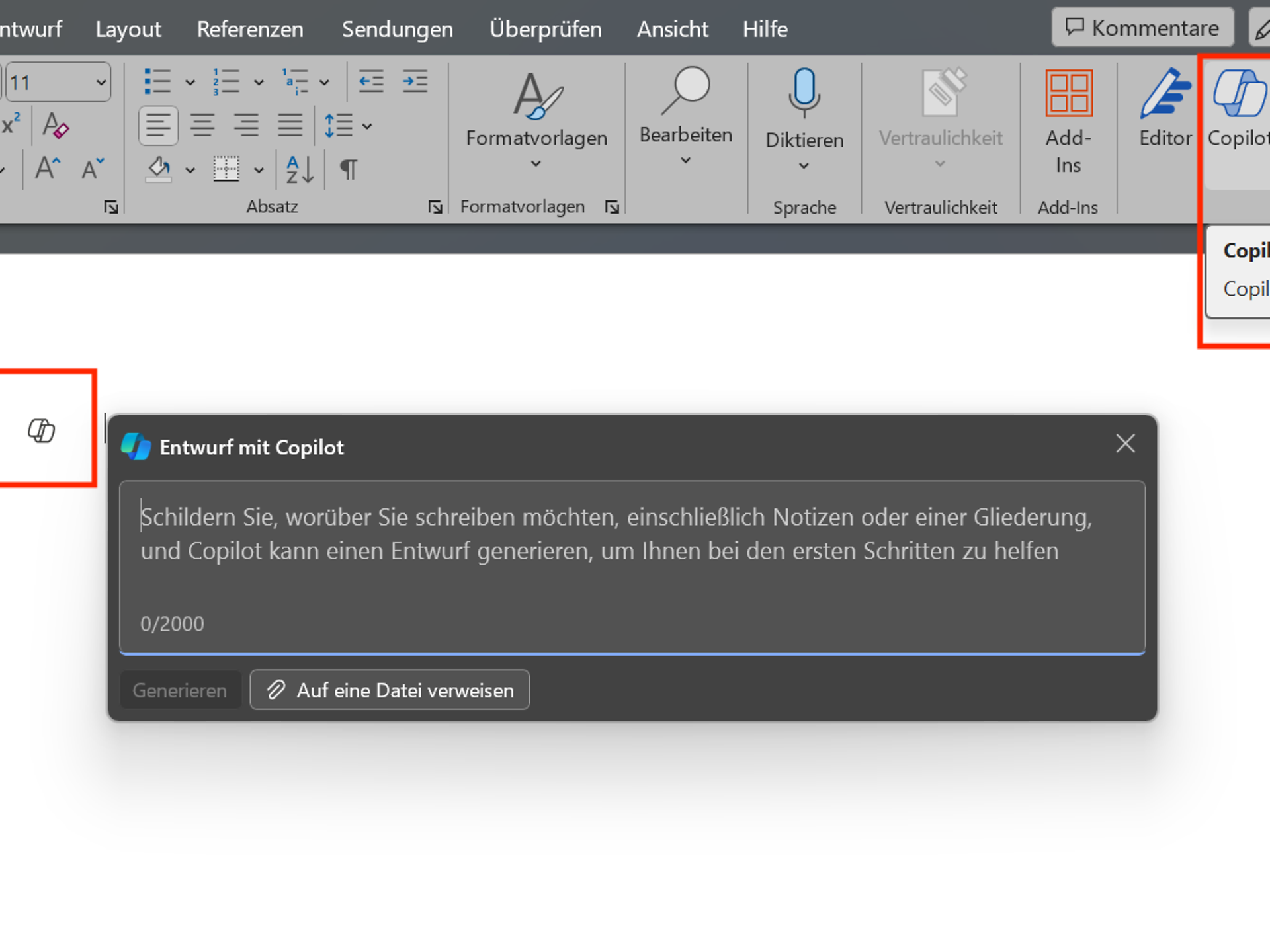
Copilot offers you the following options within Word, among others:
In Word, you can access Microsoft 365 Copilot both via the ribbon and in your document. A window will then open where you can enter your prompt.
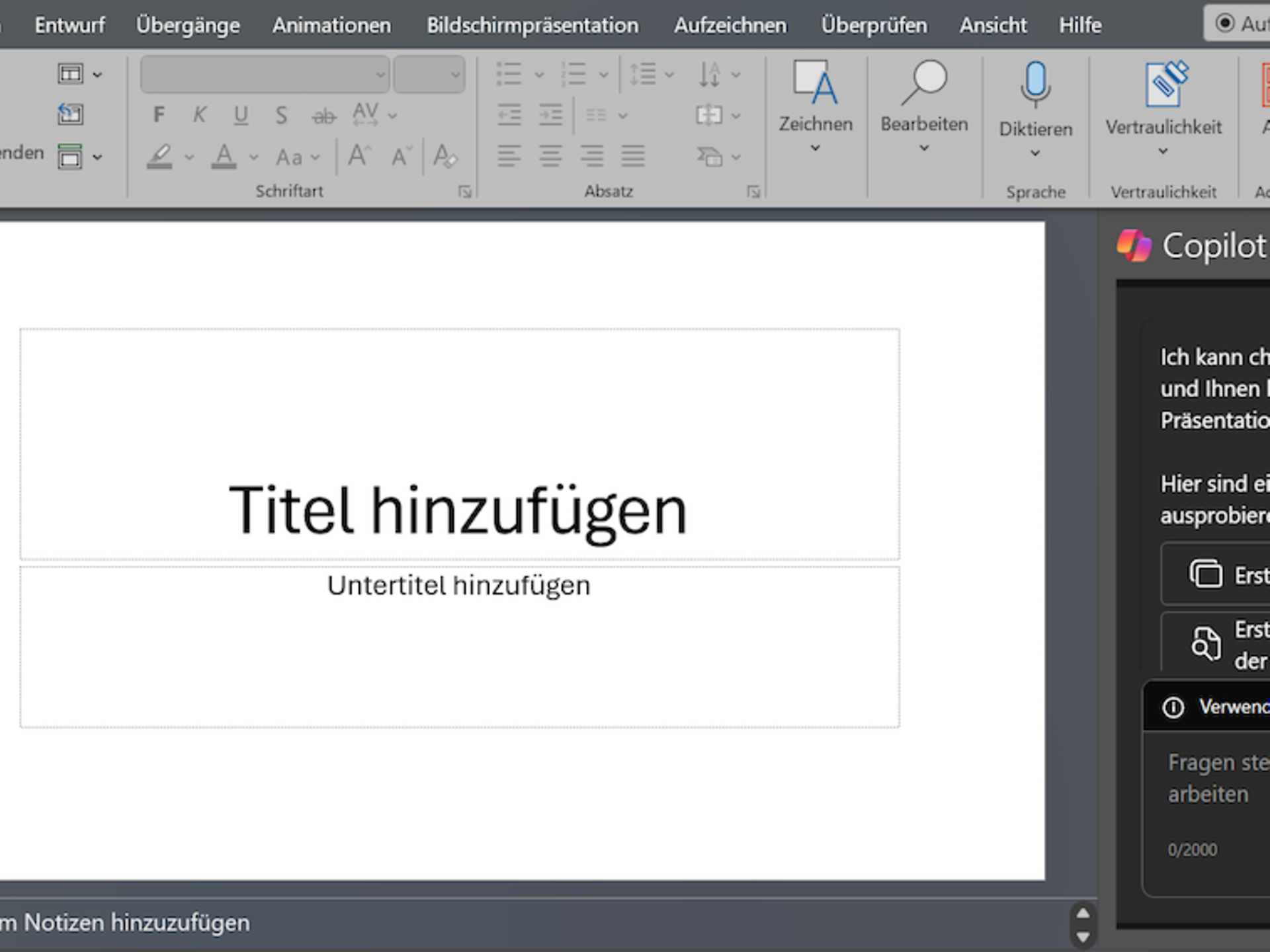
Copilot offers you the following options within PowerPoint, among others:
In PowerPoint, you can access Copilot via the ribbon, which will open a separate area to the right of your presentation.
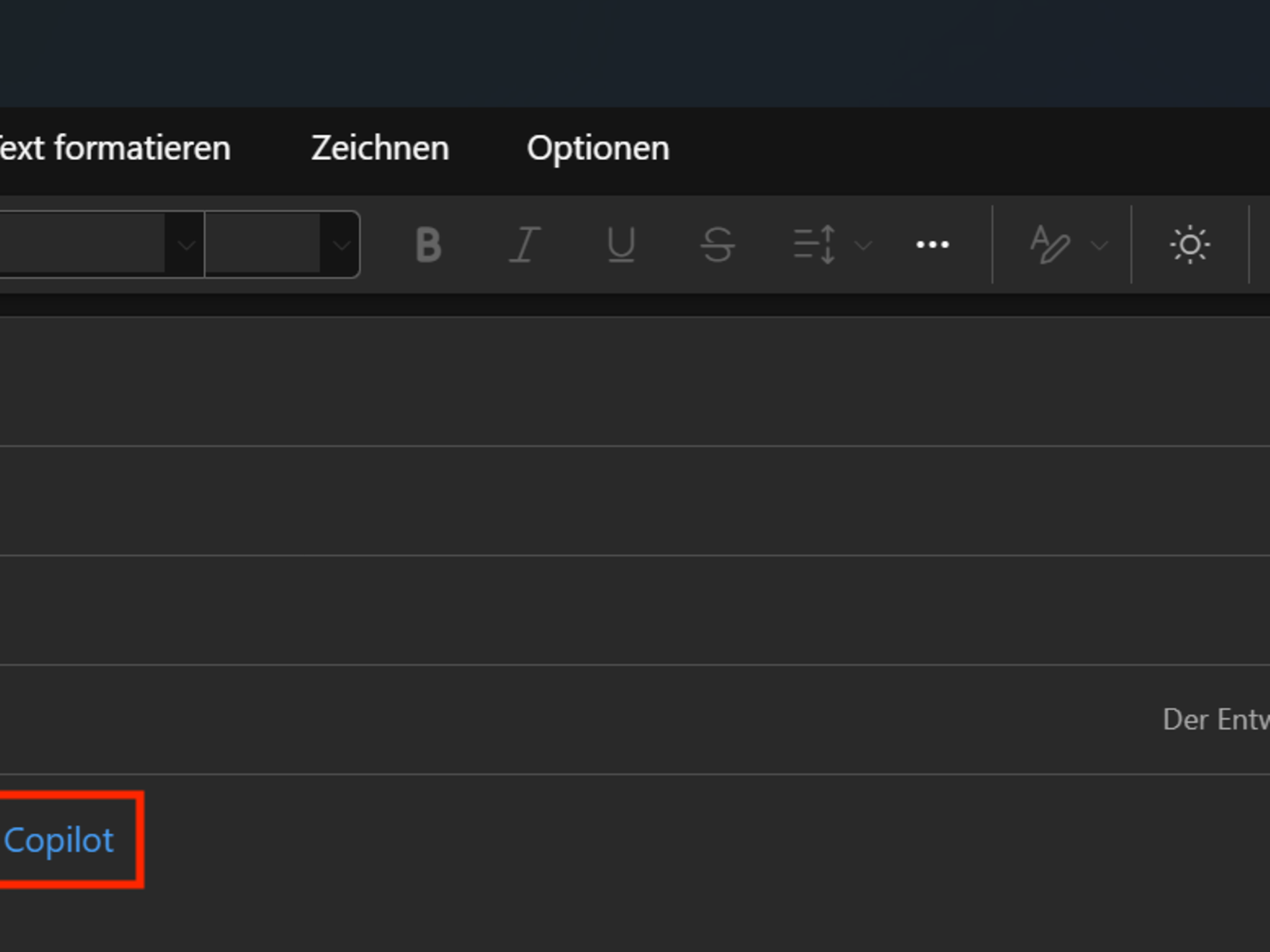
Copilot offers you the following options within Outlook, among others:
Copilot offers you the following options within Excel, among others:
Copilot offers you the following options within Microsoft Teams, among others:
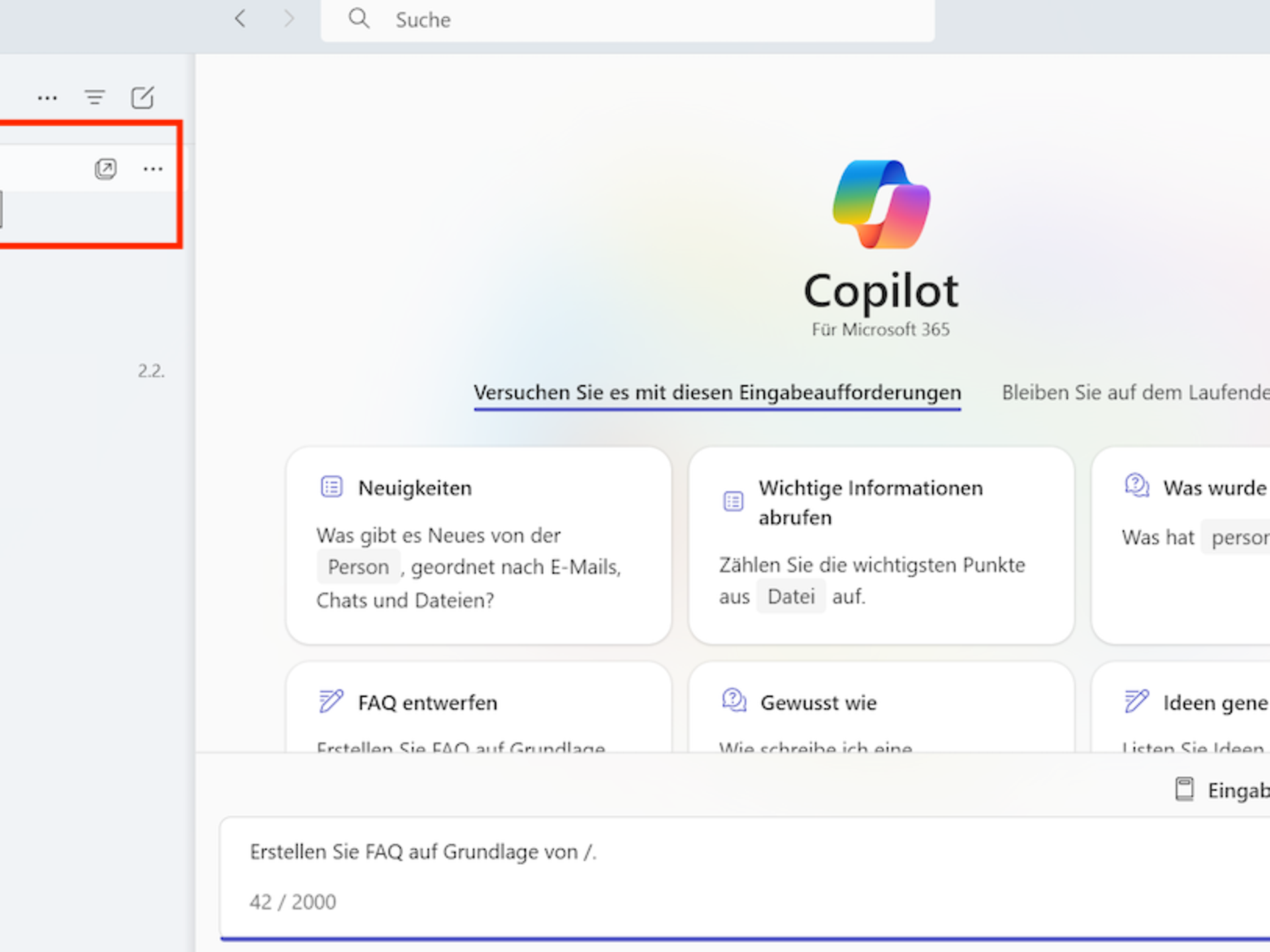
In Microsoft Teams, you have your own chat where you can communicate with Microsoft 365 Copilot. If Microsoft Copilot is used during an online meeting, for example, all participants will be informed about Copilot's activity.
Copilot offers you the following options within Whiteboard, among others:
Copilot offers you the following options within OneNote, among others:
Prompts are how you ask Microsoft Copilot to do something for you—such as create, summarise, edit, or convert. Think of prompts as a conversation. Use simple but clear language and provide context, just as you would with an assistant. Keep these four points in mind:
You can accept Copilot's answers as they are or adjust them at any time. You also have the option of providing feedback on the result and asking Copilot to revise it. As a general rule, you should check all content created by AI for plausibility and accuracy.
Nutzen Sie hier unsere weiteren Kontaktkanäle, um Ihr Anliegen zu lösen.


We are glad we could help!
Please feel free to use our contact channels at any time so that we can resolve your issue.