Telephone contact
You can reach us by telephone at any time.

You can purchase various software-as-a-service solutions for your company or business via the Telekom Cloud Marketplace. These include offerings from Telekom as well as solutions from other providers such as Microsoft, Adobe and Cisco. On this page, you will find the most important information about setting up and managing your account in the Marketplace.
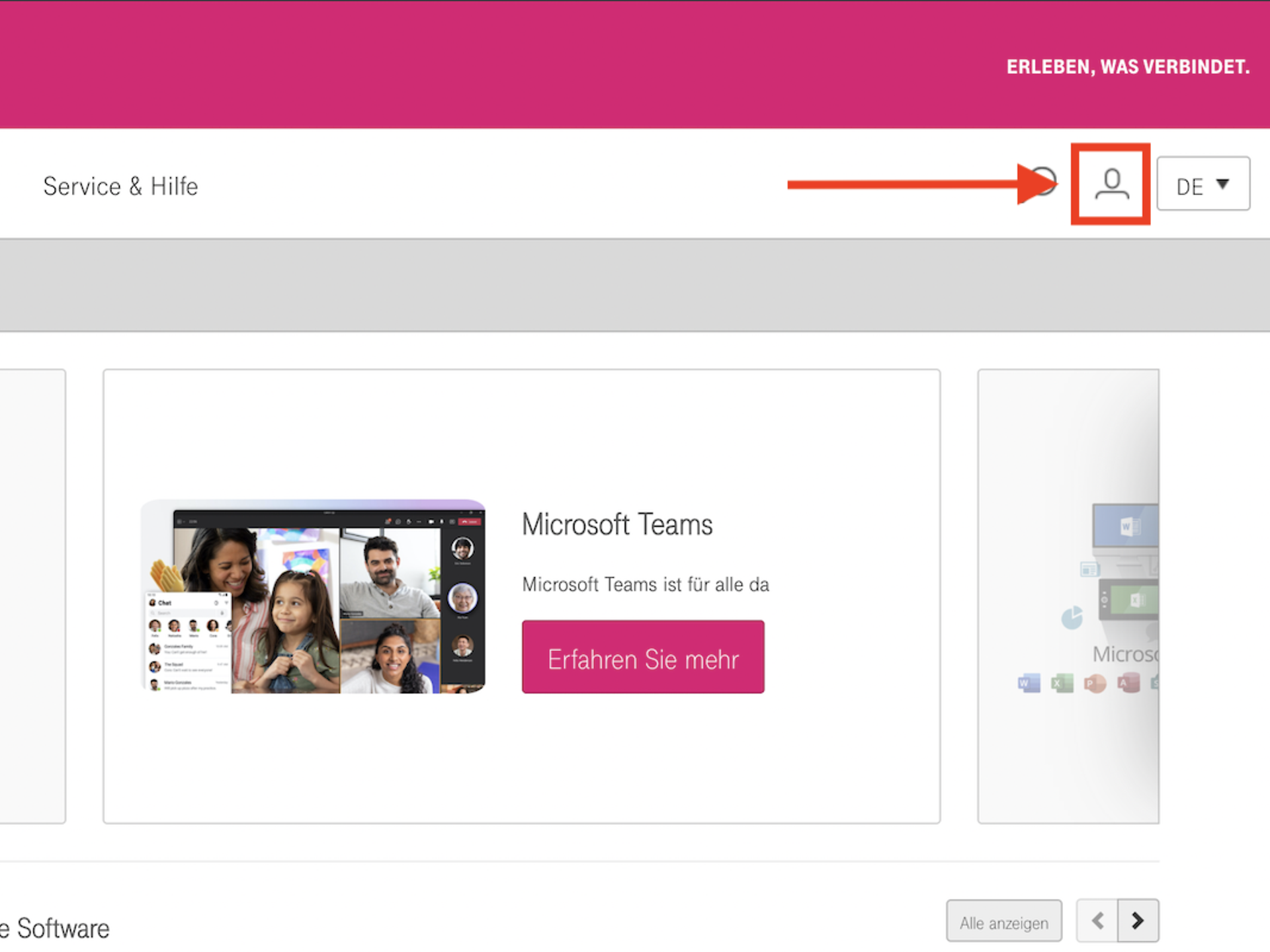
To use the Telekom Cloud Marketplace, you must first create an account. We explain the three steps required to do this on this page. If you are already on the Telekom Cloud Marketplace at the URL https://apps.telekomcloud.com/, you can access the registration page by clicking on the person icon in the top right-hand corner.
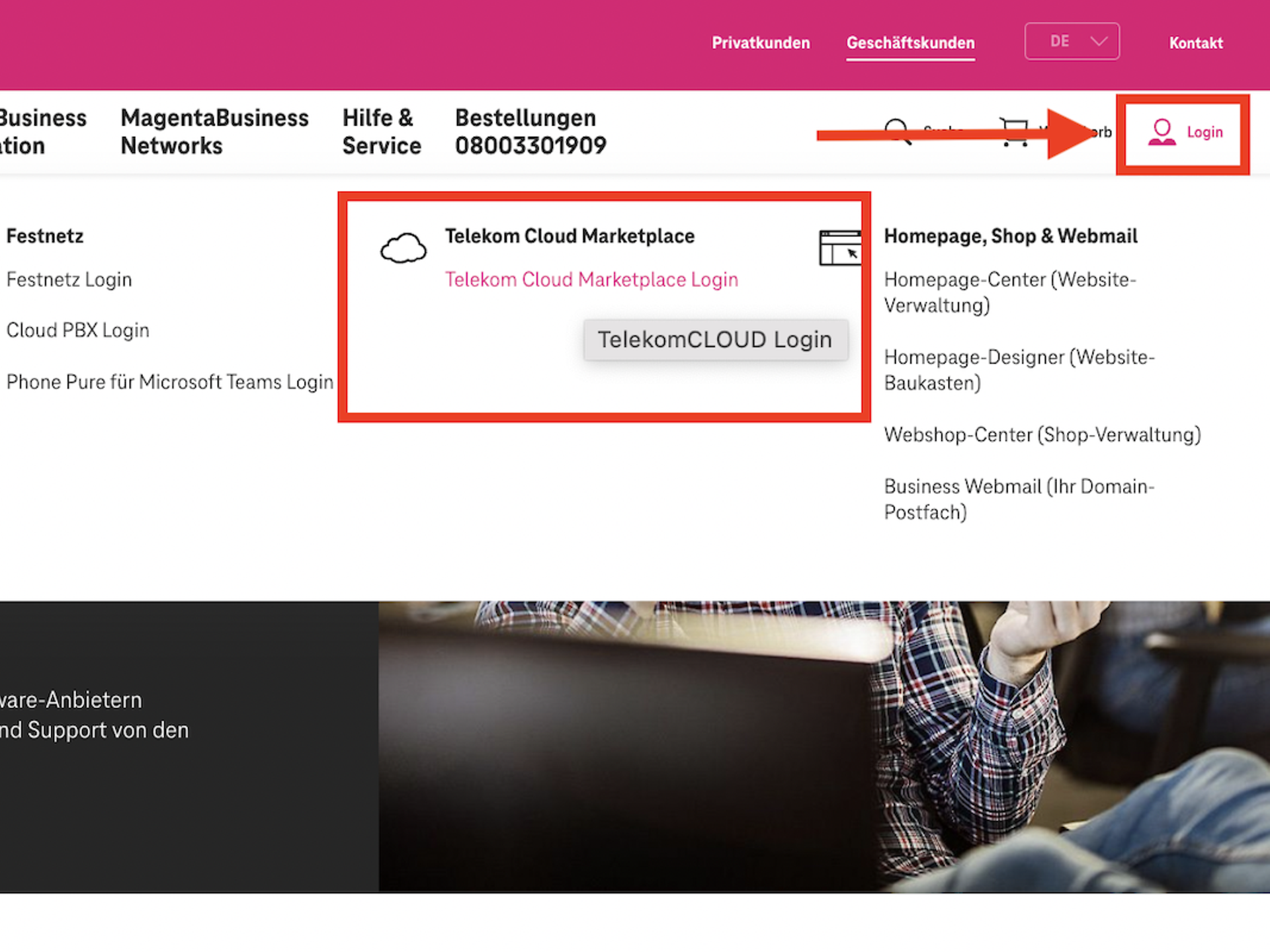
Alternatively, you can also start the registration process when you are on the Telekom business customer portal. To do this, click on the login symbol in the top right-hand corner. Then select "Telekom Cloud Marketplace Login" from the drop-down menu.
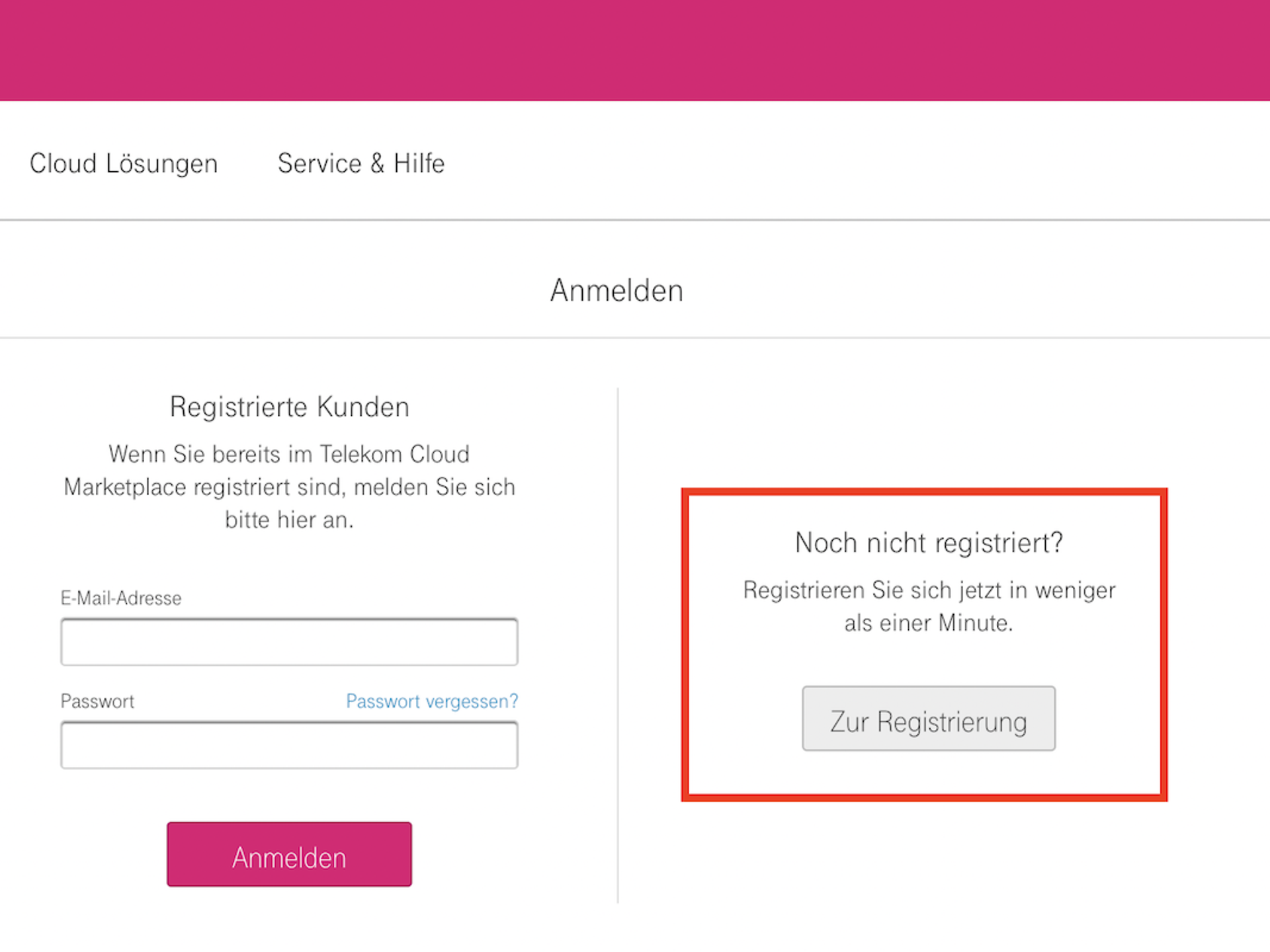
You can then register for the Telekom Cloud Marketplace via either method by clicking on "Start registration".
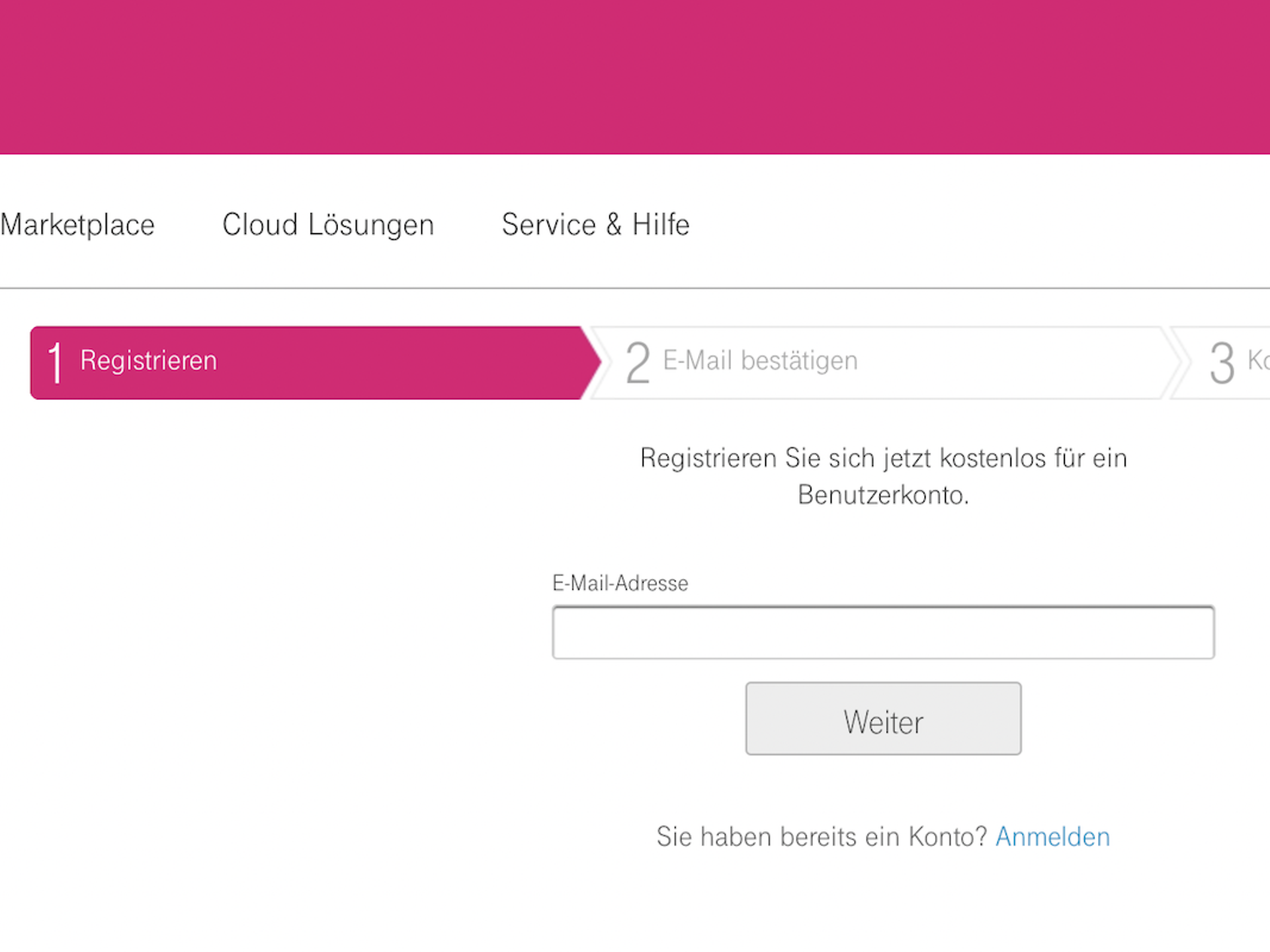
Step 1: Next, enter your e-mail address. This e-mail address will then be the main e-mail address for administering your account for the Telekom Cloud Marketplace. The e-mail address can also be changed later via the administration options in the portal.
Step 2: You will then receive an e-mail at the address you provided and will need to verify your account. To do so, please click on the link in the e-mail that says "Click here to complete your free registration".
Step 3: Back in the portal, you must now provide information about yourself and your company or business. Your surname and first name, company name and telephone number are mandatory. You will also need to choose a password at this point. Click on "Set up account" to complete the registration process.
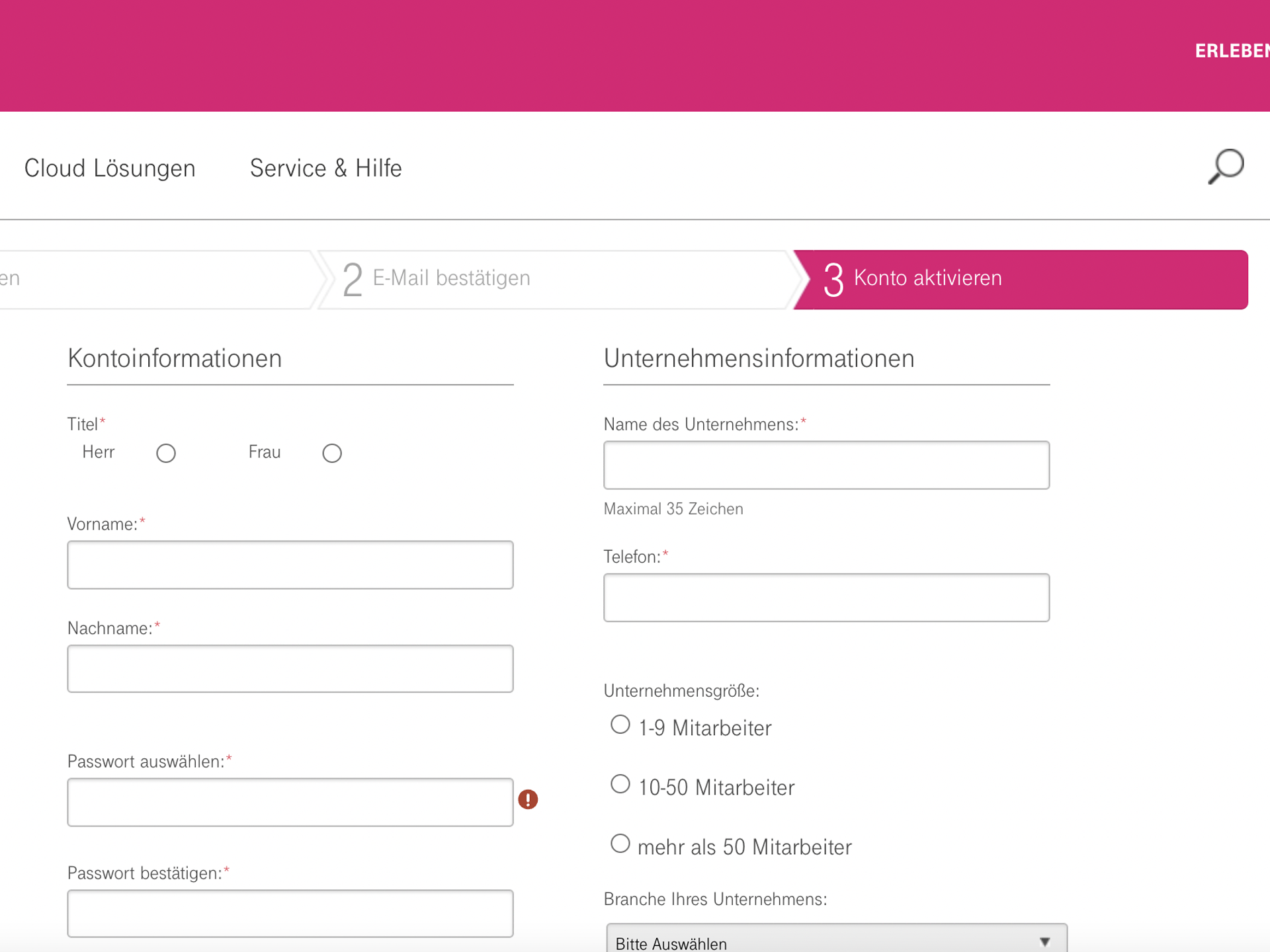
The account you set up automatically becomes the company administrator with all account permissions. After successful registration, you can add additional users, company administrators and billing administrators. Payment method details and other information about the company or individual persons can also be added or modified after registration.
Please note: The Telekom Cloud Marketplace is intended solely for professional purchases. As a user, you confirm that the services will be used exclusively for commercial, professional or business purposes.
To purchase products or services on the Telekom Cloud Marketplace, you must set up a payment method in your account. In this FAQ, we explain the steps you need to take to set up a payment method or change an existing one.
Log in to the Telekom Cloud Marketplace with your account. It is important that this is an account with "company administrator" or "billing administrator" rights.
To access the payment methods section, click on the cloud icon in the navigation bar and select Administration. Another navigation bar will appear on the next page. There you will find a link to the payment methods under both Overview and Invoice. In both sections, the link is located on the left-hand side.
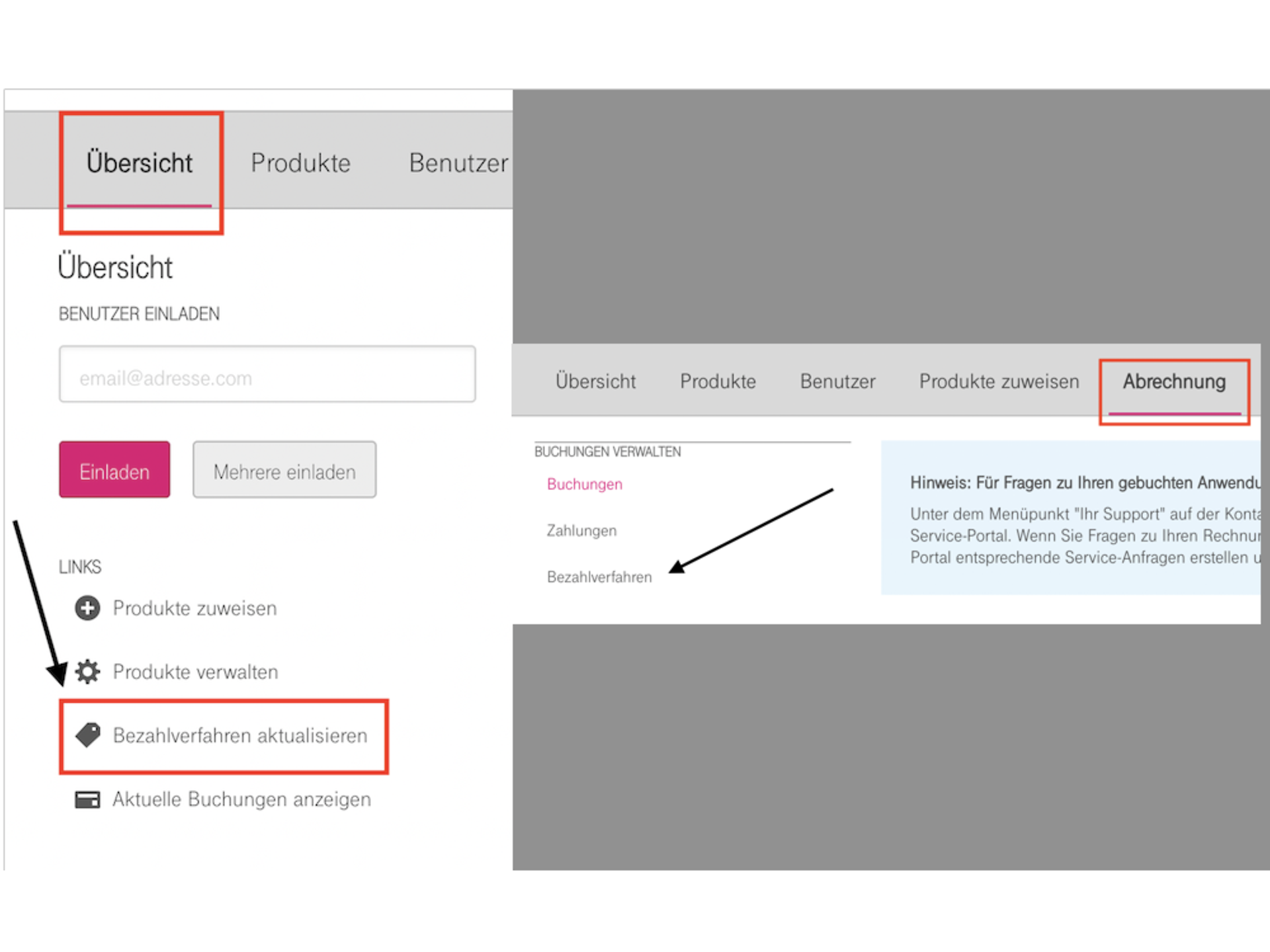
Illustration: On the left-hand side, you will find a link to the payment methods.
On the page that opens, you can then select your preferred payment method. There are five different payment methods available for products booked on the Telekom Cloud Marketplace:
Telekom
billAs a business customer with an existing Telekom landline contract, you can have solutions from the Telekom Cloud Marketplace billed directly to your Telekom bill.
Telekom mobile phone
billAs a business customer with an existing Telekom mobile phone contract (postpaid), you can have the solutions from the Telekom Cloud Marketplace billed directly to your Telekom mobile phone bill.
Credit
cardYou can also pay for your purchases in the Telekom Cloud Marketplace by credit card – Visa, MasterCard, Diners Club/Discover Card and JCB are accepted.
PayPalYou
can conveniently pay for your Telekom Cloud Marketplace solutions via PayPal. Payment will then be processed using the payment method you have registered with PayPal (direct debit, giropay, credit card or PayPal balance).
Direct
debitYou can have your bills debited directly from your account as a SEPA direct debit (subject to a positive plausibility and credit check).
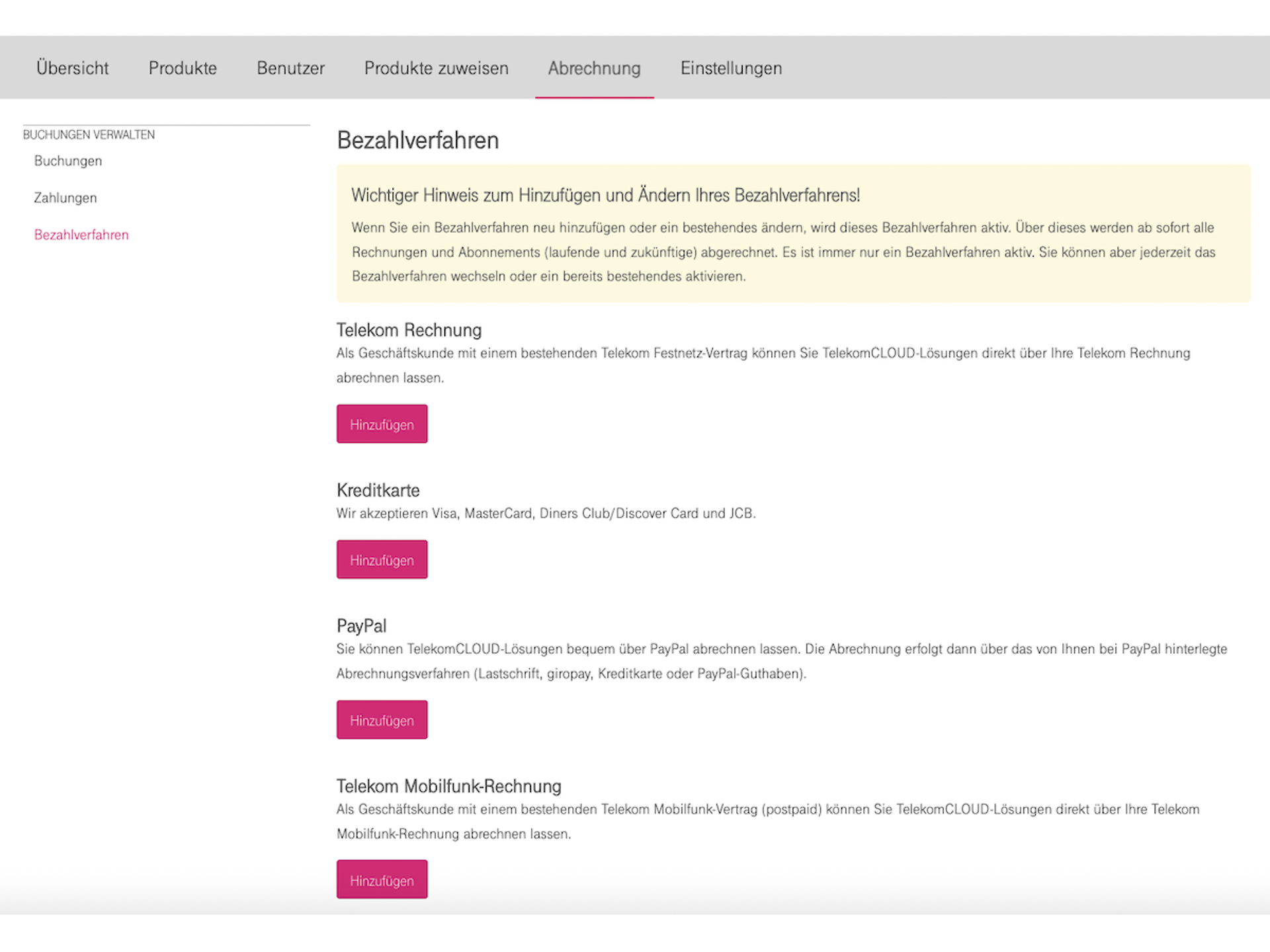
Illustration: Select the desired payment method and enter the required information.
Select the payment method that suits you best. Depending on the payment method, you will then need to fill out the corresponding form. Enter the required information and click on Activate to confirm. You have now set up your payment method.
Important note: If you add a new payment method or change the existing payment method, the new payment method will become active immediately – all invoices and subscriptions (current and future) will then be billed using this method. Only one payment method can be used at a time. You can change the payment method or reactivate a previously used method at any time.
Create payment methods in the booking process
Alternatively, you can also set up the payment method during the initial booking process. For example, if you want to purchase "Microsoft 365 Business Basic", first specify the number of licences and then click Continue.
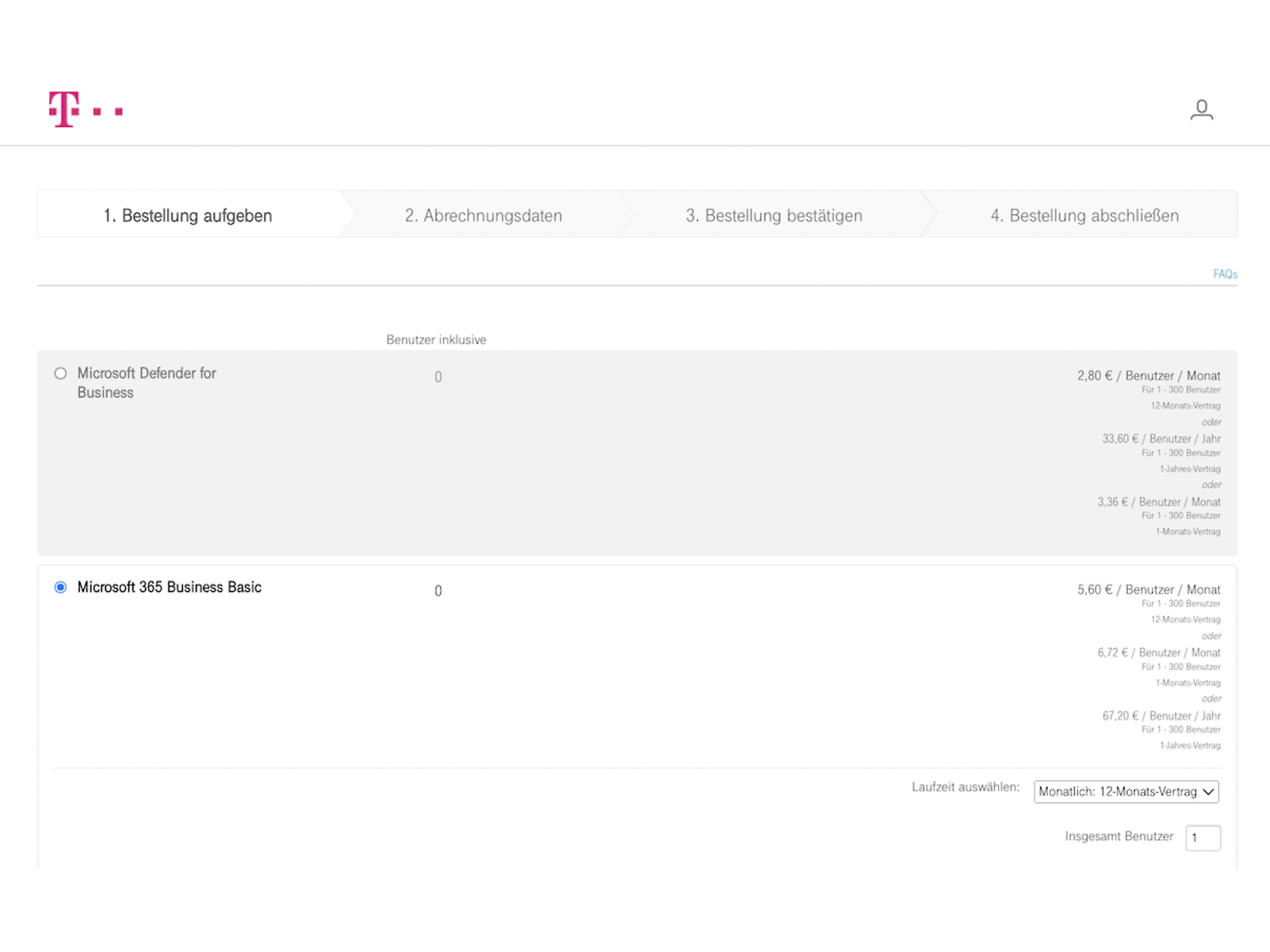
Figure: Specify the number of licences you require and click Continue.
You will then be taken to the "Billing details" section. Here, you can also choose between the five payment methods and enter the missing details according to your selection before continuing with the booking process. The billing details you provide will then be stored in your account.
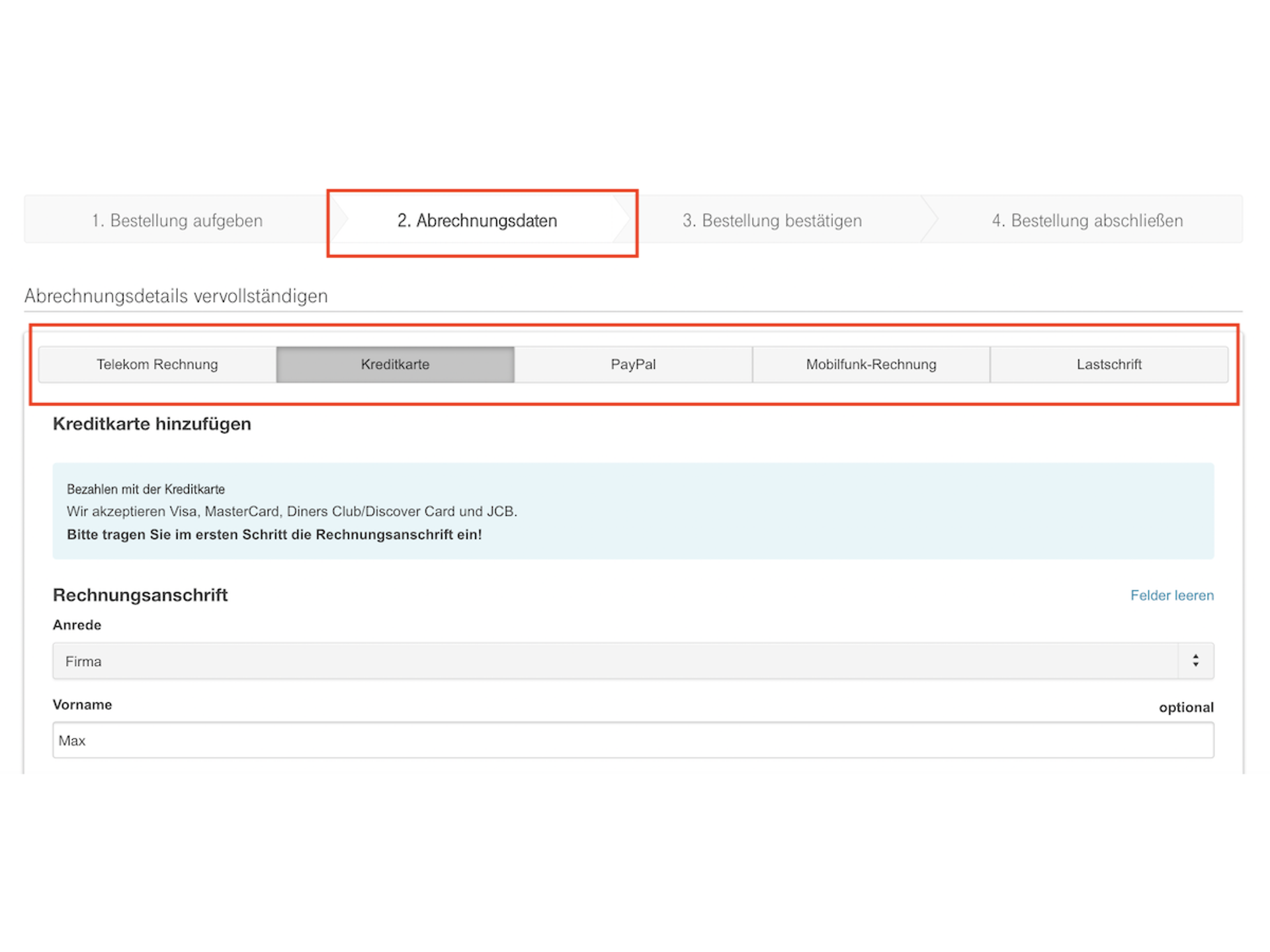
Illustration: Select your payment method and enter the details.
Further information on invoices and payment methods can be found in the FAQ: "Frequently asked questions about invoices".
Do you already have an account on the Telekom Cloud Marketplace? If you are a company administrator, you can make changes to your company details. You can find out how to do this in this FAQ.
Log in to the Telekom Cloud Marketplace with your account. You can then enter or make changes to your company details in three places.
General information about the company
: In the menu under your user name, go to "My company".
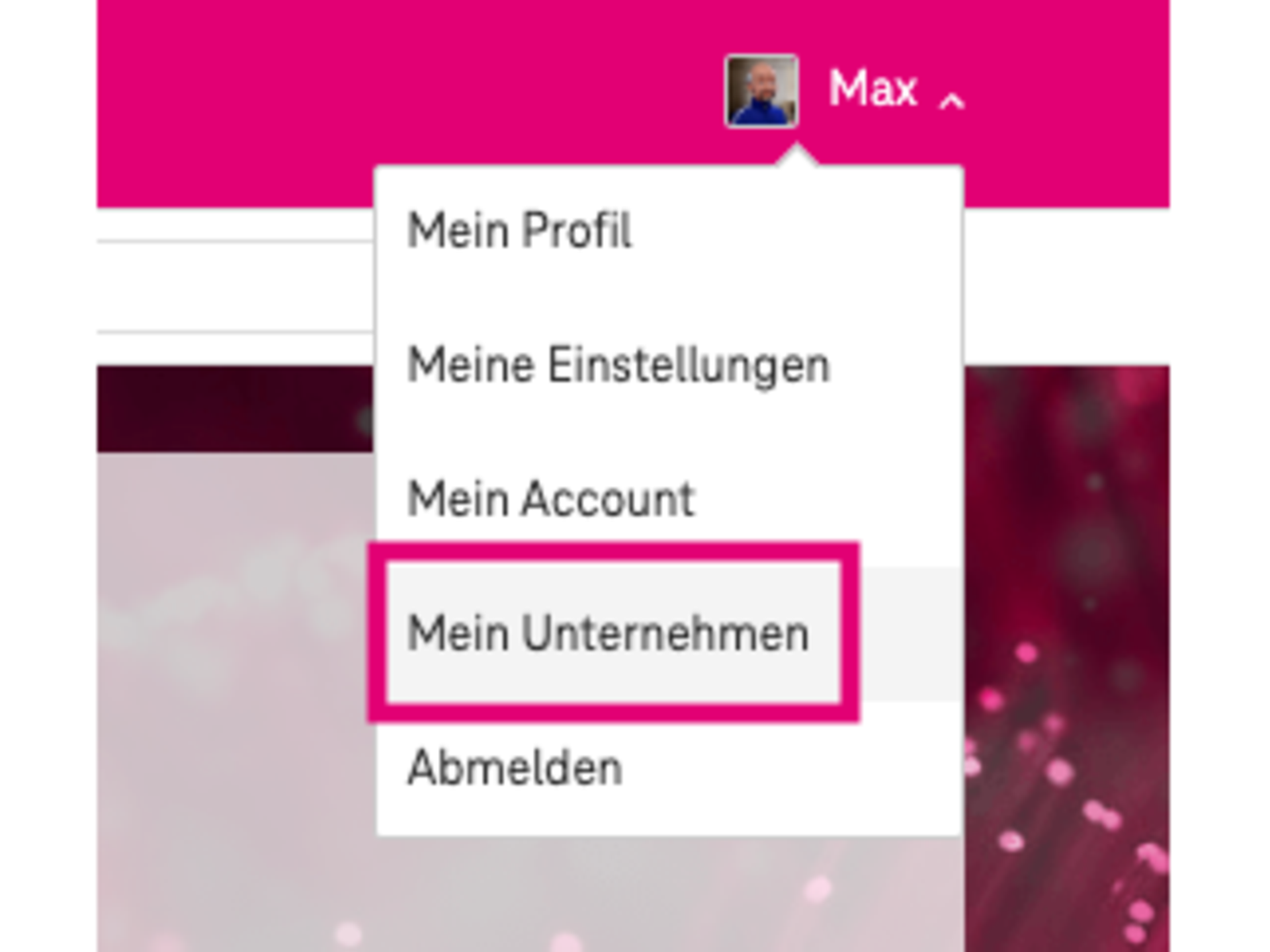
Illustration: Select the menu item "My company".
On the page that opens, you can enter various details about your company or business. This includes background information such as a description, industry and other details. You can also enter your company's contact information such as telephone number, email address, website and address. These can be easily edited and changed by clicking on Edit.
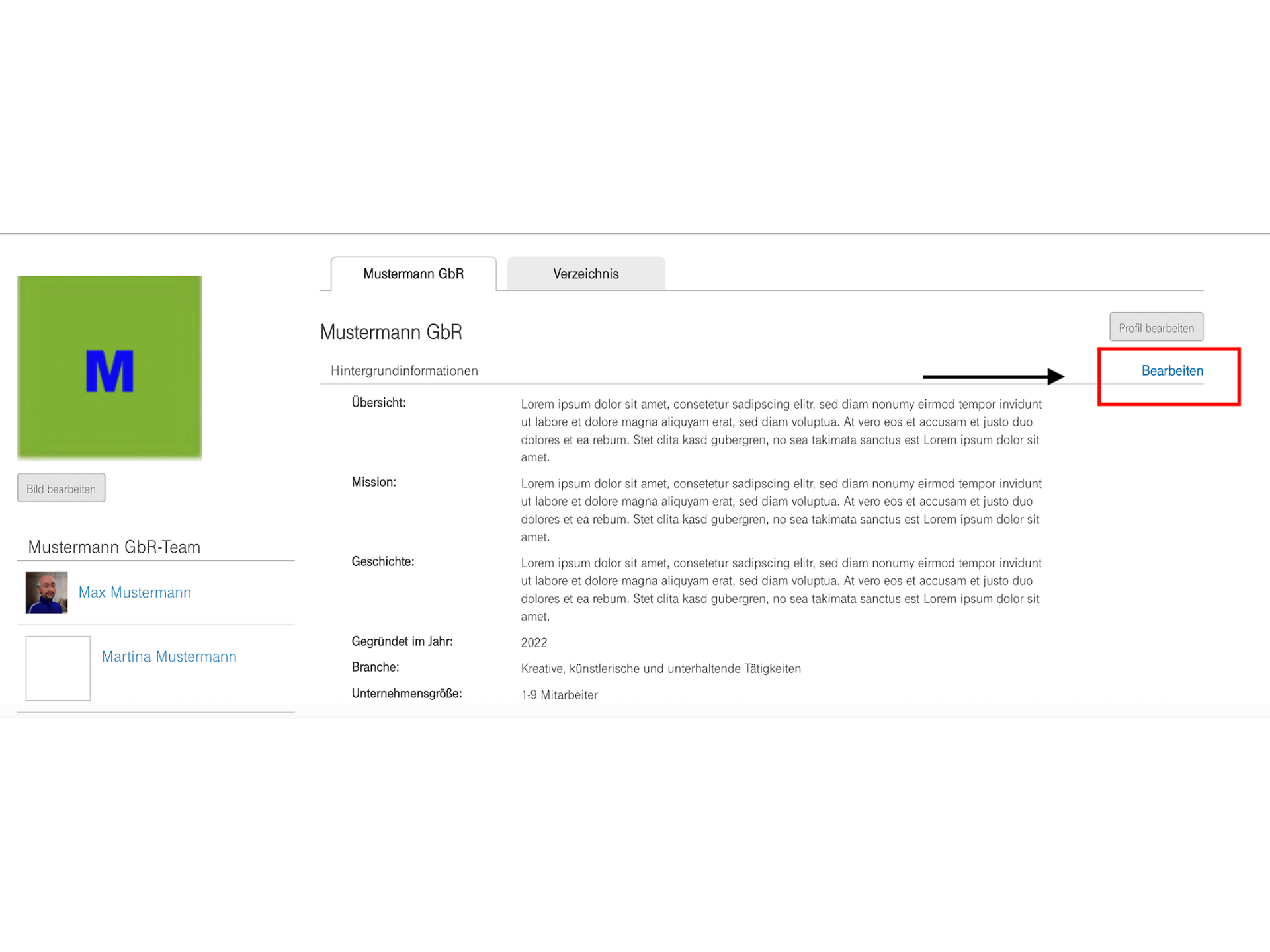
Illustration: On this page, you can enter general information about your company.
Company settings: Company name, payment methods and moreYou can
also enter additional information about your company. This includes password requirements, company name, access for sales partner employees and payment methods.
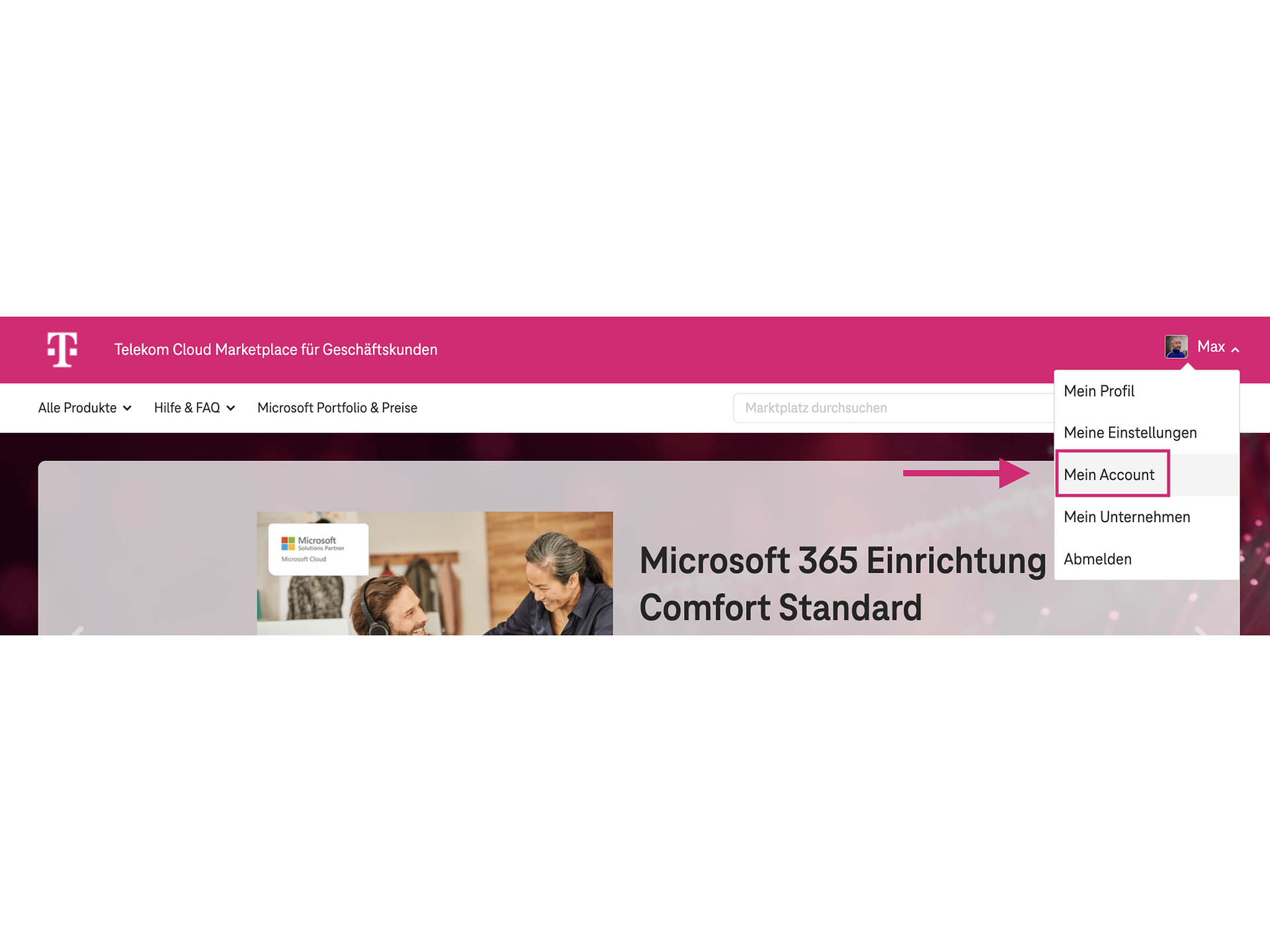
To access the company settings area, click on your name in the navigation bar and select 'My Account'.
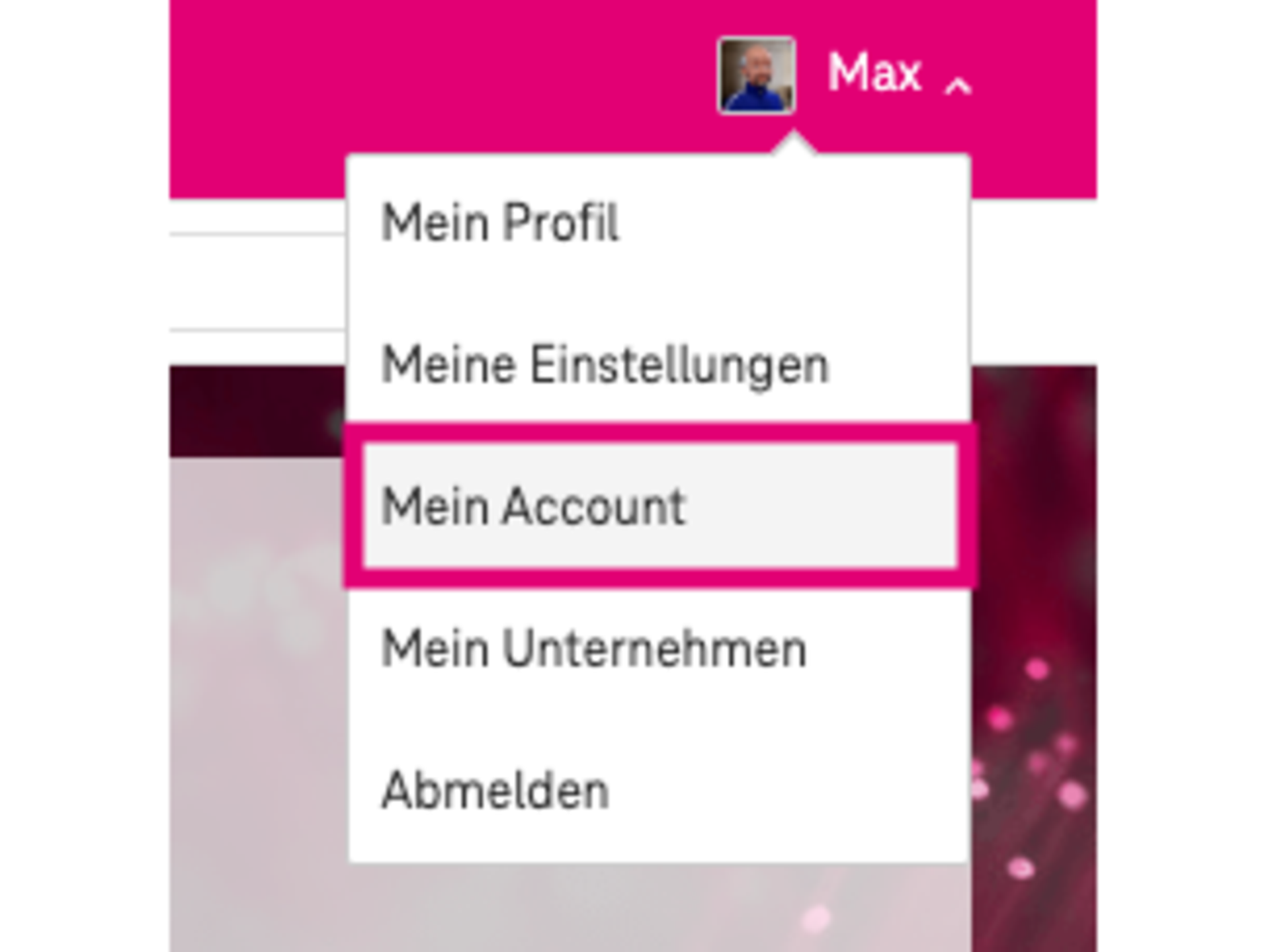
Figure: Navigate to the menu item "My Account".
You will then see another navigation bar with several items. Under the last item, "Company settings", you can configure various settings.
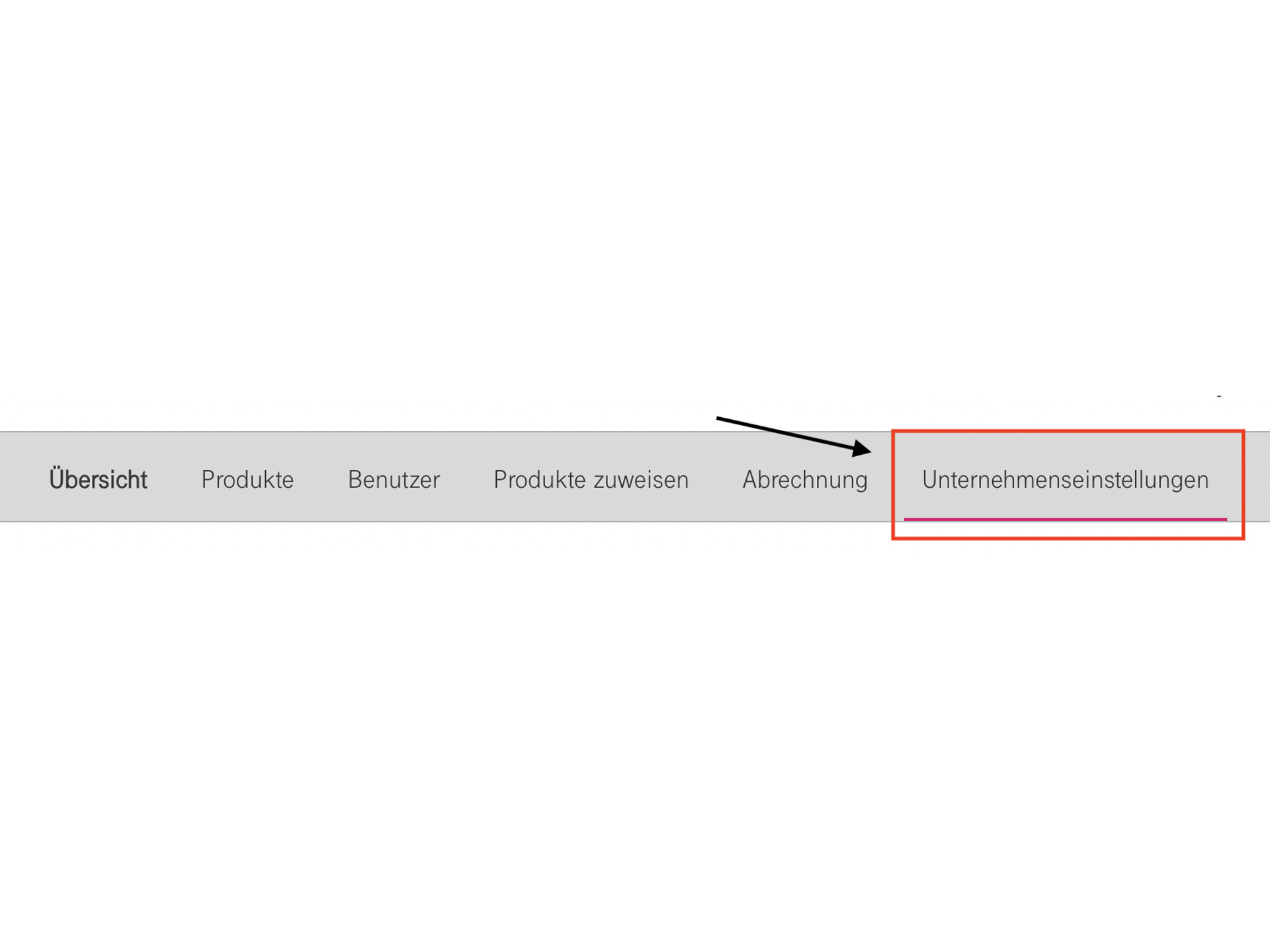
Figure: Go to "Company settings".
These three settings are possible:
Do you already have an account on the Telekom Cloud Marketplace? If you are a company administrator, you can make changes to your company details. You can find out how to do this in this FAQ.
Log in to the Telekom Cloud Marketplace with your account. You can then enter or make changes to your company details in three places.
General information about the company
: In the menu under your user name, go to "My company".
Illustration: Select the menu item "My company".
On the page that opens, you can enter various details about your company or business. This includes background information such as a description, industry and other details. You can also enter your company's contact information such as telephone number, email address, website and address. These can be easily edited and changed by clicking on Edit.
Illustration: On this page, you can enter general information about your company.
Company settings: Company name, payment methods and moreYou can
also enter additional information about your company. This includes password requirements, company name, access for sales partner employees and payment methods.
To access the company settings area, click on your name in the navigation bar and select 'My Account'.
Figure: Navigate to the menu item "My Account".
You will then see another navigation bar with several items. Under the last item, "Company settings", you can configure various settings.
Figure: Go to "Company settings".
These three settings are possible:
If you already have an account in the Telekom Cloud Marketplace, your company has been stored there. You now have the option of granting other employees access to the software subscriptions you have purchased – this can be particularly important for larger companies. As an administrator, you can do this easily in just a few steps:
1) Log in to the Telekom Cloud Marketplace with an administrator account.
2) Go to the "My Account" section.
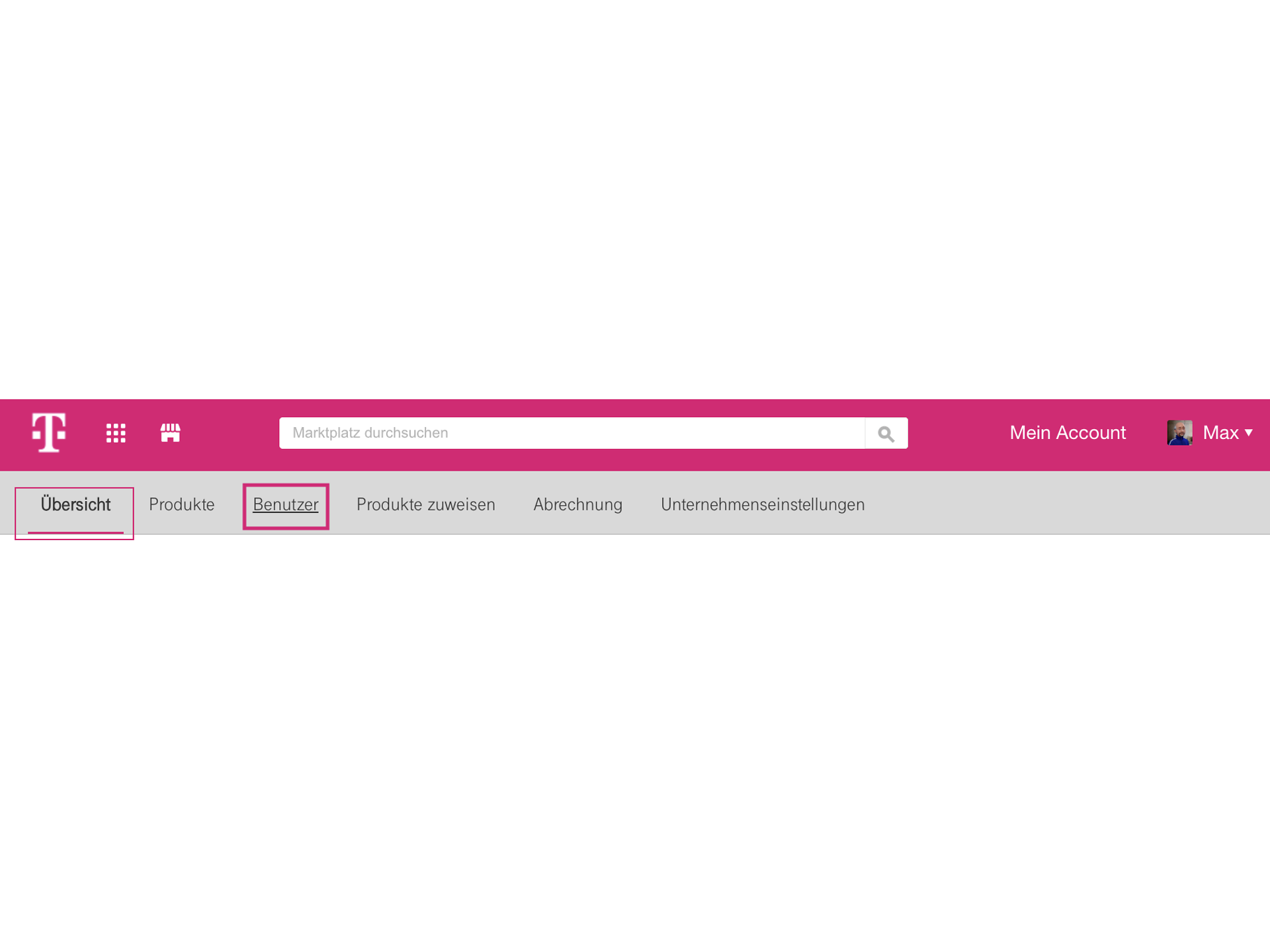
3) You then have two options for adding new users – either in the "Overview" tab or in the "Users" tab.
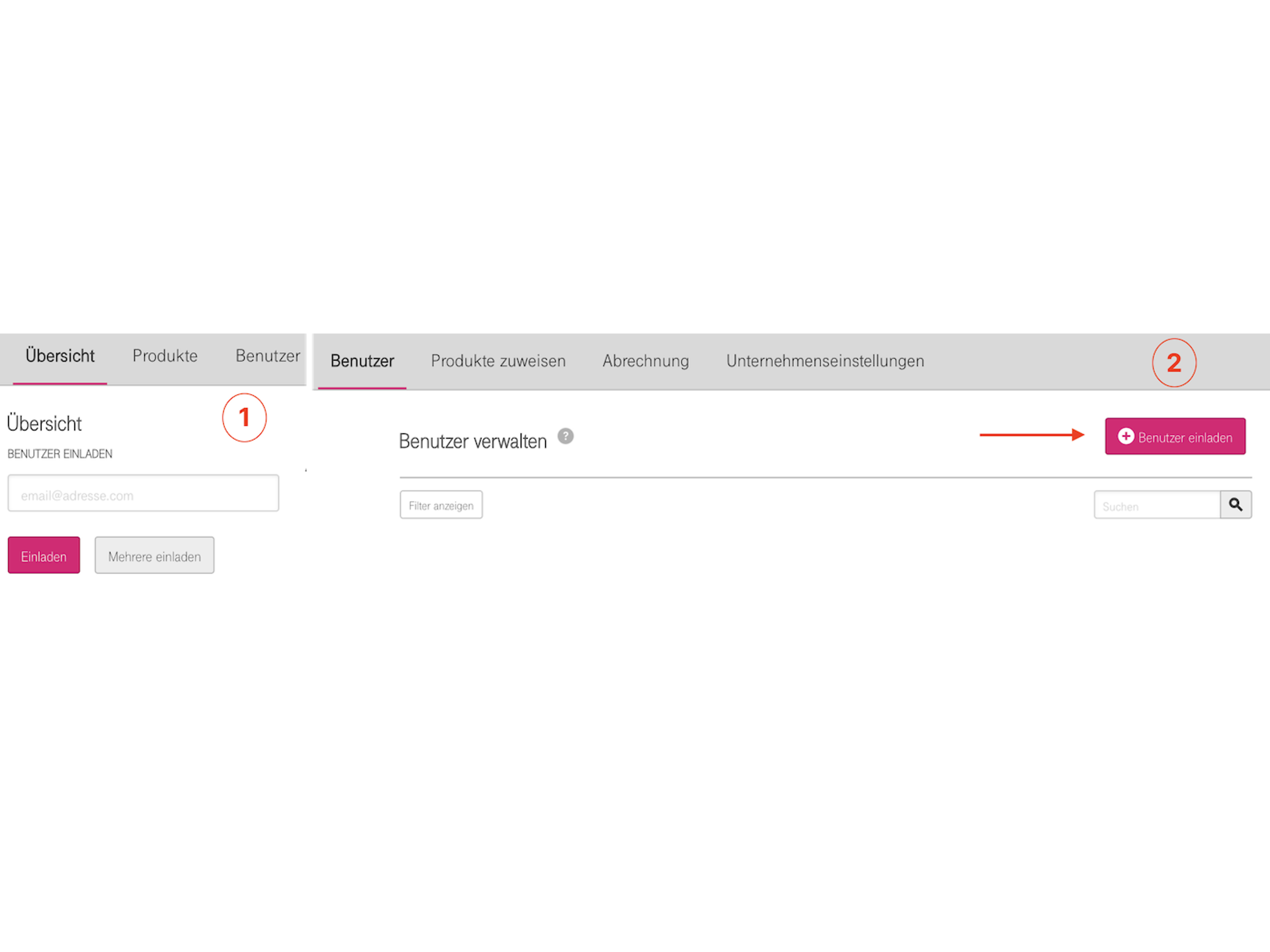
4) In the "Overview" tab (1), you will find two options for adding new users in the top left-hand corner. Either enter the email address of the person you want to invite directly, or use the "Invite multiple" button. We recommend using the "Invite multiple" button, even if you only want to invite one person. This opens a pop-up menu where you can not only enter the email address, but also specify the role that this person should be assigned. If you choose the first option, the role "User" is automatically assigned. In
the "Users" tab (2), you will find the "Invite users" button in the top left-hand corner. Clicking on this button opens the same pop-up menu as under "Overview".
5) Enter the email addresses of the people you want to invite in the fields. You can assign the desired roles to each person using the selection menu on the right-hand side. There are three different roles available:
Once you have entered all the desired persons or imported them via an Excel list, click on "Send invitations". All invited persons will receive an email with a personalised invitation link. The invitees then simply need to enter their name and assign a password to gain access to your account.
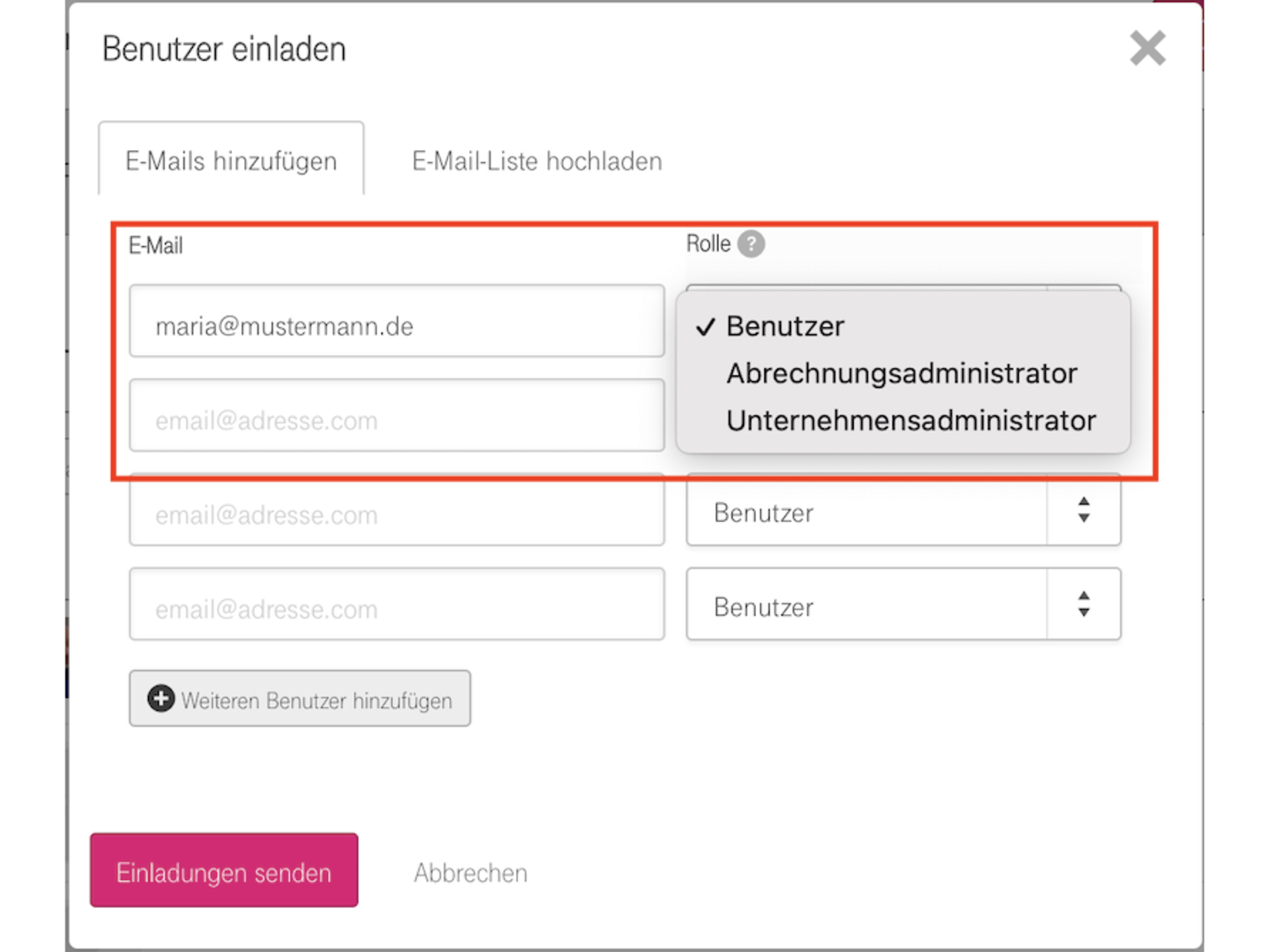
6) Once the invitees have completed their registration, a confirmation will appear under the "Overview" tab.
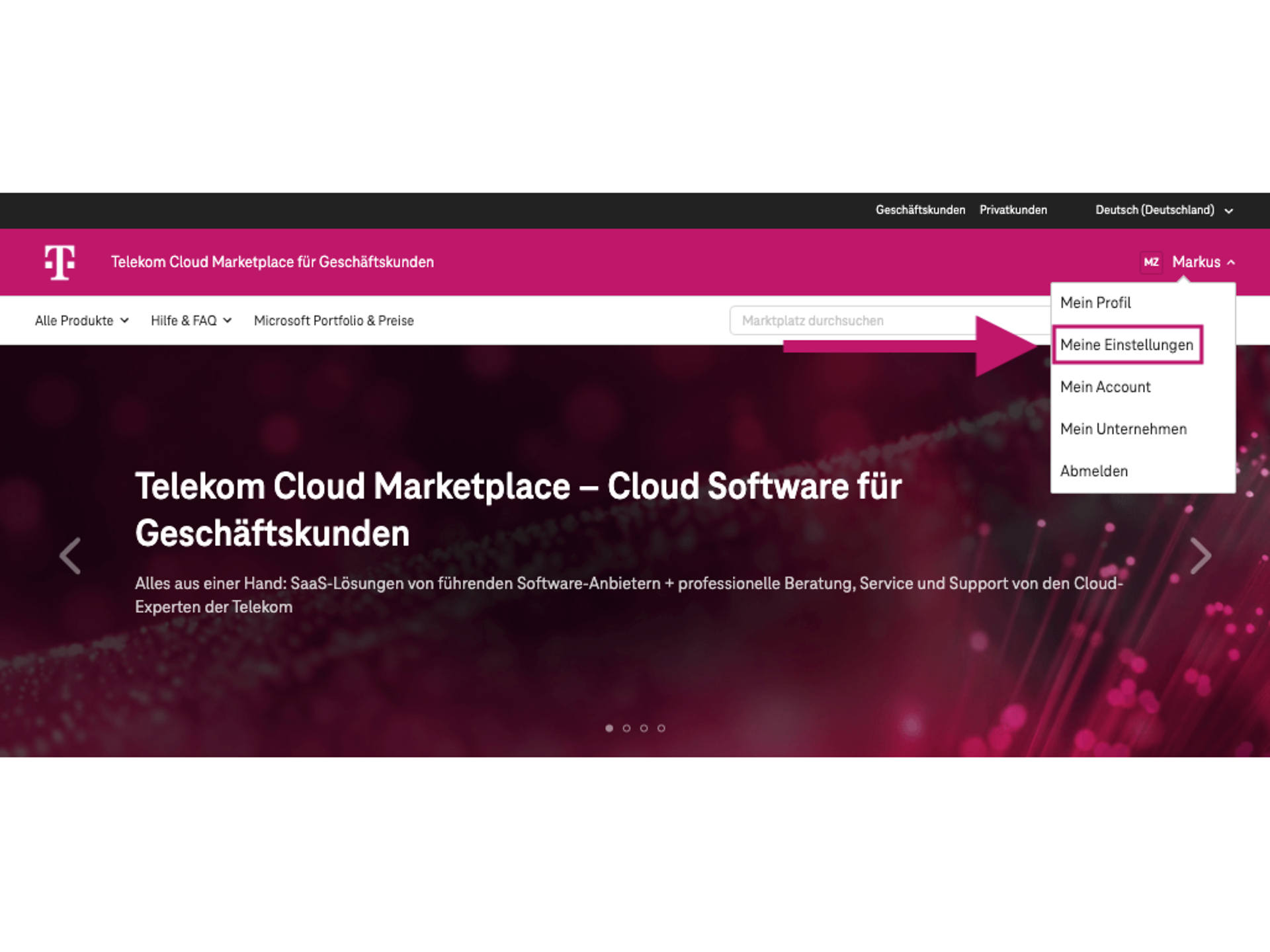
Please log in to the Telekom Cloud Marketplace with your existing user data. Under the menu item "My settings", you can access your stored data and adjust it.
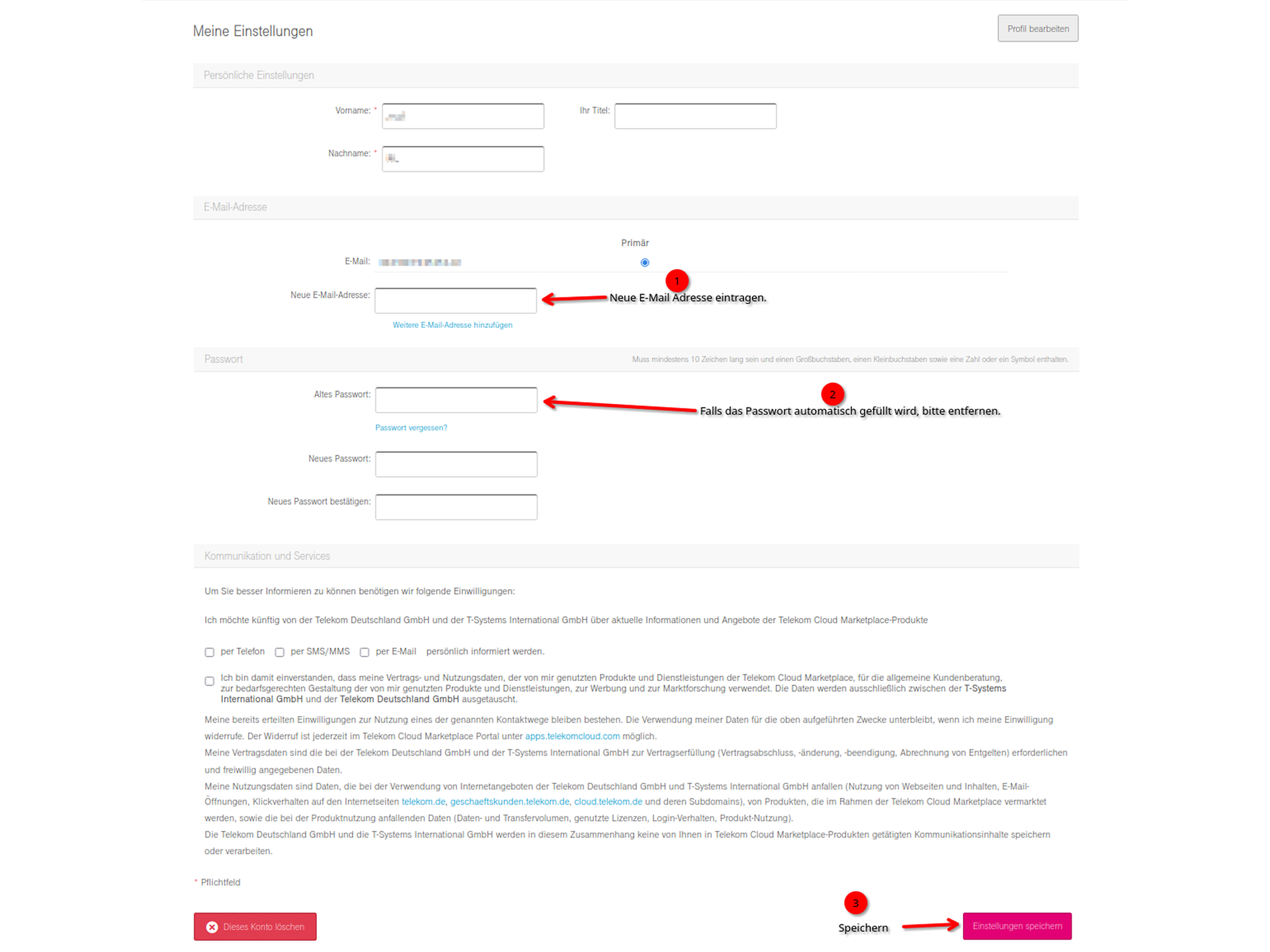
Here you can change and save your registered email address.
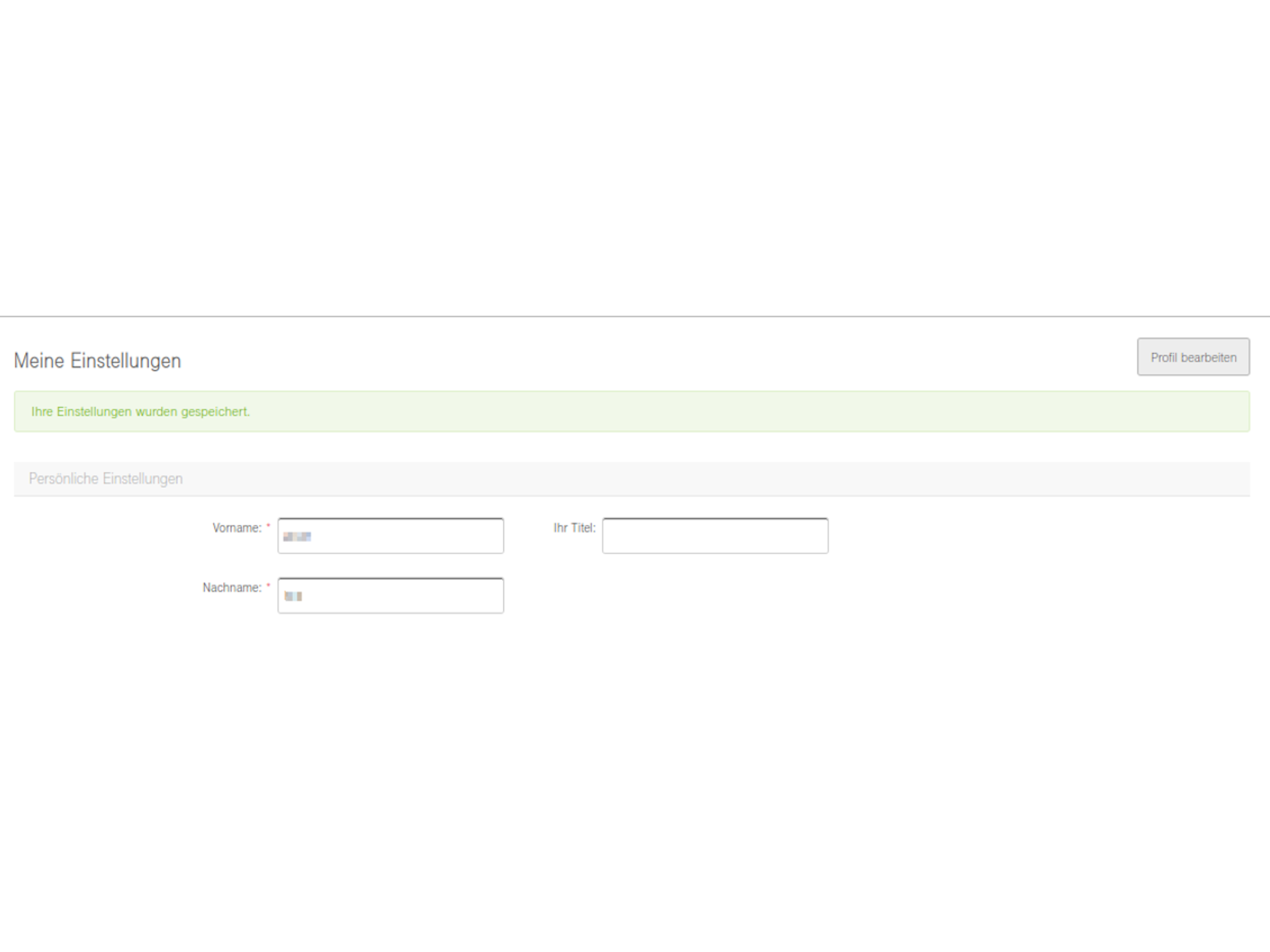
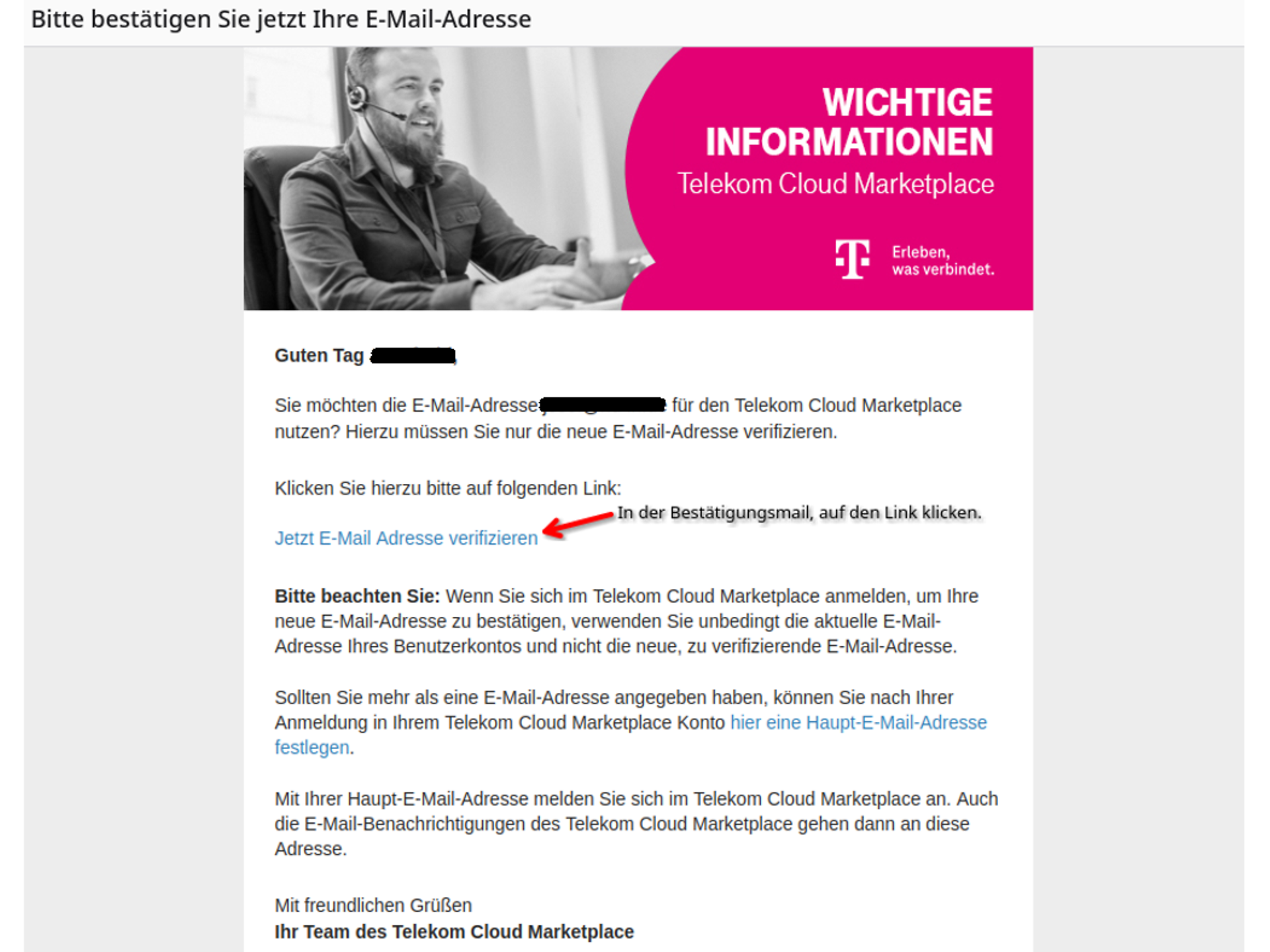
The following message indicates that the new email address has been successfully verified. Here, you can enter the new email address as your primary address.
You can then delete your old secondary email address.
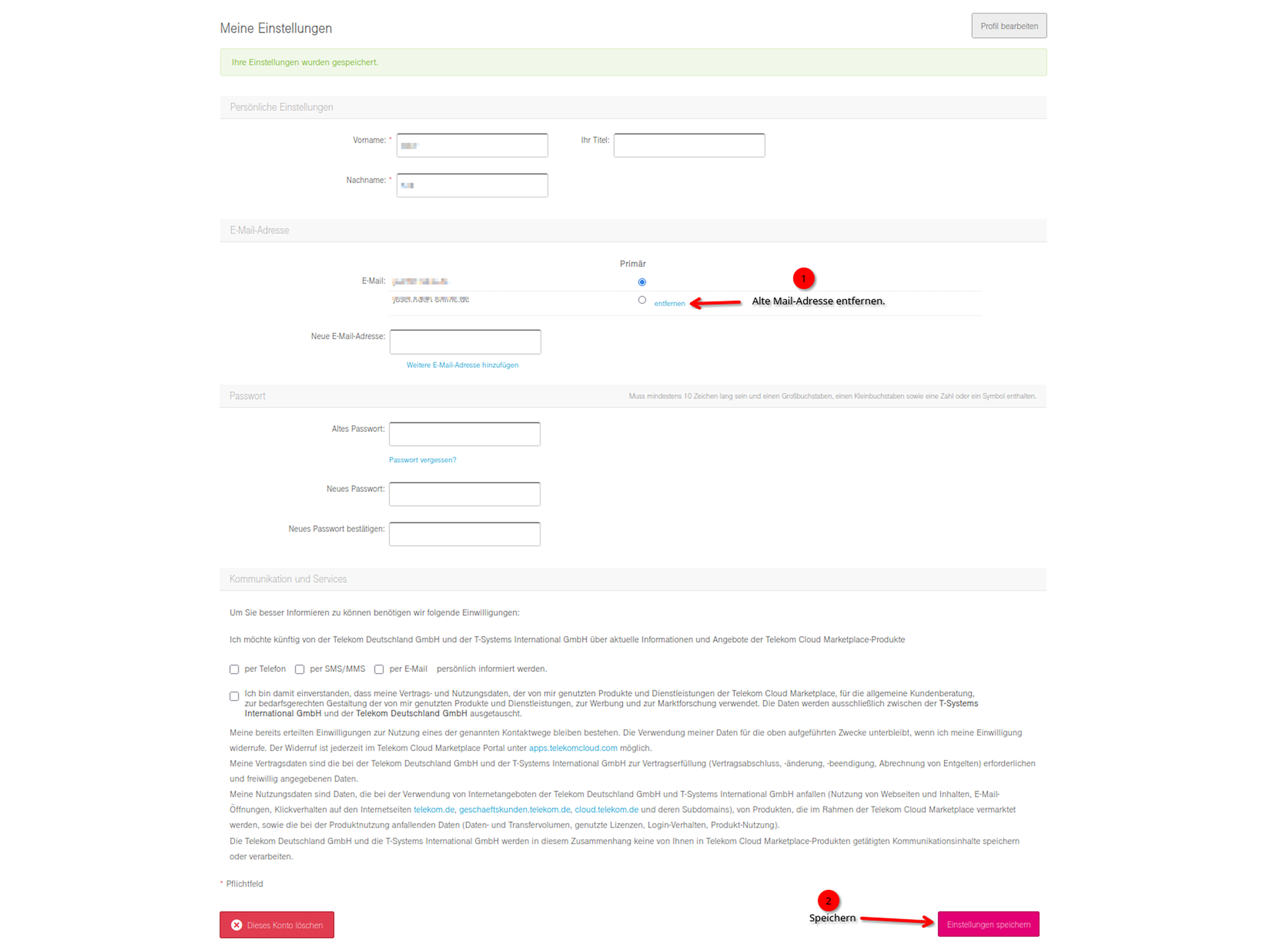
Your user account is the key to all activities in the Telekom Cloud Marketplace. Sometimes you may forget your password or it may no longer work for some other reason. In this FAQ, we show you how to restore access to your account. To reset your password, you must have access to the email address linked to your user account.
Step 1: Go to the login page for the Telekom Cloud Marketplace. You can access this via the main navigation bar on the Telekom business customer portal – at the top right, click on Login | Telekom Cloud Marketplace.
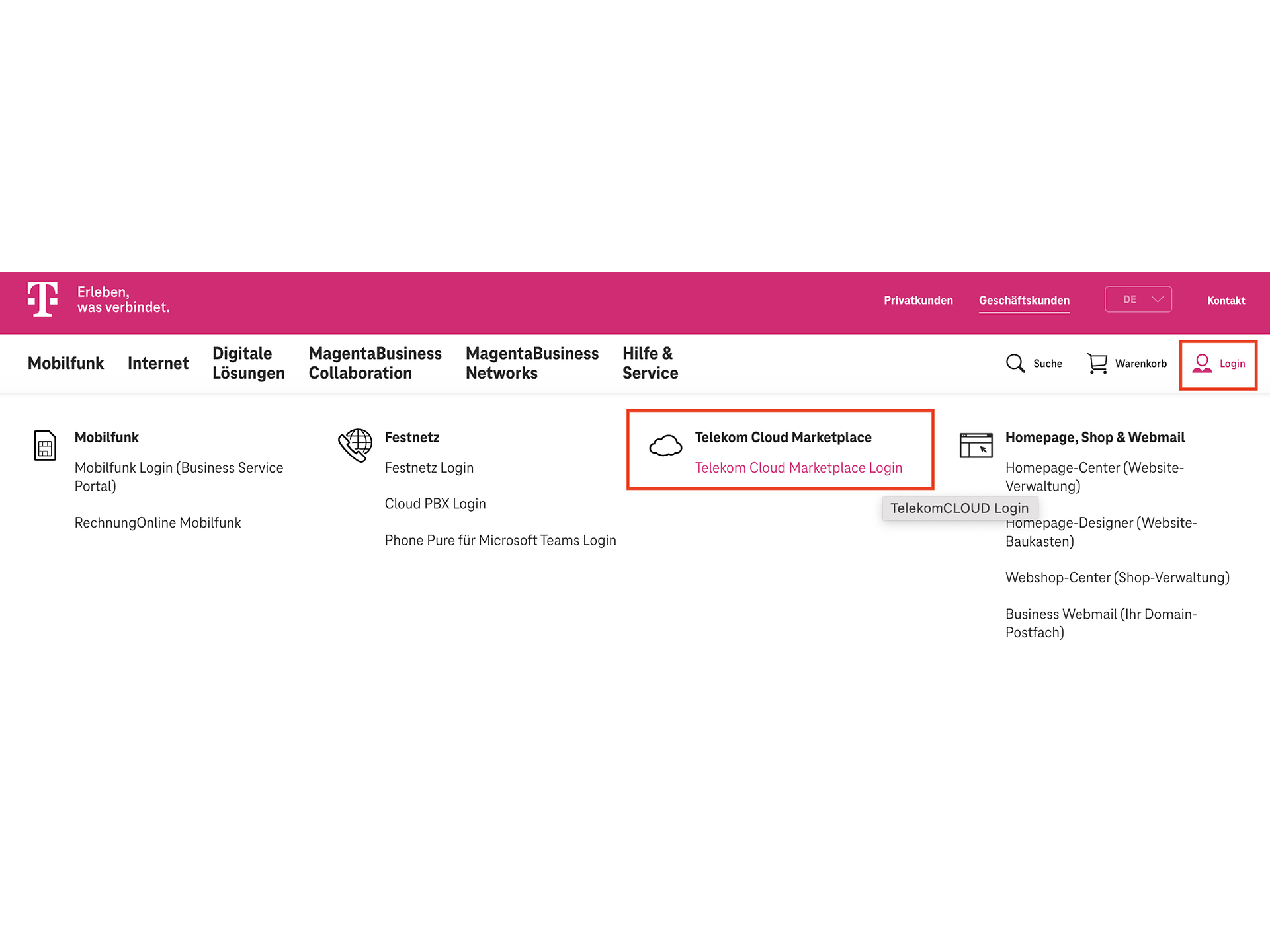
Step 2: Click on the "Forgot your password?" link.
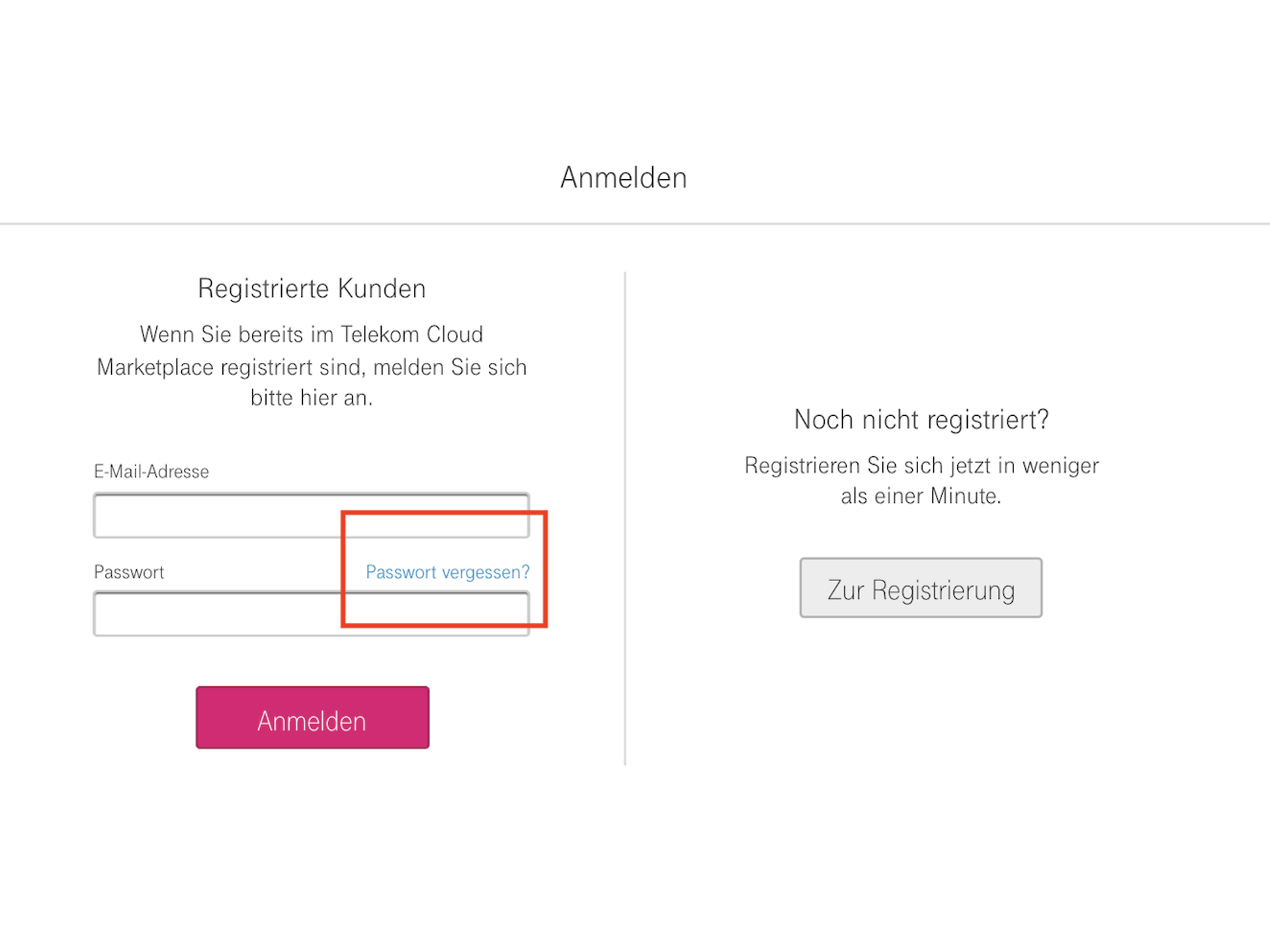
Step 3: Enter the email address associated with your Telekom Cloud Marketplace account and click Send email.
Step 4: An email will be sent to the email address you provided. Click on the link in this email and then enter a new password (twice). You will then receive an email confirming that your password has been changed. You can now log in to the Telekom Cloud Marketplace with your new password.
Nutzen Sie hier unsere weiteren Kontaktkanäle, um Ihr Anliegen zu lösen.


We are glad we could help!
Please feel free to use our contact channels at any time so that we can resolve your issue.