Telephone contact
You can reach us by telephone at any time.
Key questions and answers about the Microsoft 365 Admin Centre

This page provides information about managing accounts in the Microsoft 365 Admin Centre, including the differences between admin and user accounts, multi-factor authentication, domain changes, and self-service purchases.
After booking EditionsMicrosoft 365, you will receive the access data with which you can log in as an administrator. The automatically created Microsoft 365 administrator account has a licence to use Office services assigned by default and can use its administrative rights to manage the services you have booked. For example, you can create new users with administrative rights or assign these permissions to existing users.
In addition, all employees who have been assigned a Microsoft 365 licence also receive access data – the user account with which they can log in as users. These two different account types serve primarily to separate administrative activities from the work of normal users.
The two roles can be described as follows:
Since 3 February 2025, the use of multi-factor authentication (MFA) has been mandatory for all user accounts that access the Microsoft 365 Admin Centre. The introduction is being implemented gradually at the level of individual clients. Approximately 30 days before activation for your client, you will receive a notification in the Microsoft 365 Admin Centre message centre.
You should now take the following steps: Recommended actions: Global administrators should set up multi-factor authentication (MFA) in their organisation. To do this, visit the MFA wizard or use the instructions in "Set up multi-factor authentication for Microsoft 365" from Microsoft Learn:
Users who access the Microsoft 365 Admin Centre should check their verification methods and add one if necessary. This can also be done using the MFA wizard.
How can I tell if I am ready as an administrator for the MFA requirement in the Microsoft 365 Admin Centre?
If you have registered for MFA and added a verification method, you meet the requirements. Visit this page, review your verification methods, and add one if necessary.
How can I tell if this requirement affects my organisation?
Microsoft will gradually introduce this requirement for all users of the Microsoft 365 Admin Centre. You will receive a message in the Message Centre approximately 30 days before enforcement in your tenant. If your organisation has already set up an MFA policy for admins or all users and these users have registered a verification method, no further action is required.
As an administrator, how can I tell if an MFA policy for logins is active in my organisation in the Microsoft 365 Admin Centre?
If your Microsoft 365 tenant was created after 22 October 2019, security standards may already be enabled in your organisation. To check this, go to the Microsoft Entra Admin Centre under Identity > Overview > Properties and see if there is a green tick next to 'Your organisation currently uses security standards'.
What happens if I do not add an MFA verification method before the requirement becomes mandatory for my tenant?
You will not be locked out of your account and can still access the Microsoft 365 Admin Centre. However, you will be prompted to register for MFA and add a verification method when you try to access the Admin Centre. If a user is locked out, it may be for other reasons.
Can I decline this request?
No. This security measure is important for protecting Microsoft 365 customer organisations and users. MFA is increasingly considered the industry standard for basic security.
Do these requirements apply to all Microsoft 365 users?
No. The MFA requirement currently only applies to users who access the Microsoft 365 Admin Centre. However, Microsoft recommends that all Microsoft 365 users use MFA to protect their accounts and their organisation.
Do these requirements also apply to Microsoft Graph PowerShell or API?
No. These requirements do not currently apply to the use of Microsoft Graph PowerShell or API.
Does this requirement apply to emergency access accounts?
Yes. Emergency access accounts (break-glass accounts) must also use MFA once enforcement begins. We recommend migrating these accounts to passkey (FIDO2) or certificate-based authentication for MFA, as these methods meet the requirements.
Our organisation uses a third-party identity provider (IdP) for MFA. Is that sufficient?
Yes. The use of external MFA solutions meets the requirements, provided that the third-party IdP sends an MFA claim to Microsoft Entra ID.
There are various reasons why your user or admin account for Microsoft 365 or Office 365 may have been locked.
The following procedure is recommended for unlocking: As a user, you should first wait 15 minutes. If access still does not work, you can contact the administration team for the Microsoft 365 or Office 365 subscription in your company. They can unlock a user account in the Admin Centre using one of three methods:
As an administrator, there are two ways to regain access to your account. Either ask another person with global administrator rights to reset your password, or follow the steps in the instructions below:
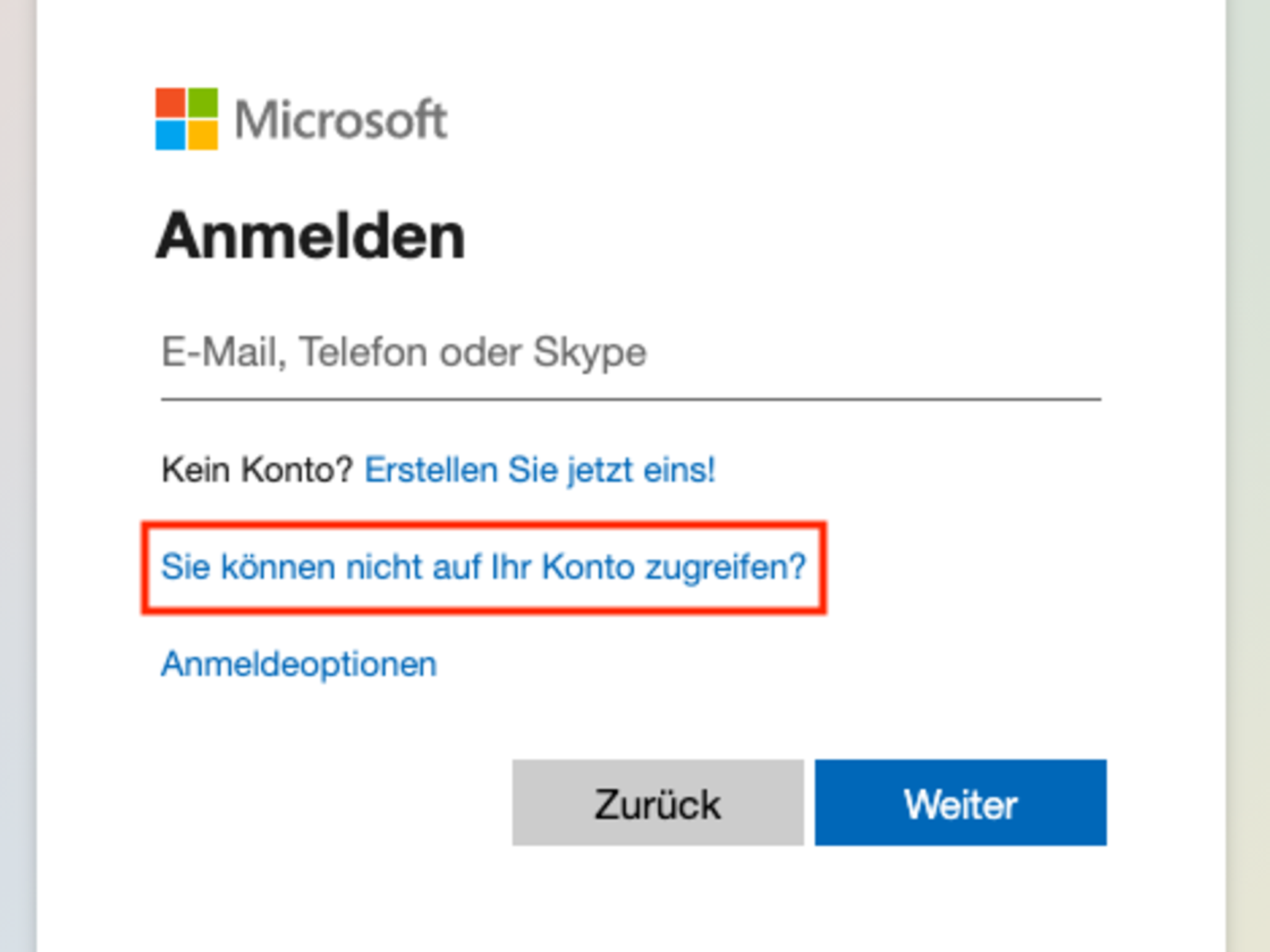
Click on the link "Can't access your account?" in the login screen.
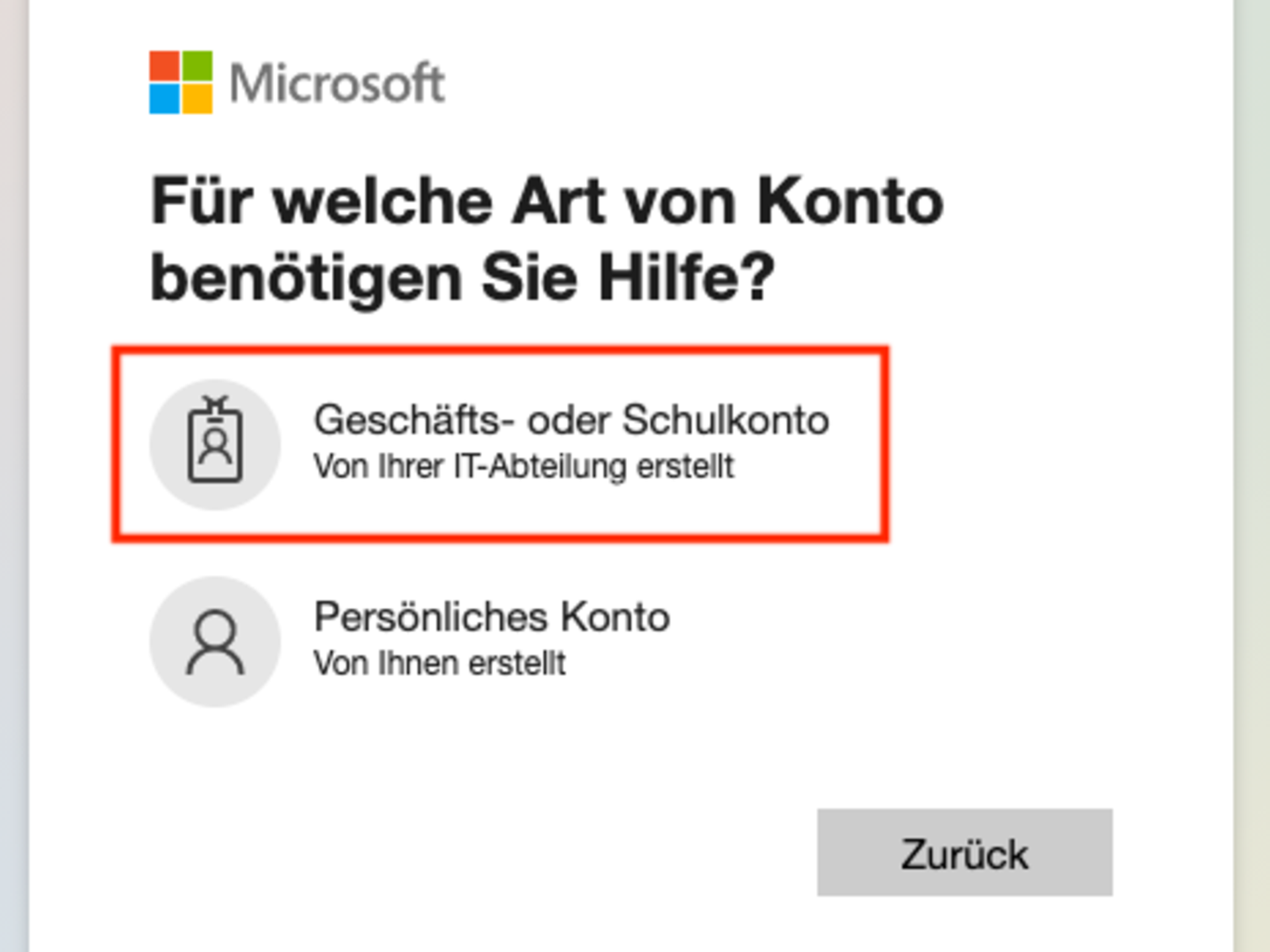
Then select "Business or school account".
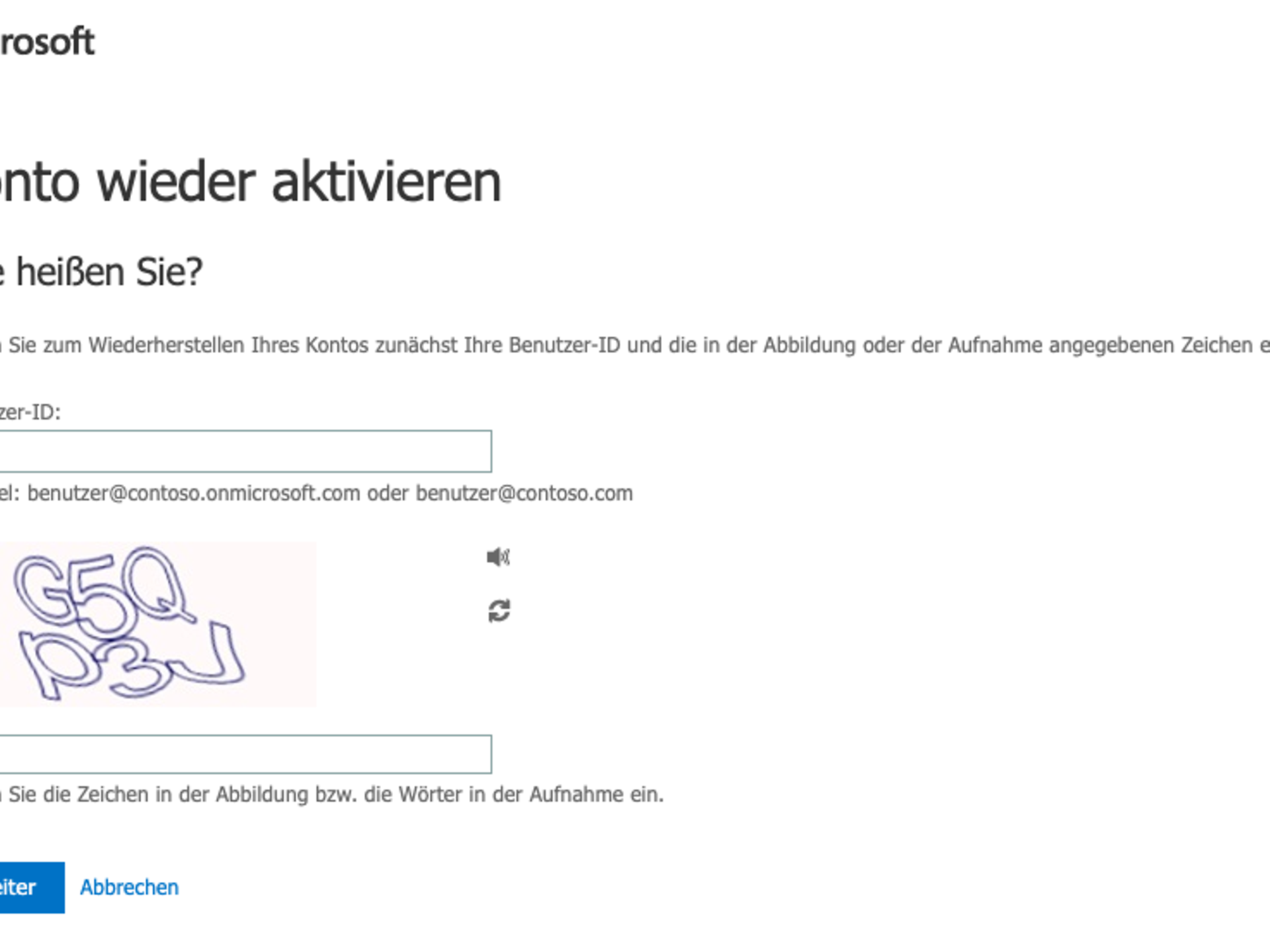
The page https://passwordreset.microsoftonline.com/ should now open, where you can reset your password. Please note that you will need access to the alternative email account and phone number you provided when creating your account. Now enter your user ID and the captcha and confirm by clicking on "Continue".
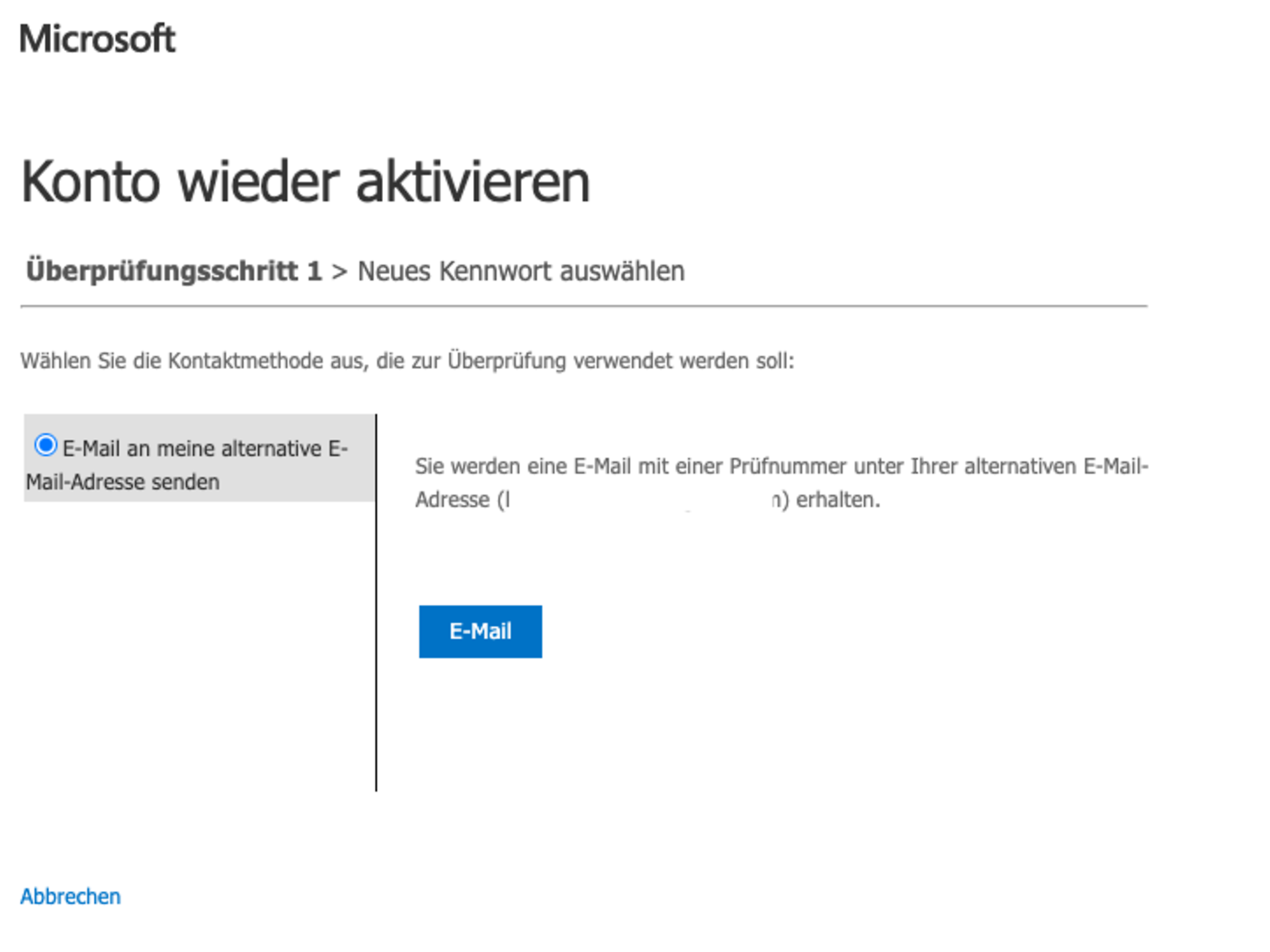
Depending on which password reset options have been enabled in your organisation, you now have the option of receiving a security code by email, text message or telephone.
Once you have the code, enter it in the appropriate field to reset your password.
You want to add your own domain to your Microsoft 365 or Office 365 subscription. In this blog post, we explain how to do this:
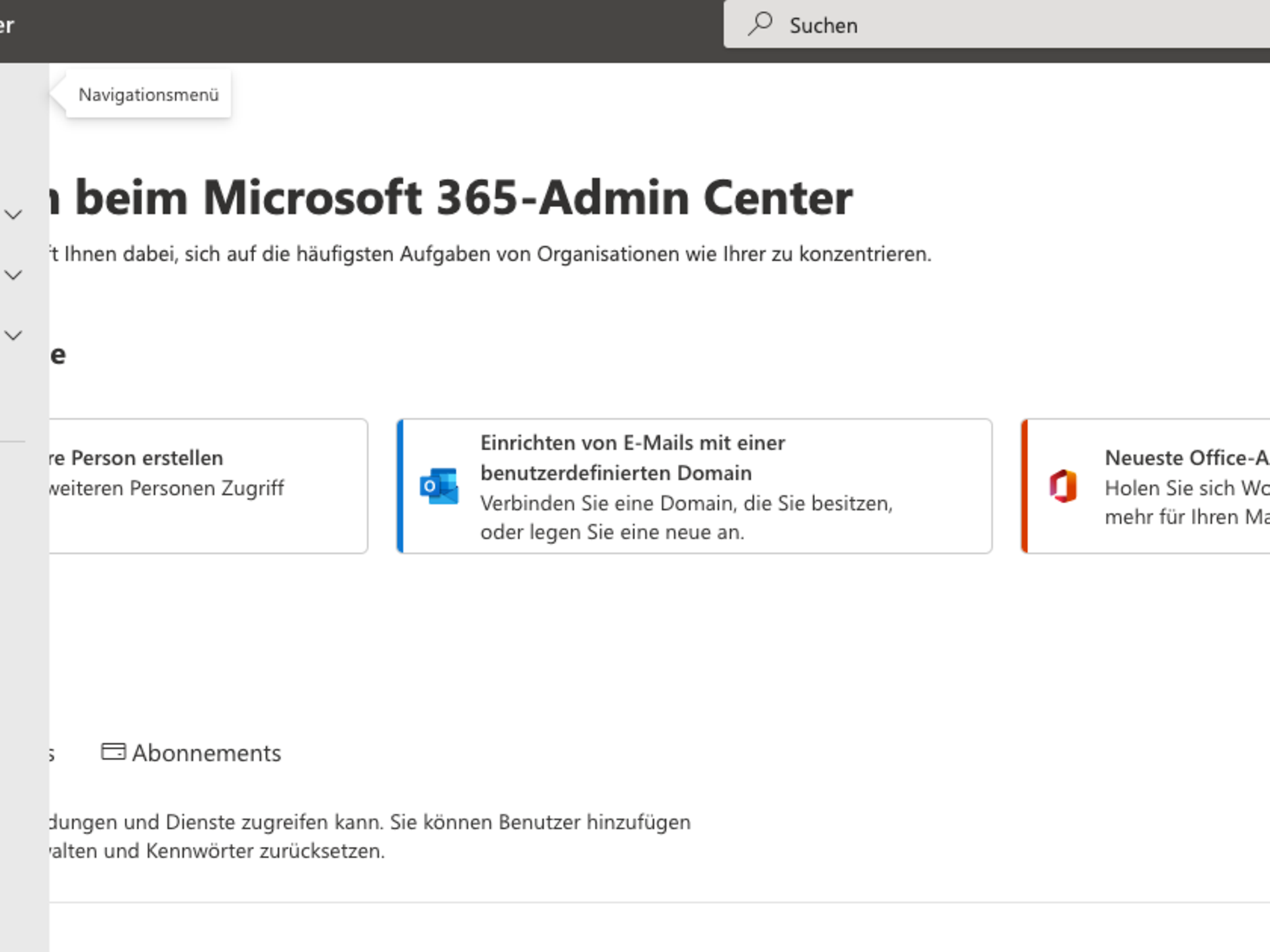
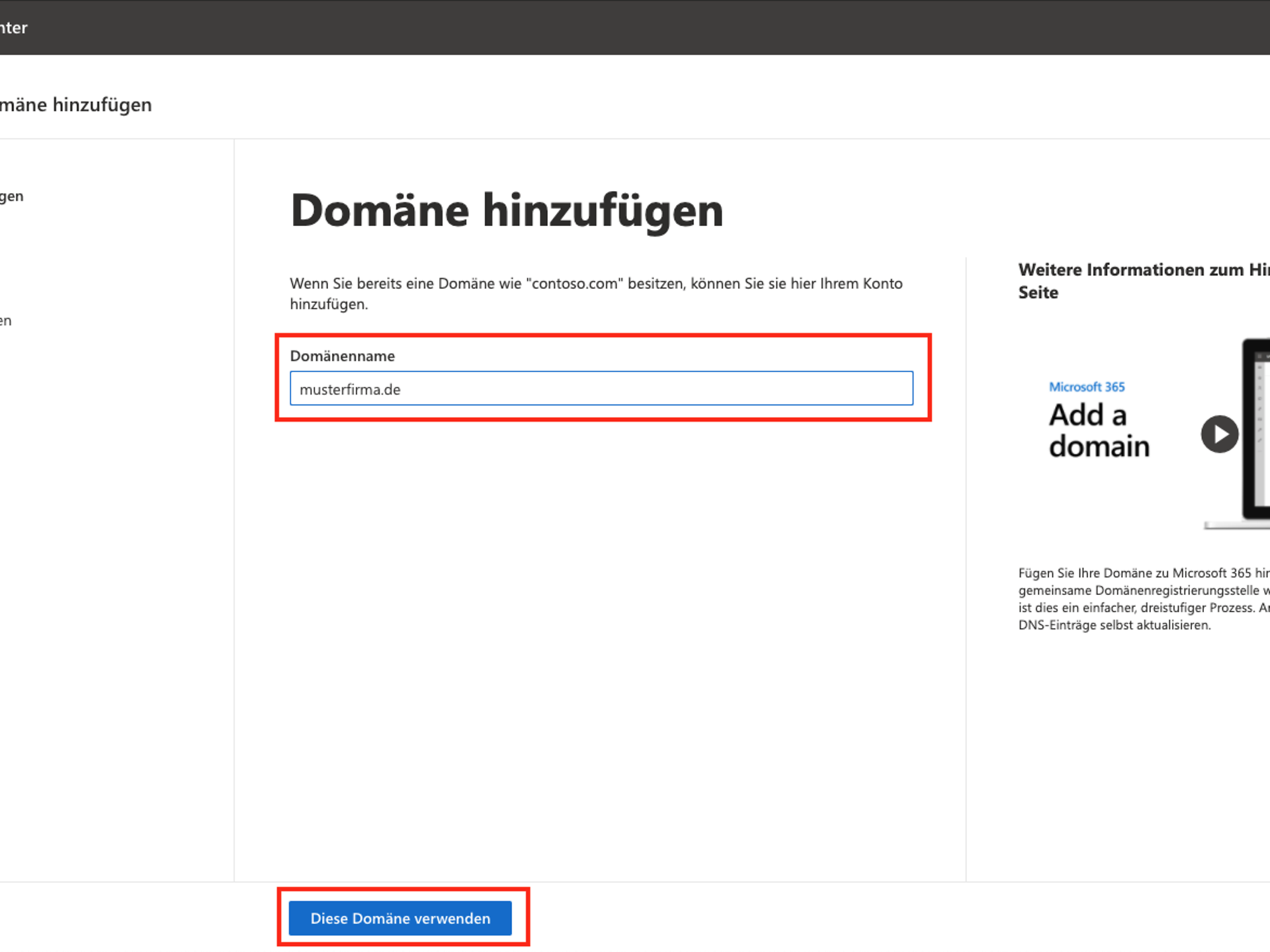
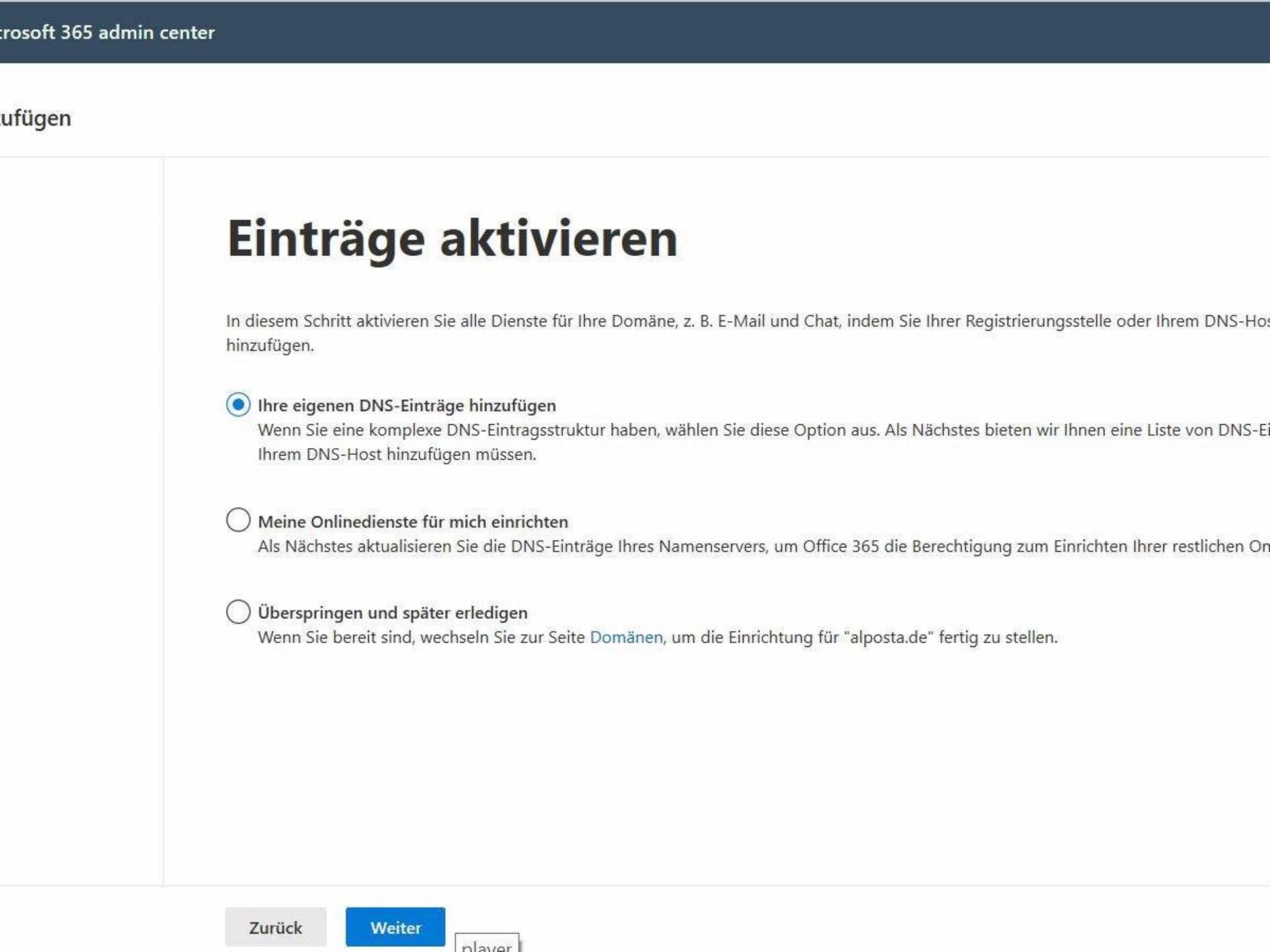
You now have the choice of which services you want to set up for your domain. You can choose between Exchange (for email), Skype for Business/Teams (for internal communication) and Microsoft Intune (for managing mobile devices). Exchange
services require three entries to function properly:
These entries are provided to you in this step and must also be entered with your domain provider. The exact steps for adding them vary from provider to provider. Microsoft offers instructions for the most common domain providers in its documentation. The support teams of the respective providers can also assist you with this step.
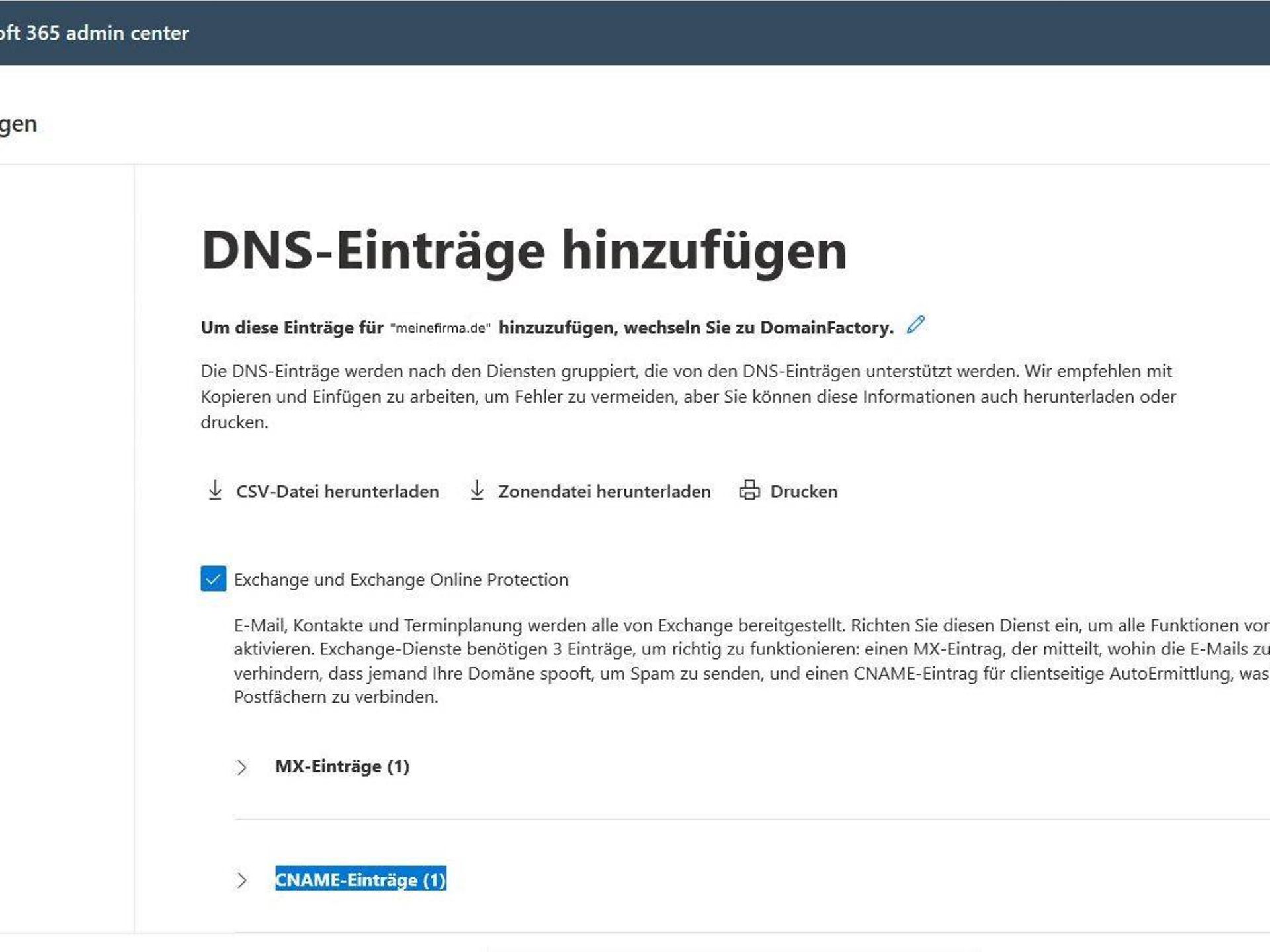
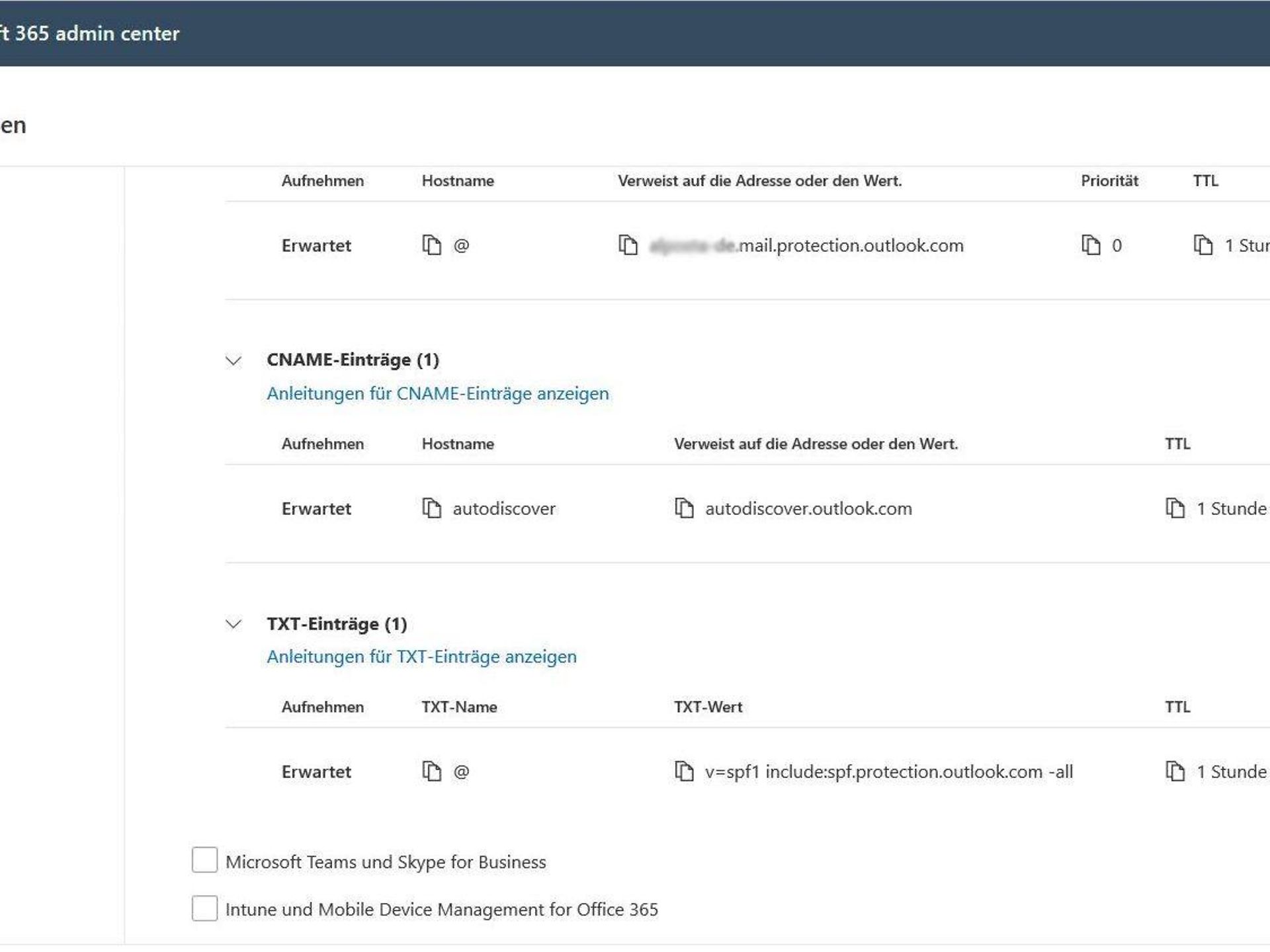
Once all entries have been made, you can complete the setup of your domain.
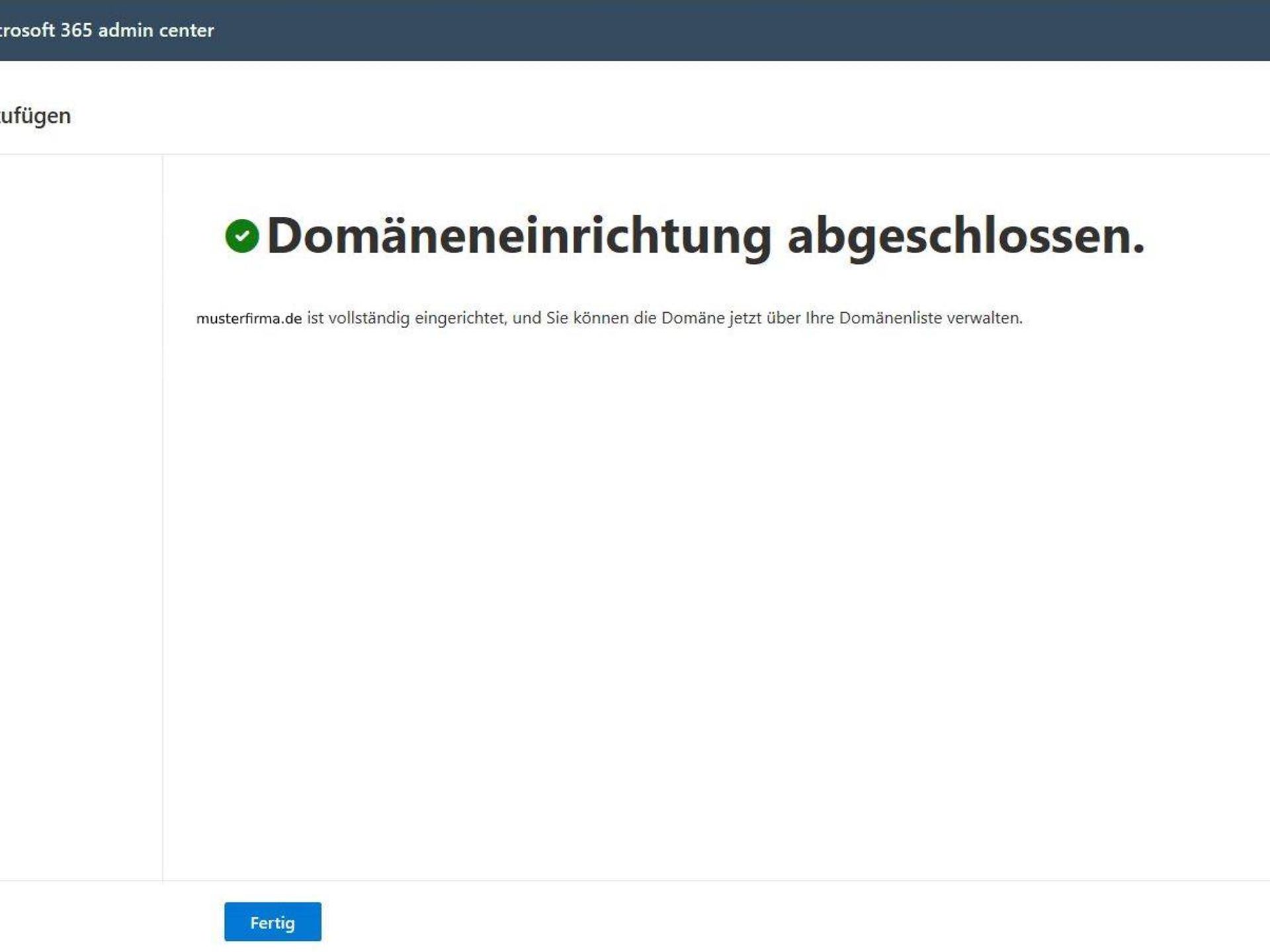
Assign the new domain to your users
Once you have successfully added your domain to your Office 365 or Microsoft 365 subscription, you must assign the domain to your users or employees so that they can use it in their email addresses. To do this, you need to follow these steps:
Behind the three dots, you will find the menu item "Change domain".
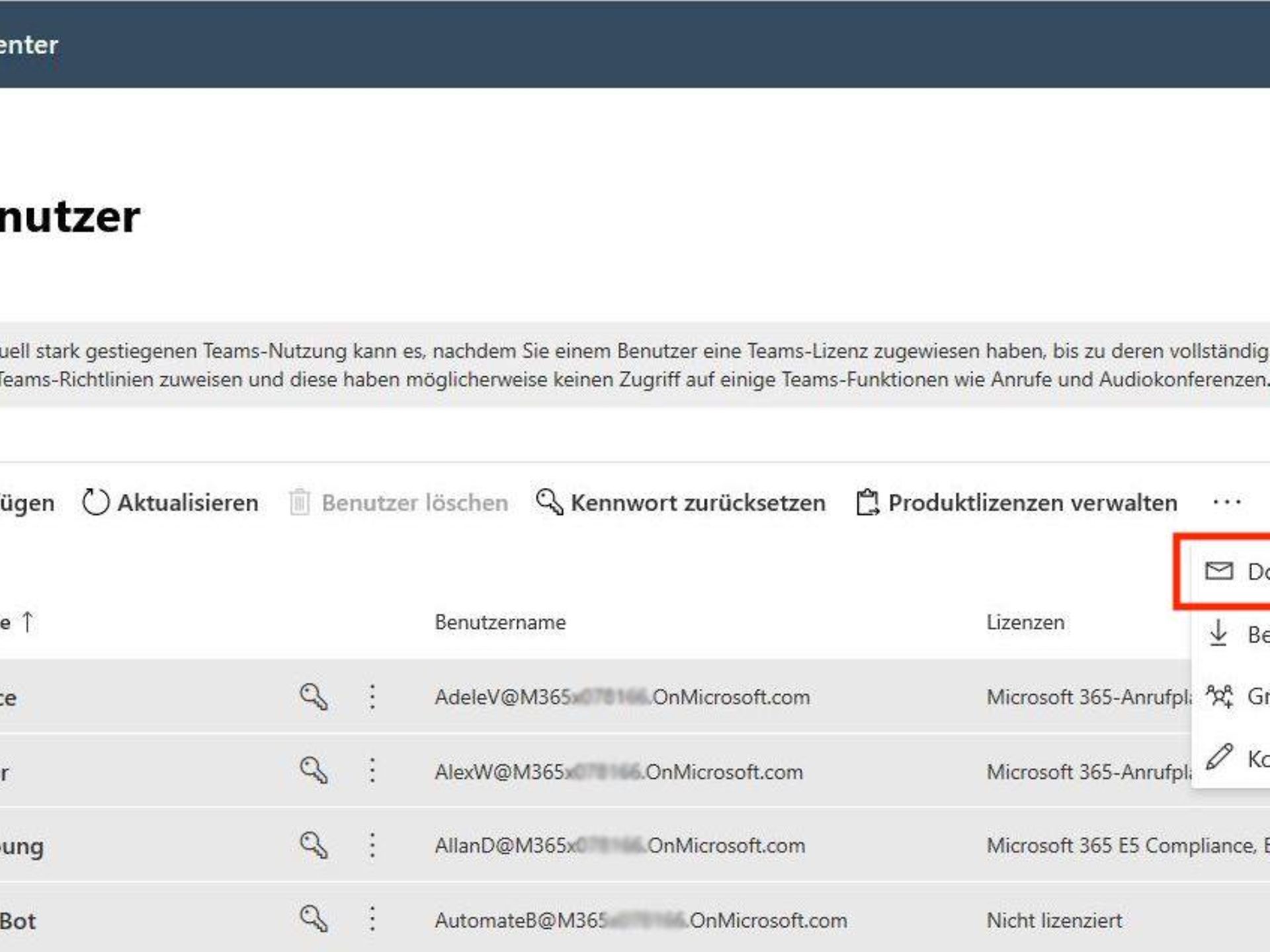
Select the desired domain from the selection field and select Save changes.
This completes the domain assignment and the new email domain can now be used by employees.
Self-service purchases enable regular users in your organisation to independently purchase certain Microsoft products, such as Microsoft 365 Copilot, without the approval or involvement of the organisation's IT department or administrator.
Important: Licences purchased through self-service are not part of your existing CSP contract with Telekom. The prices and terms and conditions you agreed with Telekom do not apply. Furthermore, these licences are not supported by Telekom's service. To maintain control over your IT licences, we recommend deactivating self-service purchases. This will help you avoid duplicate licences or costs and keep track of your applications and expenses. To record IT application requirements within your company and ensure consistent compliance, we recommend establishing processes that allow your employees to submit their requirements to IT.
If product purchases are allowed in your organisation tenant, users can independently make a self-service purchase online via product websites or in-app purchase prompts. They enter their email address, sign in with their Microsoft Entra credentials, and provide a credit card payment. After purchase, they can immediately use the subscription or assign the licence to other people in their organisation in the Microsoft 365 Admin Centre.
Administrators can view all self-service purchases in the Microsoft 365 Admin Centre, including product details, purchasers, subscriptions, expiry dates, and assigned users. They also have the option to disable self-service purchases per product via the Admin Centre or PowerShell and apply the same data management and access rights policies as for centralised purchases.
To disable self-service purchases, follow these steps:
Click Save Changes.
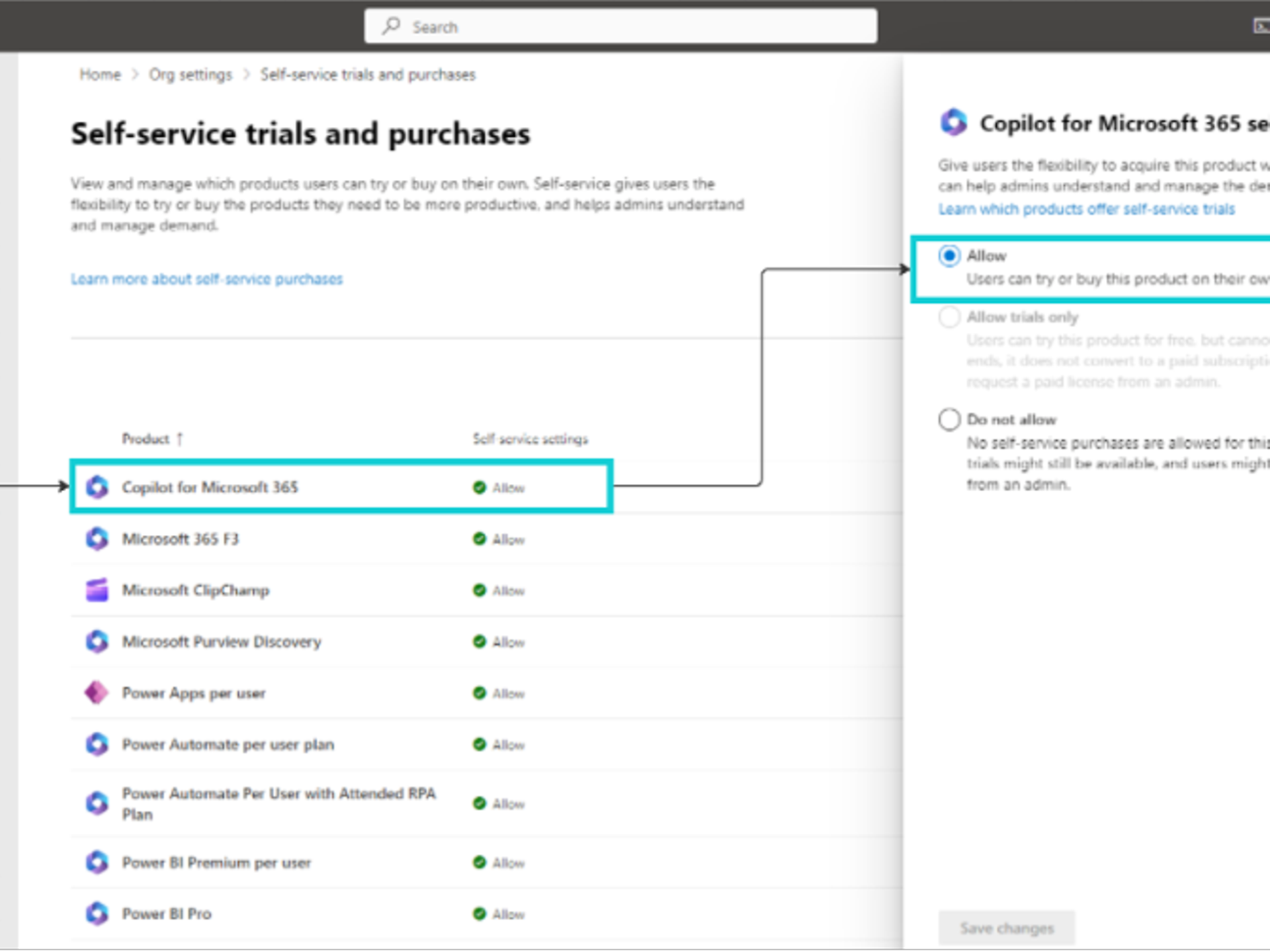
You can deactivate it using PowerShell by following these steps.


We are glad we could help!
Please feel free to use our contact channels at any time so that we can resolve your issue.