Telephone contact
You can reach us by telephone at any time.
Guide: How to set up Microsoft Teams for your organisation

Microsoft Teams offers the perfect platform for virtual collaboration in your company. Have you signed up for Microsoft Teams Essentials or Microsoft 365 Business (with Microsoft Teams included)? This article provides all the relevant information you need to get started with Microsoft Teams. Administrators and IT managers can learn how to set up the tool and get the most out of it for their employees.
Microsoft Teams can be licensed in various ways, either through Microsoft Teams Essentials or through a Microsoft 365 edition that includes Microsoft Teams:
New since early 2023 is Teams Premium: This add-on builds on Microsoft Teams and offers additional features for personalised, intelligent and secure Teams meetings. It also includes premium features for virtual appointments and webinars. Companies can purchase Teams Premium as an additional licence – provided they already have licences for Microsoft 365 or Microsoft Teams Essentials (Azure Active Directory).
If you booked Microsoft Teams Essentials directly through Microsoft, you have Microsoft Teams Essentials. If you booked Microsoft Teams Essentials through Telekom (or another Microsoft Certified Partner), you have Microsoft Teams Essentials (AAD Identity).
The main difference is that Microsoft Teams Essentials (AAD Identity) can connect to an existing email system and provide an integrated interface. This includes, for example, Teams notifications in an existing email inbox, all calendar entries in Microsoft Teams, and the ability to sign in to Teams with your existing email address.
How to establish this link between Microsoft Teams Essentials and your email system (Exchange, Google, etc.) is explained in detail in this description in the Microsoft documentation.
After booking Microsoft Teams Essentials or Microsoft 365, you can assign the purchased licences to your users via the Admin Centre. This support article explains how assignment works for Microsoft 365 and what further steps are necessary after booking. The process
is the same for assigning Microsoft Teams Essentials licences:
If you wish to add multiple users at the same time, you can follow the steps in this guide.
Microsoft Teams is based on Microsoft 365 groups, Microsoft Graph and the same security, compliance and management foundations as other Microsoft 365 and Office 365 applications. Microsoft Teams uses the identities stored in Azure Active Directory (Azure AD). Microsoft Teams can also be used offline.
When you create a team in Microsoft Teams, the following items are created in the background:
When you create a team from an existing group, the membership, website, mailbox, and notebook of that group will appear in Microsoft Teams.
With Microsoft Teams, you can not only ensure that people in your company can communicate with each other via chat and (video) calls from their home offices. You can also customise Teams so that internal and external employees and even customers have access to shared notes, web pages and apps. All of this is completely independent of the user's location – and regardless of whether they are working on a desktop computer, on the web or with a mobile application.
To customise and expand Teams, third-party applications can be added via apps, bots and connectors. As part of Microsoft 365, Teams also offers a robust development platform. This creates a portal for teamwork that you can tailor to the needs of your business.
As an administrator, you can view, manage, update, or perform maintenance actions on teams. You can manage the teams that exist in your organisation using both the Microsoft Teams PowerShell module and the Microsoft Teams Admin Centre. To use the full range of administrative features, you must be a global administrator or a Teams administrator.
The Admin Centre offers you a range of options. For example, you can view all the key figures relating to your Teams implementation via the Microsoft Teams overview grid.
In addition to various administration options for the entire Teams environment in your Microsoft 365 tenant, you also have the option of editing individual teams:
Further information about the possibilities of the Admin Centre can be found on this Microsoft Docs page.
The perfect rollout of Microsoft Teams depends on the size of your company and the time available for it. If you work in a small business with few employees, you can involve everyone in the new tool right away.
In larger organisations, it is advisable to first create two or three teams and channels for a smaller group of users. This allows you to gain valuable practical experience on a small scale, which will then be useful when deploying Microsoft Teams across the entire organisation.
First, Microsoft Teams must be installed on all desired users' devices, if it is not already installed. Microsoft Teams has clients for desktop (Windows, macOS and Linux), web and mobile (Android and iOS). These clients all require an active internet connection, but can also be used offline for limited use (viewing chats, accessing files, etc.). Modern authentication is available for logging into Teams.
Further information
Once everyone has Microsoft Teams, you can create the first teams and channels. To explain:
As an administrator, you can create and manage teams and channels in the Teams client or the Microsoft Teams Admin Centre. You can set up public or private teams, as well as organisation-wide teams. Anyone in your organisation who uses Microsoft Teams can join a public team. In private teams, team owners manage team membership. In an organisation-wide team, every user in your organisation is automatically added.
In the Microsoft Teams Admin Centre, you can also use templates to create new teams. These templates offer standardised team structures with relevant tabs, channels and apps and are based on best practices. Microsoft provides ready-made templates, but you can also create your own templates from existing teams. In the Admin Centre, you can create, customise or even remove templates for your clients. You can also use policies to determine which templates are available to your users and which are not.
If you have enough time, you can start by putting together a team under the title "Getting to know Teams". Perhaps you can find a group of so-called "early adopters" in your company, i.e. people who enjoy trying out new features and tools. You can put the first team in Microsoft Teams, which will provide you with valuable feedback at an early stage. Step-by-step instructions for creating a new team are available in the Microsoft documentation.
If you are planning a rollout for everyone in a larger company, you should listen to the feedback from your test subjects and analyse their use of the various channels.
Even without further configuration, Microsoft Teams provides an excellent basis for virtual collaboration in your company. That is why many administrators decide to simply keep the default settings.
The following restrictions apply to usage figures within a Microsoft 365 or Office 365 client:
| Function | Maximum number |
|---|---|
| Number of teams a user can create | Limited to 250 items |
| Number of teams a user can be a member of | One thousand |
| Number of members in a team | €25,000 |
| Number of owners of a team | 100 |
| Number of company-wide teams in an Office 365 tenant | 5 |
| Number of members in a company-wide team | €10,000 |
| Number of teams a global administrator can create | €500,000 |
| Number of teams that an Office 365 tenant can have | €500,000 |
| Number of channels per team | 200 (including deleted channels) |
| Number of private channels per team | 30 (including deleted channels) |
| Number of members in a private channel | €250 |
| Maximum size (distribution list, security group, or Microsoft 365 group) that can be imported into a team | €3,500 |
| Maximum number of members in an M365 group that can be converted into a team | €10,000 |
| Size of a post within a channel conversation | Approximately 28 KB per post |
Further information
To enjoy the full Teams experience, a verified domain for Office 365 is required. To scale chat, Teams and channels across your organisation, all locations must also have internet access. The following ports should be open for all users: TCP ports 80 and 443 and UDP ports 3478 to 3481 for outgoing traffic.
When creating chats, teams and channels, it often makes sense to use custom settings. In addition to admin functions, you can also assign user roles ("owners" and "members") and assign them moderator functions:
Messaging policies control which chat and messaging features are available to users in Teams. By default, users are assigned the global messaging policy, which has all features enabled.
Guest access allows your Microsoft Teams users to communicate with people outside the company. By enabling this feature and adding permitted domains, you can communicate with customers via Microsoft Teams, for example. Guest access allows individual users – such as external employees – outside your organisation to access teams and channels.
Further information
In Microsoft 365, you can create and assign data encryption policies (DEP) to encrypt the following data in Microsoft Teams for all users of a tenant:
Detailed instructions on how to encrypt data using Microsoft 365 Customer Key can be found in the Microsoft documentation.
The default settings in Microsoft Teams are also useful for many companies when it comes to meetings. Of course, the settings can be customised to suit your company's individual needs. For example, in meeting settings, you can control whether anonymous users can participate in Teams meetings and set up meeting requests. Detailed German-language guide to this is provided in this Microsoft tutorial. It is also possible to use Microsoft Teams as a platform for webinars. This option is included in many Microsoft 365 and Office 365 plans. For hosting webinars , Microsoft offers a Quick Start Guide in English..
Sometimes, people in your organisation need to use a telephone to join a meeting. Microsoft Teams includes audio conferencing for exactly this situation. This allows participants to call into Microsoft Teams meetings via a telephone instead of using the Microsoft Teams app on a mobile device or PC.
To use this feature, you must be an administrator and set up audio conferencing for people who want to schedule or host meetings. Meeting participants who join the meeting do not need to be assigned licences and do not require any further setup.
The following steps are necessary to activate dial-in conferences:
Further information:
You can set up Microsoft Teams so that employees can be reached not only on their desk phones in the office, but also on their PCs, smartphones and tablets via Microsoft Teams. Teams Deutsche Telekom provides the necessary hardware and software. With a click of the mouse or a touch, calls can even be transferred from one device to another. A cloud-based answering machine ensures that important messages are not lost.
Microsoft Teams also supports VoIP (Voice over IP) calls between individual Microsoft Teams clients as standard. This means you can call your colleagues, choosing between video and audio calls.
If you have booked the Teams Telephony add-on, you can use Microsoft Teams to make calls directly to landlines and mobile phones. Incoming and outgoing calls are routed via your usual Telekom landline number.
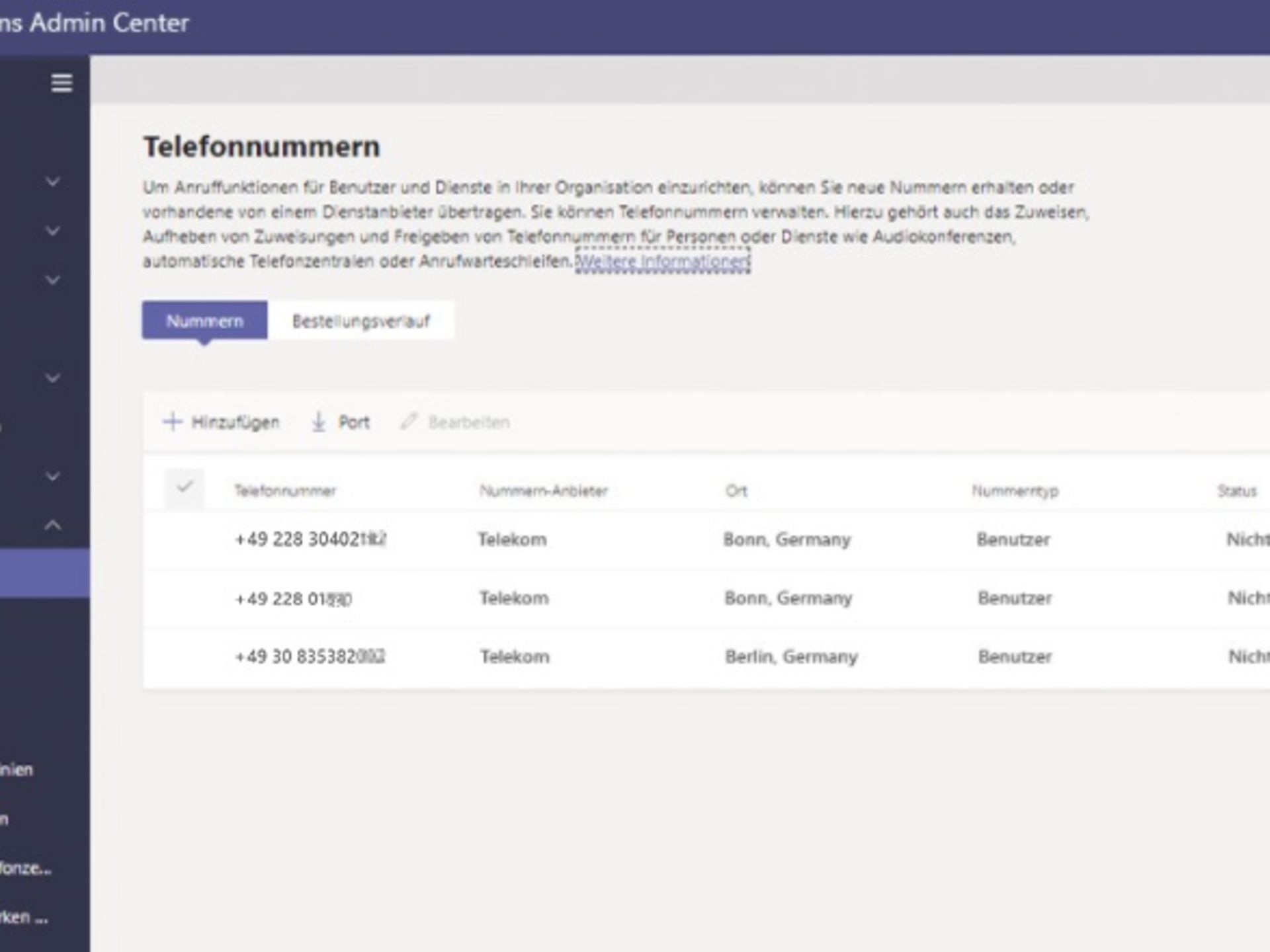
Thanks to Teams feature "Operator Connect", as an administrator, you can order and manage telephony services such as phone numbers from your telecommunications provider – all directly in the Microsoft Teams Admin Centre. For example, you can easily assign phone numbers from your quota to users in your organisation or remove them again when they are no longer needed. These features are already included in the Microsoft Teams telephony package.
Further information:
The Microsoft Teams Admin Centre can be used to manage all devices on which the software is used. It does not matter whether these are mobile devices or meeting room equipment. This ensures that all devices are always up to date and ready for use.
Registered devices can be filtered and grouped according to various criteria. This makes it possible, for example, to quickly apply a specific setting to an entire group of devices or to restart these devices. Furthermore, the Teams Admin Centre provides detailed insights into the status of individual devices as well as data on call activity and quality. If a device requires a specific action, this can be carried out quickly.
Telephones and devices in meeting rooms can be updated automatically. The settings for automatic updates can also be configured in the Microsoft Teams Admin Centre. The health status of devices in meeting rooms can also be checked in the Admin Centre to see whether they are ready for use. This allows you to determine, for example, whether a peripheral device such as a camera or screen is not connected properly.
Those who rely on external help to manage devices can also delegate device management to a partner centre with the appropriate Microsoft Teams Rooms licence, allowing partners to take care of the devices on behalf of the company while ensuring secure and authorised device access at all times.
In March, Microsoft unveiled a new version of Teams, which is currently in development. This new version has been redesigned from the ground up and will offer numerous improvements, including better performance, simplified IT management and greater data security. The 'new' Microsoft Teams is currently available for testing in a preview version. IT teams have the option of giving their colleagues access to this test version. All it takes is a few steps in the Teams Admin Centre, which we explain in the FAQ 'How to enable the 'new' Microsoft Teams option for your employees".
Nutzen Sie hier unsere weiteren Kontaktkanäle, um Ihr Anliegen zu lösen.


We are glad we could help!
Please feel free to use our contact channels at any time so that we can resolve your issue.