Telephone contact
You can reach us by telephone at any time.
The most important questions and answers about your Microsoft bookings

Do you have questions about managing your Microsoft online service bookings in the Telekom Cloud Marketplace? The information on this page provides you with the most important answers – from adjusting existing subscriptions to upgrading to higher-value editions. We show you step by step how to achieve your goals.
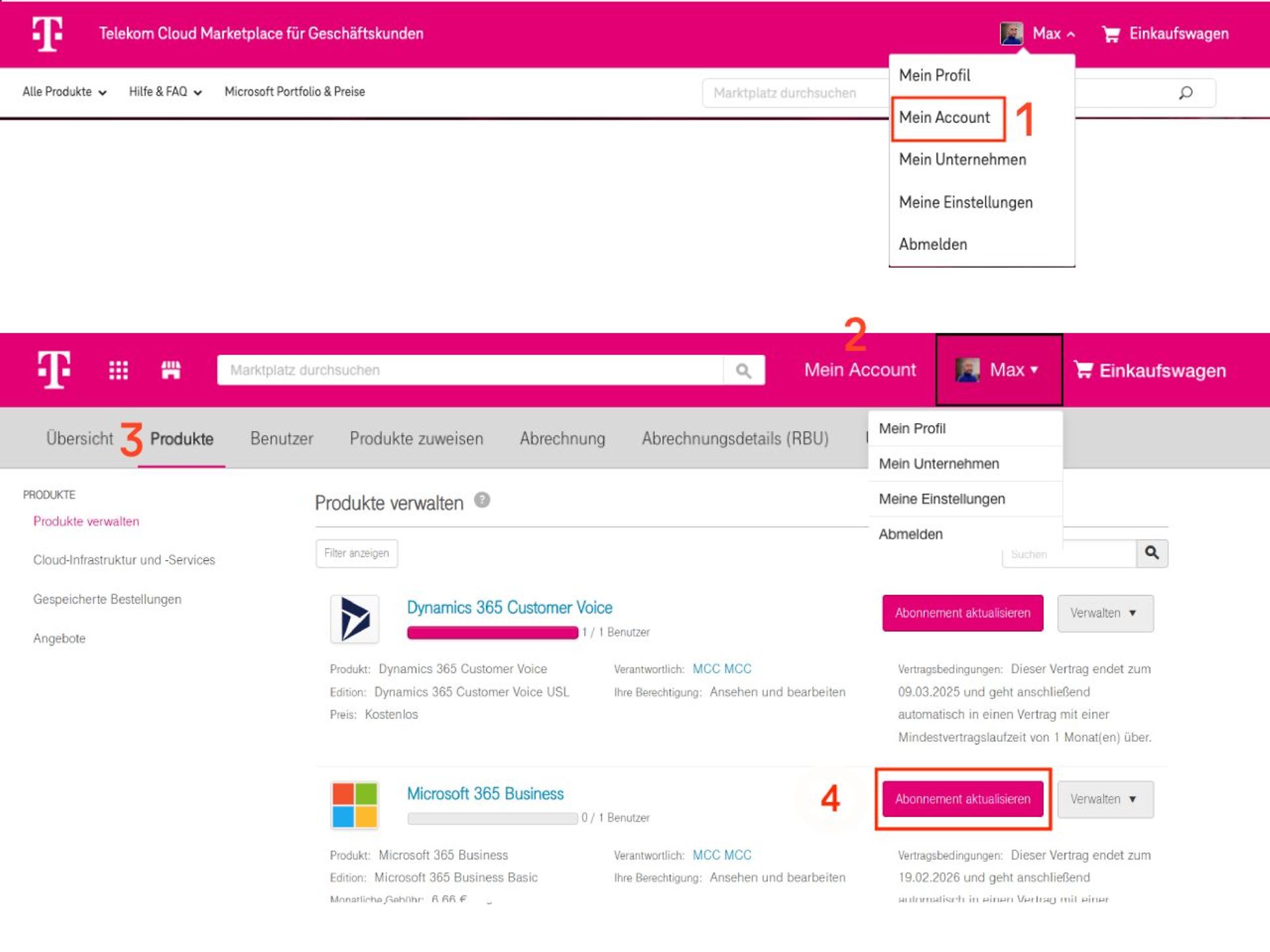
Step 1: Log in to the Telekom Cloud Marketplace using the account that contains the Microsoft subscription you wish to view or change.
Step 2: You can find the subscriptions and products you have booked in the Telekom Cloud Marketplace under My Account | Products. Depending on where you are in the Marketplace, there are two ways to access the My Account section:
Step 3: In the sub-navigation menu that appears, you must switch to the ‘Products’ tab (3).
Step 4: You will now see a list of all the products and subscriptions you have booked. Simply click on ‘Update subscription’ (4) next to the subscription you’d like to change, and you can then make the changes you want.
When ordering Microsoft Online Services, please note that the number of licences that can be ordered is limited for a number of editions. This restriction is in place because Microsoft primarily targets small and medium-sized enterprises with these editions, in order to offer bespoke solutions that are perfectly tailored to the needs of these businesses. For this reason, there is an upper limit of 300 licences in total for Microsoft 365 Business licences.
The total number of Microsoft 365 Business Basic, Microsoft 365 Business Standard, Microsoft 365 Business Premium and Microsoft 365 Apps for Business licences must not exceed 300. For example: if you already have 150 Microsoft 365 Business Basic licences and 100 Microsoft 365 Business Standard licences, you can only purchase up to 50 additional Microsoft 365 Business Premium licences.
Furthermore, licences for Microsoft Defender for Business, Microsoft Teams Essentials and Windows 365 Business are also limited to 300.
Step 1: Select the product you wish to change. To do this, follow the instructions in the section ‘Where can I find the products I’ve booked on the Telekom Cloud Marketplace?’ at the top of this page.
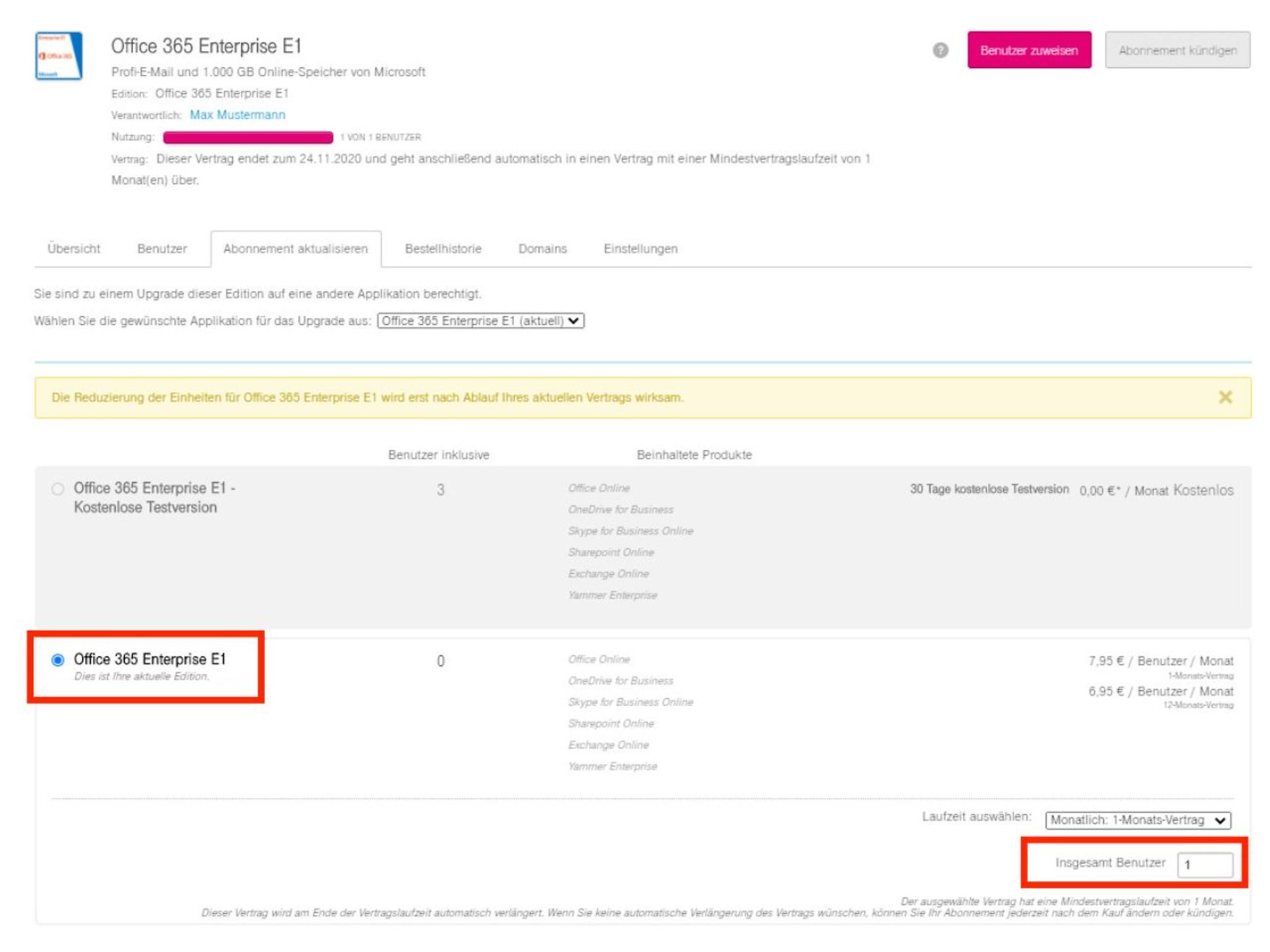
Step 2: In the ‘Update Subscription’ tab, you will find an overview of your current subscription to the selected product. Under ‘Total users’, you will find the number of licences you currently have subscribed to.
Step 3: To add further user licences, you must adjust the number of licences accordingly. For example, if you currently have 25 licences and now require a further 10, you must enter 35 (25 + 10) in the ‘Number of users’ field.
Please note: Existing licences will be shown as a ‘credit’ during the purchase process, as they have already been booked and invoiced. Only the newly added licences will be invoiced.
Step 4: Click on ‘Continue’ and follow the rest of the purchase process.
In principle, you can upgrade your subscriptions to Microsoft services such as Microsoft 365 or Office 365, which you purchased via the Telekom Cloud Marketplace, to a higher edition. You do not need to wait until the end of your contract to do this; you can carry out the upgrade whilst your current contract is still active.
Please note that you cannot switch to just any edition; instead, you can only choose from predefined upgrade paths. The available upgrade options are displayed in the Telekom Cloud Marketplace; these include, amongst others:
An upgrade is only possible seven days after booking a subscription; after that, there are two options:
Furthermore, it is possible at any time to expand an Office or a edition subscription with add-ons or other Microsoft plans, such as 365, Azure or other Microsoft online services.
If you have already purchased an Office 365 or Microsoft 365 plan via the Telekom Cloud Marketplace, you can upgrade your entire subscription to a higher-tier plan or edition – regardless of the number of licences you have purchased.
Here’s an example: You have purchased 25 Microsoft 365 Business Basic licences as part of your subscription, but now need the enhanced features available through Office 365 E3 for all your staff. In this case, you can upgrade all licences to Office 365 E3 in one go. This will not affect the contract term.
Here’s how to carry out the upgrade step by step:
Step 1: Select the product you wish to change. To do this, follow the instructions in the section ‘Where can I find the products I’ve booked on the Telekom Cloud Marketplace?’ at the top of this page.
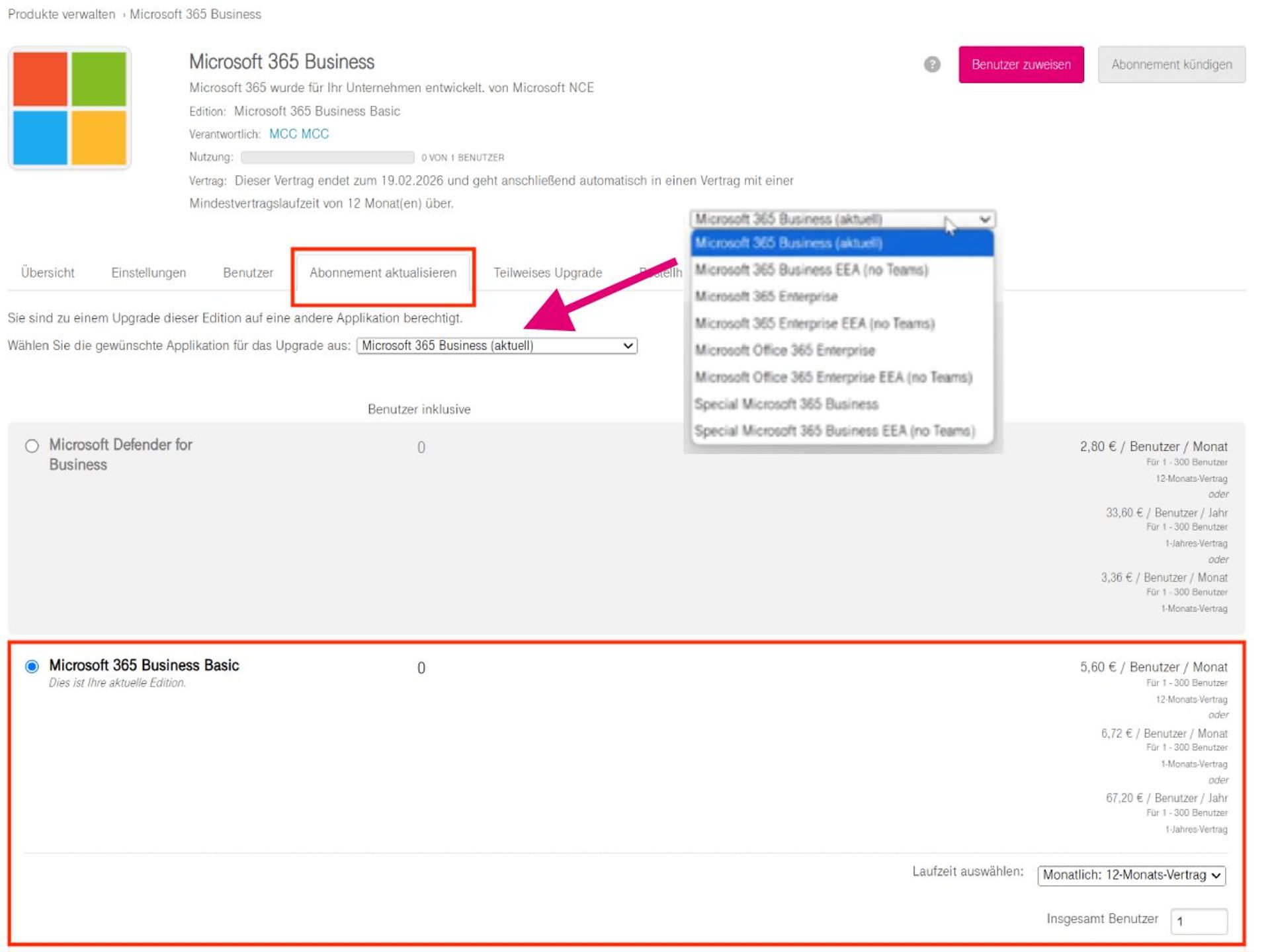
Step 2: Please also select ‘Update subscription’ from the tabs at the bottom. There you will see your current subscription and a drop-down menu showing your upgrade options.
Step 3: In the drop-down menu ‘Select the desired application for the upgrade’, click on the higher edition you wish to upgrade to. This will then appear at the bottom of the list alongside the available options.
Step 4: You can then select the option for the higher-tier edition you require and, by clicking the ‘Continue’ button, follow the standard Telekom Cloud Marketplace ordering process to complete the upgrade. An upgrade to a higher-tier edition takes effect immediately.
If you have already purchased an Office 365 or Microsoft 365 plan via the Telekom Cloud Marketplace, you have the option to upgrade part of your subscription to a higher-tier plan or edition.
Here’s an example: You have 25 Microsoft 365 Business Basic licences in your subscription, but now need advanced features for 10 employees, which are available via Office 365 E3. In this case, you can upgrade 10 licences from your subscription to Office 365 E3. The remaining 15 licences will continue to be Microsoft 365 Business Basic licences. You will then have two subscriptions: 1x Microsoft 365 Business Basic (with 15 licences) and 1x Office 365 E3 (with 10 licences).
With this partial upgrade, you also have the option of upgrading to a new subscription or to an existing one, provided one is available. So, if you already have an Office 365 E3 subscription in your account, you can add the licences you wish to upgrade to it. Please note that this is only possible if the contract term of the existing subscription is longer than that of the subscription to which the upgrade is to be carried out.
When upgrading an existing subscription, you should also bear in mind that some Microsoft 365 plans have a licence limit which you cannot exceed. You can find an overview of this under the question ‘Are there any restrictions on the number of licences?’ on this page.
Step 1: Select the product you wish to change. To do this, follow the instructions in the section ‘Where can I find the products I’ve booked on the Telekom Cloud Marketplace?’ at the top of this page.
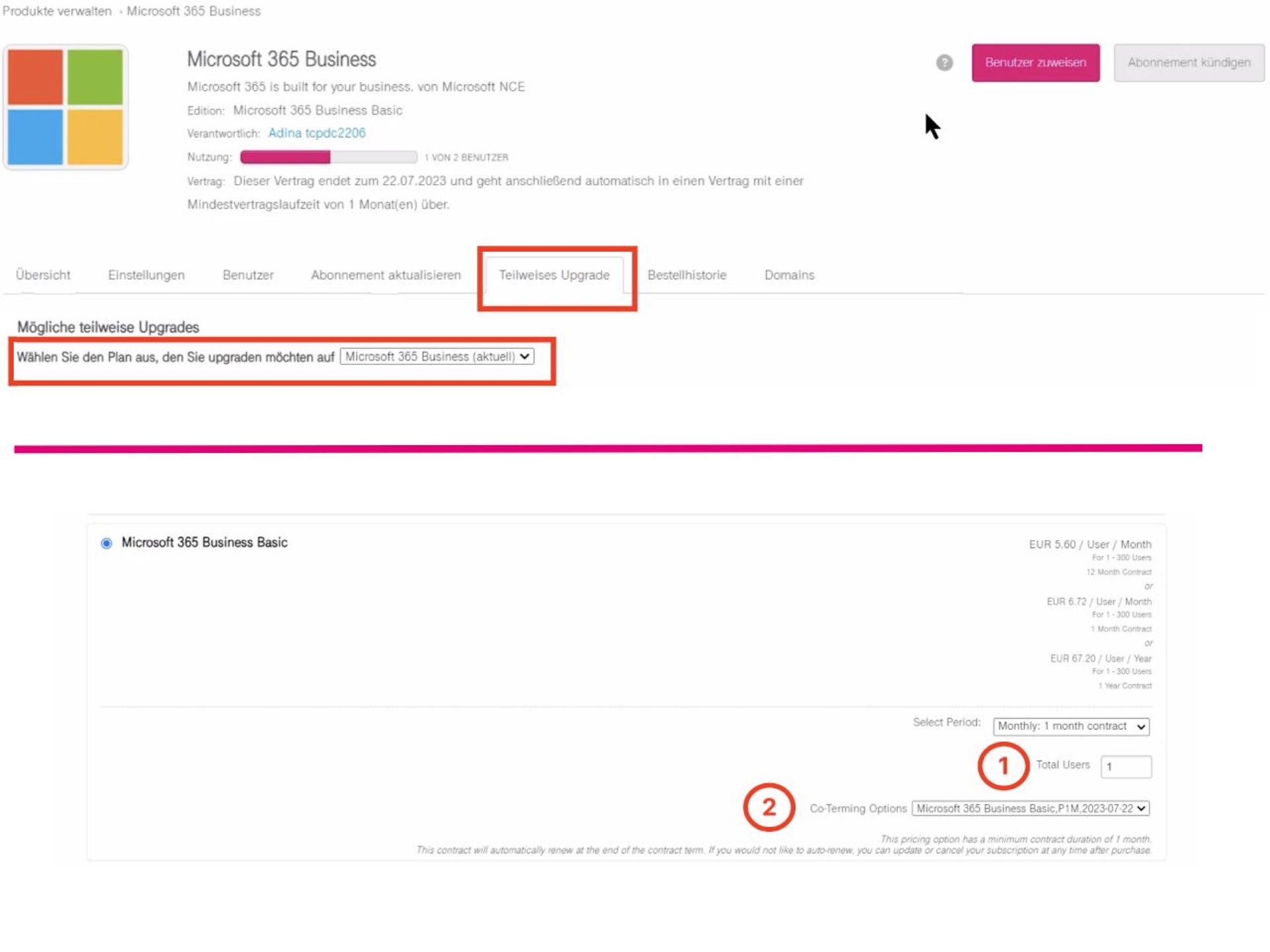
Step 2: Please select ‘Partial upgrade’ from the tabs at the bottom
Step 3: Under the heading ‘Select the required application for the upgrade’, you can choose the appropriate edition for the upgrade.
Step 4: You will then be redirected to the order form, where you can enter the number of licences (1) to be upgraded. You can also, if applicable and if you wish, select an existing subscription (2) to which these licences are to be added. Follow the rest of the ordering process to complete the upgrade.
Here you will find step-by-step instructions on how to switch your existing subscriptions from monthly to annual payments yourself.
Step 1: Select the product you wish to change. To do this, follow the instructions in the section ‘Where can I find the products I’ve booked on the Telekom Cloud Marketplace?’ at the top of this page.
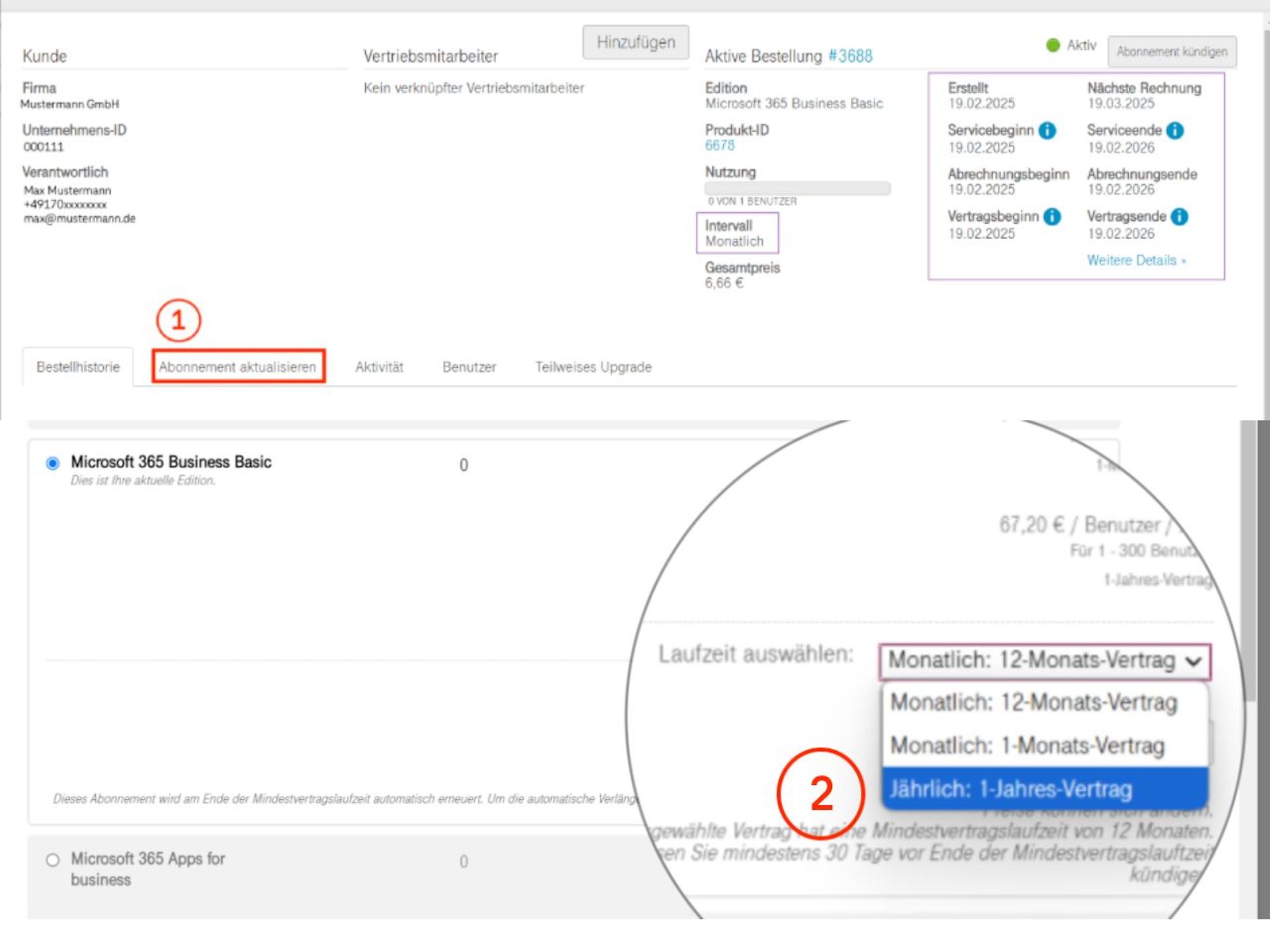
You are now on the product overview page, where you can find all the key information about your booking. This includes, amongst other things, your order history, the billing cycle, the end date of your contract and the date of your next bill. There are various tabs available for the product you have booked. You can adjust the payment frequency in the ‘Update subscription’ tab (1).
Step 2: Your current subscription will then appear below the tab, already selected by default. You can make any changes here.
Step 3: You can select the payment frequency in the bottom right-hand corner of the ‘Select term” section. To pay annually, select the “Annual: 1-year contract“.
Step 4: Once you have made this change, you will be notified that it will take effect upon the next contract renewal.
Step 5: You can now continue with the update process. To do so, click on ‘Continue’ at the bottom of the page. Above this, you will find further information stating that there is no charge for this change.
Step 6Finally, you can check your order details once more. Before you click the ‘Order’ button to submit your changes, you must accept the Terms and Conditions, the Terms of Use and the Data Processing Agreement. This completes the change, which will take effect take effect .
Most companies have an internal accounting system that includes internal activity and cost allocation. The products and services used should therefore be clearly and easily identifiable so that they can be allocated efficiently and flexibly to internal cost objects and cost centres, thereby ensuring transparent cost allocation. Internal cost objects and cost centres can include, for example, business units, departments, projects or similar.
The use of subscription names in the Telekom Cloud Marketplace offers a suitable solution to this challenge. In this FAQ, we outline the setup process, the various options available and different application scenarios for the application name.
General information about the subscription name in the Telekom Cloud Marketplace
The subscription name is a name that the customer is free to choose for a subscription they have purchased (for example, Microsoft 365 Business), which the customer can assign themselves once the product has been purchased.
The subscription name is assigned directly in the Telekom Cloud Marketplace and can be changed or deleted by the customer at any time. It is also possible to assign the same subscription name to multiple subscriptions, for example to internally categorise different bookings by department, cost centre, project, business unit, etc.
How to use the subscription name
The subscription name you choose will be applied and displayed throughout the Telekom Cloud Marketplace. You can either completely overwrite the default name of the product you have subscribed to, or simply add to it. You can undo or amend the name change at any time in Product Management.
Step-by-step guide: Assigning subscription names in the Telekom Cloud Marketplace
Before you assign a subscription name, here is an important note: Only the company administrator can assign, change or delete the subscription name. To do this, you must follow these steps:
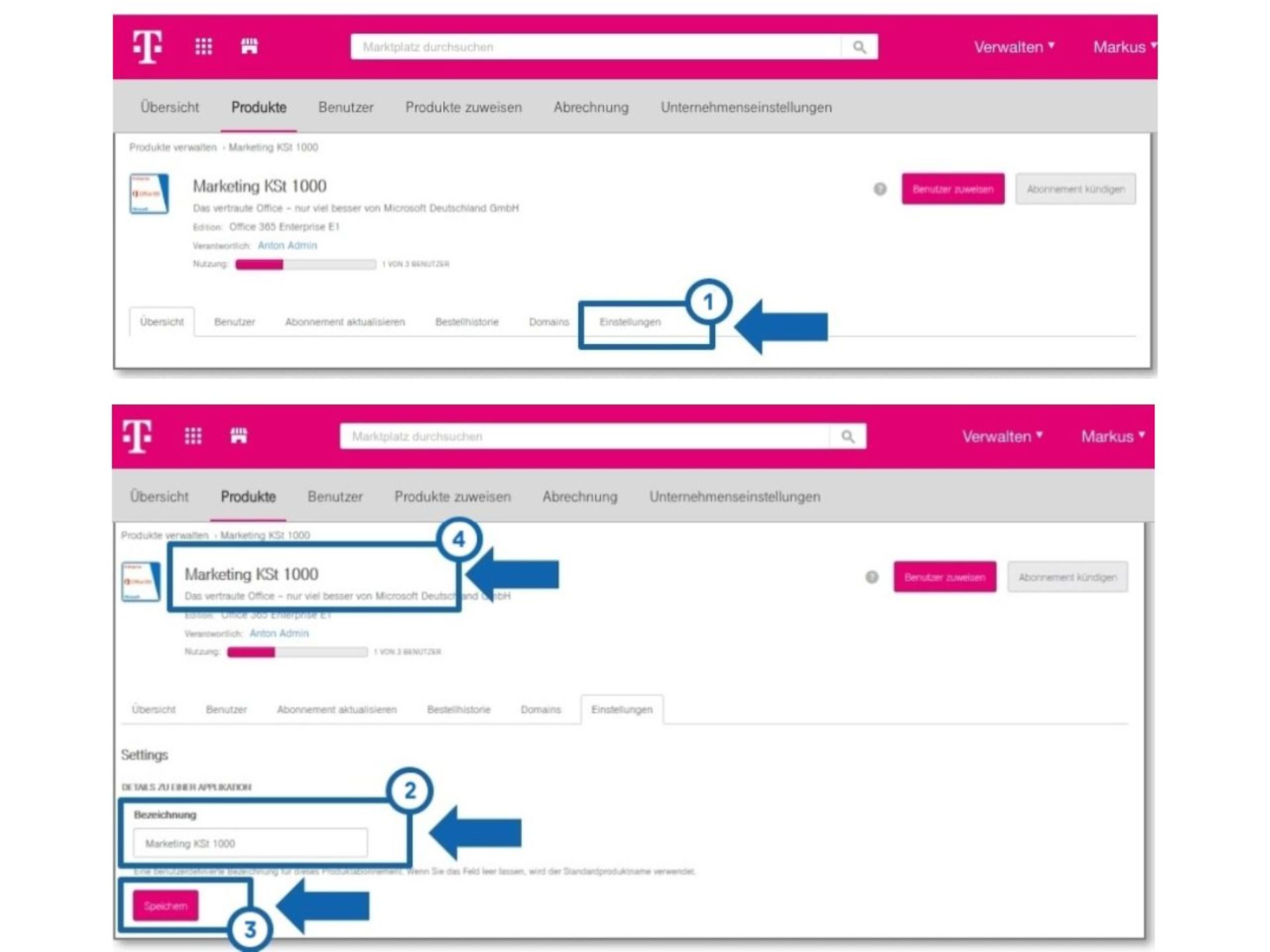
Step 1: Select the product you wish to change. To do this, follow the instructions in ‘Where can I find the products I’ve booked on the Telekom Cloud Marketplace?’ at the top of this page.
Step 2: Next, go to the ‘Settings’ section for the selected product.
Step 3In the ‘Description’ field, you can now enter the name you wish to give to the selected subscription. Clicking ‘Save’ will apply the new subscription name. The new subscription name will then be displayed throughout the marketplace.
Step-by-step guide: Changing or deleting subscription names
You can delete or change the subscription name in the same place where you set it. Follow the steps in the previous section to navigate to this section.
Deleting the name in the ‘Description’ field will restore the product’s default name once the changes have been saved. If the name is changed, the subscription name will be updated accordingly in all relevant places (including the GK invoice).
Search and filter by subscription name
The subscription name is not only visible in the marketplace; it is also possible to search for or filter by this name. The search field can be used to search specifically for particular subscription names (or part of a name), for example to list all subscriptions booked with the same subscription name.
Example scenarios for using the subscription name
To help you better understand how you can make effective use of subscription names, we’ve set out two possible scenarios below.
Scenario 1
Use case: A customer has subscribed to a product multiple times and wishes to be able to distinguish between the different subscriptions.
Challenge: All products subscribed to via the Telekom Cloud Marketplace have the same name once the subscription is complete. As a result, it is not immediately possible to clearly assign the individual subscriptions and their costs to different areas.
Solution: The customer assigns each subscription its own additional name as a distinguishing feature. The designations (subscription names) can be chosen freely and allow subscriptions to be efficiently distinguished according to, for example, cost centre, department, business unit, etc.
Scenario 2
Use case: A customer has booked several different products (possibly including multiple bookings of the same product).
Challenge: The grouping of several subscriptions – for example, to allocate costs to internal service recipients – is not immediately apparent.
Solution: The customer additionally assigns a unique name to each booked subscription as an allocation criterion. The descriptions (subscription names) can be chosen freely and allow for the efficient differentiation of individual subscriptions, for example by cost centre, department, business unit, project, etc.
To simplify billing and licence planning within your organisation, you can synchronise the renewal date for new subscriptions with that of existing ones. This works in the following scenarios:
Example 1: Suppose a company currently has an active annual subscription to Office 365 E5, which expires on 9 November 2024. On 15 March 2024, the company plans to purchase Office 365 E3 licences on a 1-year contract and intends to synchronise the subscriptions. The default end date for the new one-year subscription is 14 March 2025. However, if the new subscription is aligned with the existing one-year subscription, the end date of the new subscription will be synchronised with that of the existing one (9 November). This shortens the term of the new subscription, and the costs are charged on a pro rata basis.
Example 2: Suppose a company has a current one-year subscription to Office 365 E3, which expires on 9 November 2024. On 15 March 2024, the company intends to purchase some Office 365 E3 licences on a monthly basis and synchronise the subscriptions. The default end date for the new one-month subscription is 14 April 2024. However, if the subscription is aligned with the existing 1-year subscription, the end date of the new subscription will be synchronised with that of the existing one. In this example, this corresponds to 9 April. In the first month, therefore, the term of the new subscription is shortened and the costs are charged on a pro rata basis.
You can configure term synchronisation during the booking process when ordering a product on the Telekom Cloud Marketplace. The following steps are required to do this. In this example, the term of a new booking for Microsoft 365 Copilot is to be synchronised with that of Microsoft 365 Business Standard – both of which are on annual contracts.
Step 1: Go to the Microsoft 365 Copilot product page on the Telekom Cloud Marketplace.
Step 2: Clicking the ‘Order now’ button will take you to the order form for Microsoft 365 Copilot.
Step 3: Here, in addition to the required number of licences, you can also specify the subscription with which you wish to synchronise your Microsoft 365 Business order. If you have a valid subscription with a term of one year (12 months), you can select this under ‘Term synchronisation options’.
You can then track the booking as usual.
Microsoft 365 and Office 365 are available on the Telekom Cloud Marketplace as free trial versions, as well as paid versions with minimum contract terms of one month or twelve months. Trial versions of Microsoft 365 and Office 365 end automatically unless you ‘upgrade’ to a paid version. You do not need to cancel the service.
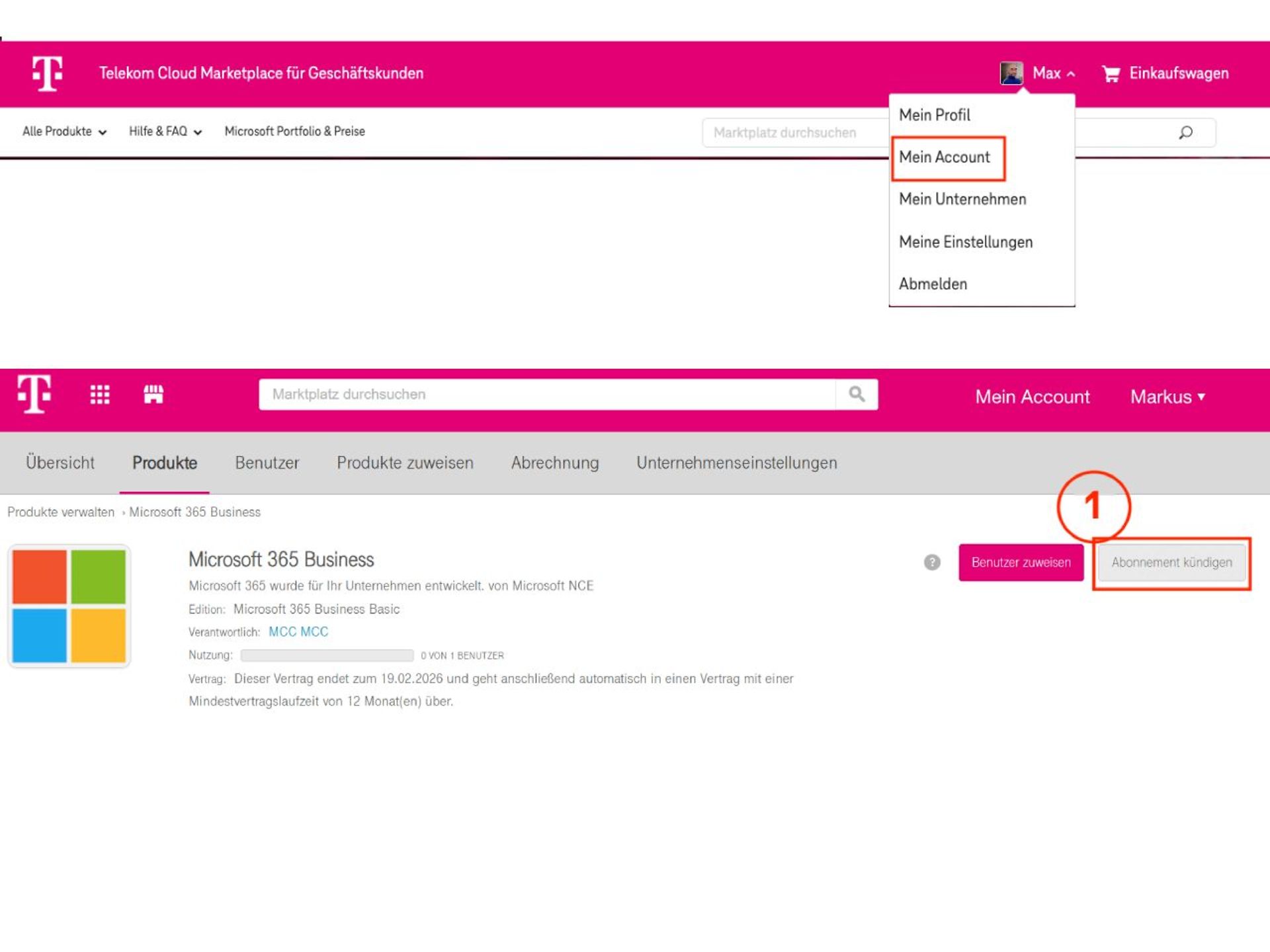
For paid editions, the contract term begins on the date the service is made available for use and may be terminated at the end of the agreed contract term (1 month or 12 months). You can cancel your subscription by following these steps:
Step 1: Select the product you wish to change. To do this, follow the instructions in the section ‘Where can I find the products I’ve booked on the Telekom Cloud Marketplace?’ at the top of this page.
Step 2: Click on ‘Cancel subscription’ in the top right-hand corner and then confirm the cancellation.
Please note that …
Products marked ‘Trial’ on the Telekom Cloud Marketplace are trial versions of the relevant Microsoft offerings. These allow you to test the functionality of the relevant Microsoft products free of charge for one month.
Various Microsoft trial versions are available on the Telekom Cloud Marketplace, including Microsoft 365 Business, Microsoft Teams and Microsoft Project. If you wish to trial a product for which no specific trial version is offered, such as Exchange Online or SharePoint, you can do so using the relevant trial version of Microsoft 365 or Office 365.
The trial versions are time-limited full versions of the respective product. You can test all the features for one month. Each trial version comes with 25 seats, so you can also test various administrative functions.
To sign up for one of the trial versions of Microsoft products, you will need an account for the Telekom Cloud Marketplace. The available trial versions are linked to the respective Microsoft products. There, you can switch to the ‘Pricing’ tab and then click on ‘Try for 1 month’. You will then need to log in with your user account. The ordering process begins on the next page. You do not need to provide any payment details to order a trial version.
Trial versions of Microsoft products that you have signed up for with Telekom will automatically expire at the end of the one-month trial period and will not be converted to a paid version.
When your Microsoft 365 trial subscription expires, you can download your data – such as emails and documents on team sites. Microsoft recommends that you back up your data before the trial period ends. After the trial period ends, you can still access your account and the data associated with your Microsoft 365 account for a further 90 days using administrator permissions – although with limited functionality. After this period, the data will be deleted.
Microsoft has launched Microsoft 365 Backup , a proprietary, paid-for backup solution that is integrated directly into the Microsoft 365 tenant. It automatically backs up the contents of SharePoint Online, OneDrive for Business and Exchange Online at short intervals and enables the rapid recovery of large volumes of data in the event of a failure. Billing is usage-based, calculated according to the volume of data stored or restored, rather than via a fixed licence per user.
Microsoft 365 also offers simple manual export functions for each application:
As all four methods are time-consuming, manual and incomplete, companies are advised to use an automated backup solution that backs up Exchange Online, OneDrive, SharePoint and Teams centrally, on a regular basis and with granular recovery capabilities.
Nutzen Sie hier unsere weiteren Kontaktkanäle, um Ihr Anliegen zu lösen.


We are glad we could help!
Please feel free to use our contact channels at any time so that we can resolve your issue.