Telephone contact
You can reach us by telephone at any time.
Guide: Microsoft Teams – getting started with the user interface.

TeamsMicrosoft Teams provides the perfect foundation for collaboration in the home office – whether for a company's local workforce or a multinational corporation with global locations. Over the past three years, Microsoft's collaboration tool has grown significantly in importance and has become an integral part of the Microsoft 365 family. For this reason, Microsoft is continuously working to further expand and improve the tool's range of functions.
This article contains information about the most important features that you can use as a customer of Microsoft Teams Essentials or Microsoft Teams as part of Microsoft 365, helping you get started with the user interface.
After booking your licences for Microsoft Teams Essentials or Microsoft 365, you can start using Microsoft Teams. We have compiled the steps you need to take on the administration side on this help page.
On the client side, getting started with Microsoft Teams is quite simple. Microsoft Teams can be installed on PCs, Macs and mobile devices or used via a web browser. Once the Teams client has been installed, you or your employees simply need to log in with their username and password.
Desktop clients can be downloaded and installed directly by end users, provided they have the necessary local permissions. Administrative permissions are not required to install the Teams client on a Windows PC, but are required on a Mac. IT departments can use their preferred method for distributing installation files to desktop computers in their organisation, such as Microsoft Endpoint Configuration Manager.
TeamsMicrosoft Teams is a complete software solution for chats, online meetings, calls and organising teamwork. The tool can be used on various devices, from smartphones and laptops to desktop computers. This allows team members to network on the move and from anywhere in the world with internet access. Microsoft Teams is available as a client application for the following platforms:
Ideal for collaborating with customers and partners: Microsoft Teams also allows external workers to collaborate or even share documents with customers via guest access. The relevant access rights are assigned by the IT manager in your company.
To use the full range of features in Microsoft Teams, you must have a confirmed domain for your company for Microsoft 365 or Office 365To do this, the Microsoft Teams client must be installed on all employees' devices and available in the Microsoft 365 tenant Exchange Online and SharePoint Online.

You may have noticed in some of the images in this blog article that Microsoft Teams is displayed in a dark version. This is not only better for your eyes when working in poor lighting conditions, but also looks very stylish. To activate dark mode in Microsoft Teams, first click on your profile picture in the top right-hand corner and then select the "Settings" menu item.
Now you have the option to choose between the standard version, the dark version or an extra high-contrast version under "General".
To help you get started with the extensive resources of Microsoft Teams for home office collaboration as quickly as possible, Learning offers comprehensive support in the Help and Learning Centre. Additional information is also available on the following pages:
Within Microsoft Teams, there are the teams that give the platform its name. These are collections of people, content and tools for different topics, departments or projects within a company.
Teams can either be set up so that only invited users have access, or as public teams that all employees can join. Conversations, files and notes in teams are only visible to members of the respective team.
Individual teams can be divided into different channels. These allow team members to have targeted discussions on specific topics (e.g. Project 1, Project 2, etc.). Each team defines its own set of channels as needed. Members of that team can decide what they want to focus on in each channel. For example, some channels can be dedicated to specific projects, initiatives and locations. Others could be used for different areas of interest, updates or discussion topics.
Both the team itself and the individual channels have their own conversation area where team members can discuss the relevant topic – currently, this can be up to 10,000 people. Teams and channels are not only suitable for conversations on a specific topic. You can also use the individual teams to store topic-specific documents, collaborate on these documents and perform other joint tasks.
Those who normally work directly with their colleagues on site will miss direct communication and human contact the most when working from home. Microsoft Teams offers extensive options for communicating and chatting with each other virtually. A chat can be started individually, between two people or in groups – unlike conversations/chats in teams and channels, private group chats are limited to up to 250 people. There is a Chat category (1) in the left-hand menu bar for this purpose. Conversations are started via the "New Chat" menu item (2). Then select the name of the person from the contact list (3) and you're ready to go.
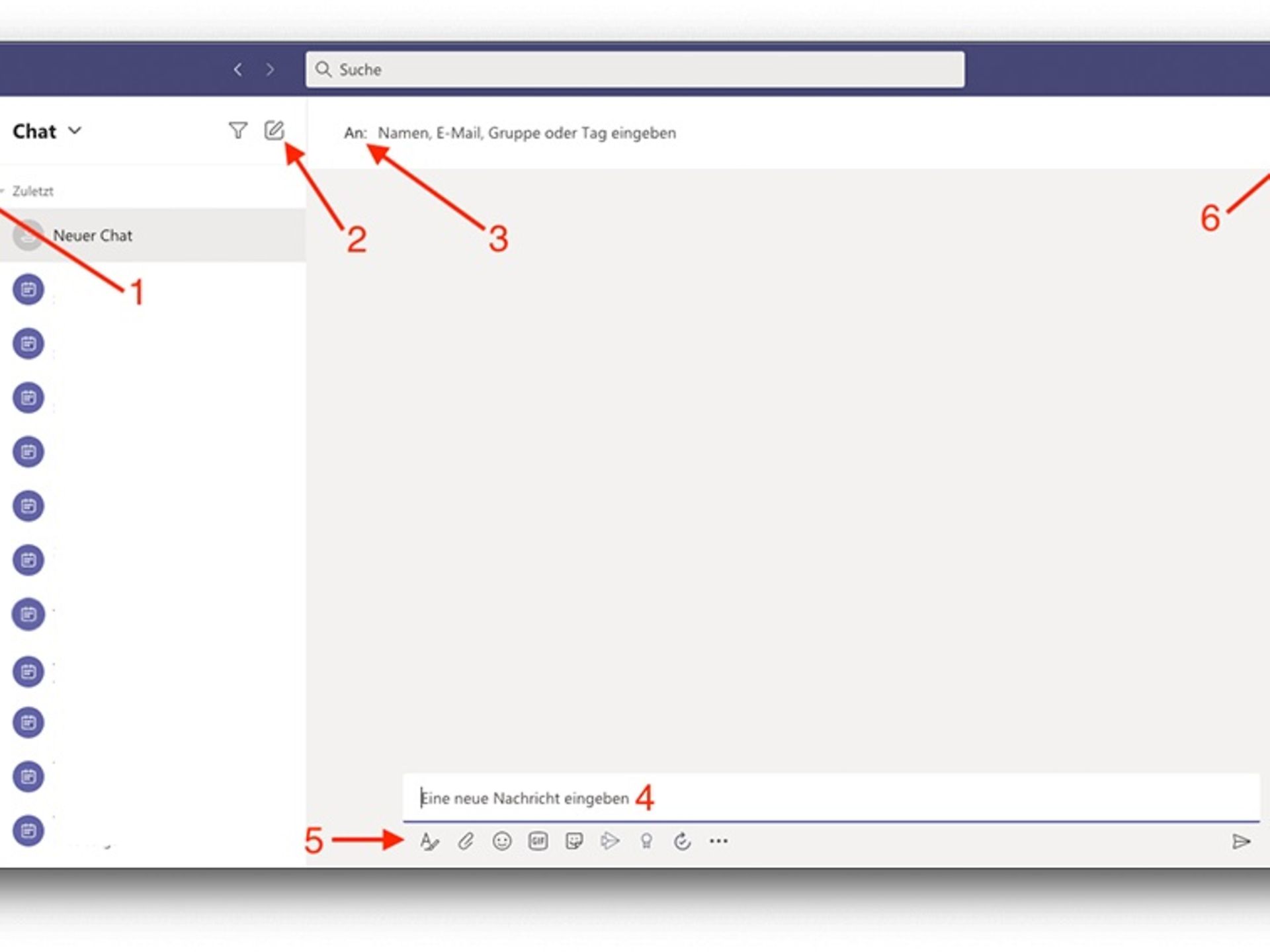
Chat messages can be entered via the text field (4). The menu bar below the text field (5) offers various functions. Among other things, you can format your text, attach images or send GIFs.
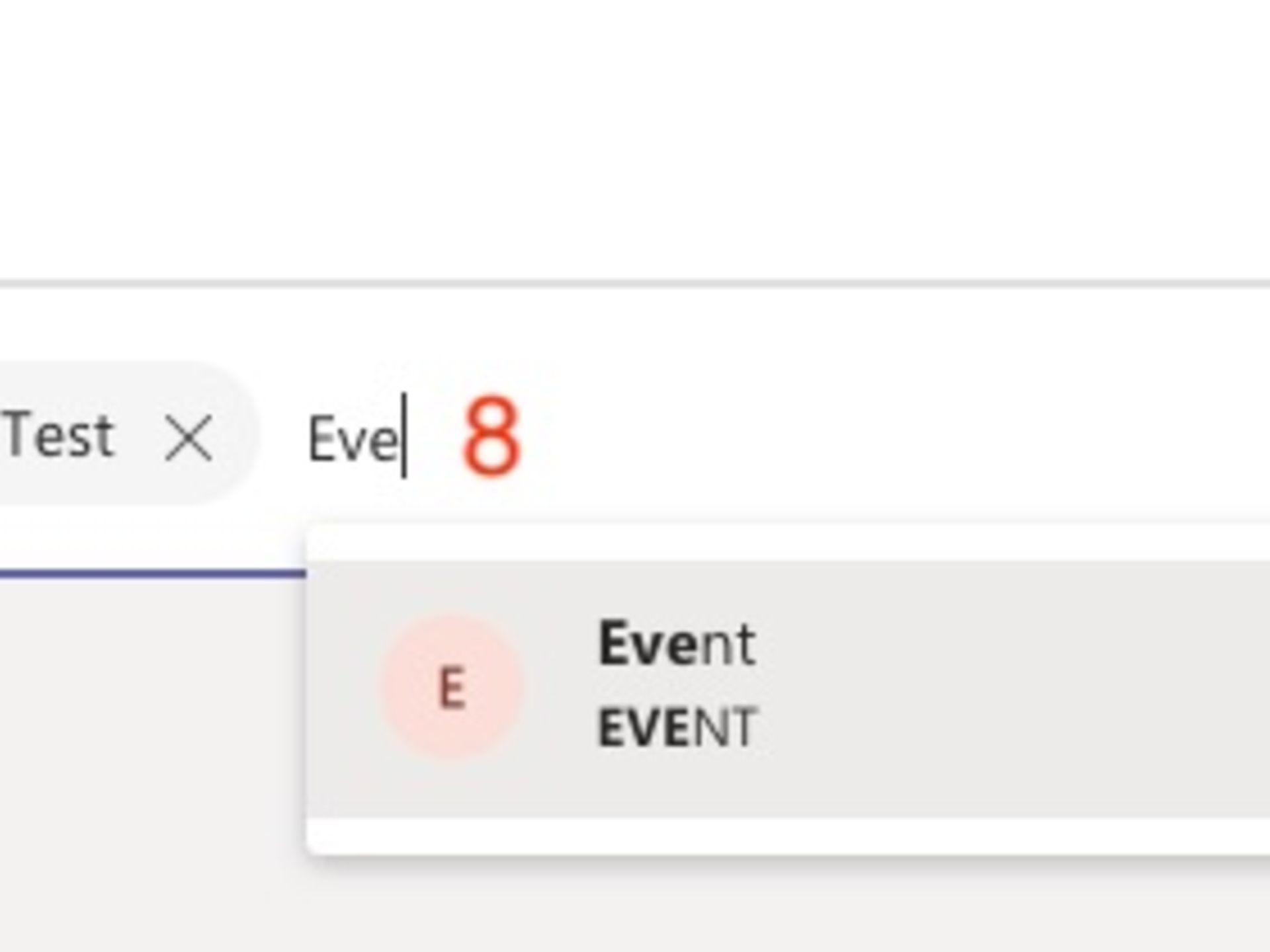
You start a group chat just like a normal chat. Select the downward-pointing arrow to the far right of the "To field" (6) and you will be given the option to specify a group name (7). You can then enter the desired chat partners in the "To field" (8).
Microsoft Teams can also be used as a practical telephone system. The advantages are enormous, especially in times of home office: employees can be reached at their existing number not only on their desk phone in the office, but also on their PC, smartphone and tablet via Teams. Telekom offers the necessary hardware and software. With a click of the mouse or a touch, calls can even be transferred from one device to another. A cloud-based answering machine ensures that important messages are not lost. Voice messages are sent directly to the inbox – supplemented by a transcript of the message, in which speech is automatically converted into text. This is particularly useful when the mailbox cannot be listened to.
Microsoft Teams also supports VoIP (Voice over IP) calls between individual Microsoft Teams clients as standard. This means you can call your colleagues via the client. You can choose between video and audio calls.
You can access your calls via the call icon (1) in the left-hand bar. You can either search for the person you want to call using the search bar (2) or create phone books (3).
The next advantage of Microsoft Teams: this intelligent tool can be used to organise telephone and video conferences. Especially when working from home, it greatly enhances communication when meeting participants can not only be heard but also seen. Audio and video conferences can be held with both internal and external participants. If information needs to be shared with a wide audience, webcasts can be used to reach up to 10,000 participants. However, this requires the Dial-in Conferencing add-onYou can create a conference either via the calendar in Teams or directly via Outlook. Creating an appointment in Teams is similar to creating an appointment in Outlook. You can invite people (1), set the location and time, and add further appointment settings. It is also possible to add the conference for all members of a channel (2). As soon as you click on "Save" or "Send", a Teams meeting (3) is added.
You can then participate in the conference via the calendar.
During the meeting, you then have various options, such as turning the camera on and off, turning the sound on or off, chatting or sharing your screen.
Incidentally, archiving communication with Teams is also much easier: the software can generate transcripts of conversations and conferences on request and even translate them into 40 languages if required. Calls and conferences can also be recorded and saved with Microsoft Stream.
In video conferences, presentations can be shared on a digital screen, just like in a face-to-face meeting. To do this, share content from your laptop or computer with the other participants in a virtual meeting. Using the share button, you can share individual programme windows such as PowerPoint or even your entire screen. The function is explained in more detail here.
Or you can open a digital whiteboard where you can work on new ideas together with your colleagues in real time.

Especially in longer meetings or virtual workshops, it can make sense to divide the participants into smaller groups to work on new ideas or discuss them. For this purpose, Microsoft Teams offers so-called group or breakout rooms. As the organiser of the conference, you can now set up such rooms at the top of the screen during an ongoing meeting.
When creating the breakout rooms, you will be asked how many different rooms you would like to make available and how the participants should be distributed. You can either assign them automatically to the rooms you have created or distribute them manually to the individual rooms. The participants will then be informed that they will be moved to a breakout room shortly. If necessary, you can then switch between the group room and the main meeting with just one click.
On the Microsoft website, you will find Further information on using Microsoft Teams group rooms.
In addition, team members in Microsoft Teams can share files in chats or collaborate on documents. This makes it easy to organise collaboration, even when all employees are working from home. To do this, documents must be stored directly in a team. Microsoft Teams is based on SharePoint, which enables collaborative document editing. You can upload and synchronise files in a team.
Several people in the respective team can then open a document at the same time and work on it in parallel. More details about this feature are revealed here..
You can also share chats from Outlook with other colleagues via Microsoft Teams. Further information is available here.

To further perfect virtual collaboration, Microsoft Teams offers app integration (1). These apps help to make work processes even more convenient and further optimise them. In addition to the various Microsoft 365 applications, it is also possible to integrate and use third-party tools.
One feature that may seem like a fun function at first glance is Together Mode. It uses segmentation AI to place all participants in a Teams meeting in front of a shared background. In fact, however, it addresses important aspects of collaboration. On the one hand, it creates the feeling of sitting in the same room with colleagues. This makes it easier to focus on faces and body language in order to understand non-verbal communication even in a virtual space.
You can activate Together Mode in the Microsoft Teams options. To do this, click on your profile picture and open the options menu by clicking on 'Settings'. In the 'General' section, tick the box next to 'Enable new meeting experience'.
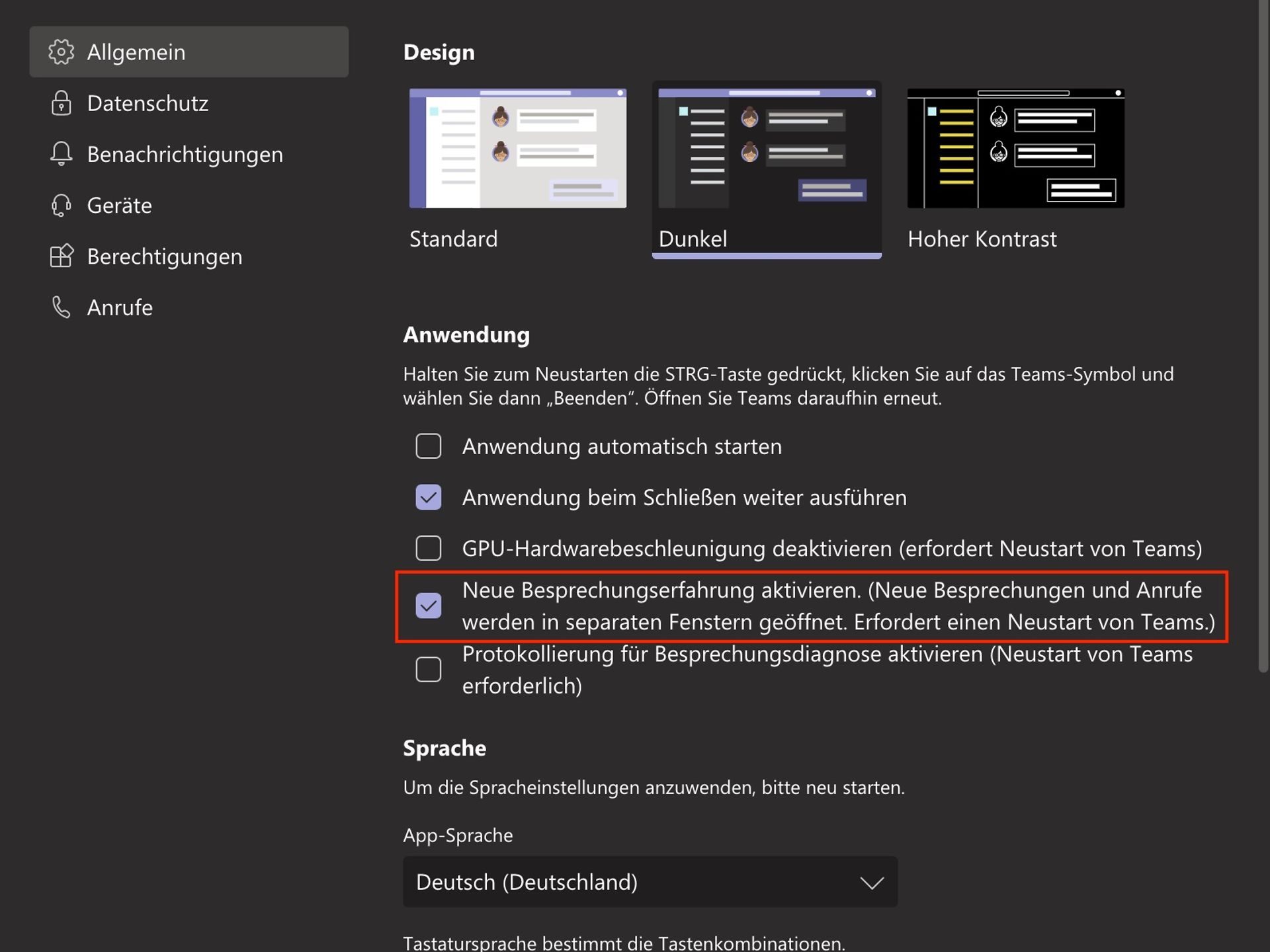
Incoming calls and new meetings will now open in a separate window. After a quick restart, the new meeting experience will be activated and you can then start Together Mode in a running meeting via the three-dot menu.
Microsoft Lists is an app available directly in Microsoft Teams that allows you to track information to organise your work even better. For example, you can use it to onboard new employees, create a schedule for different events, or track the status of your work.
You can create lists for different purposes using the various templates available. It is also possible to generate lists from Excel tables or adapt existing lists to your own requirements. Of course, you can also create a blank list from scratch and design it entirely according to your own ideas.
In Microsoft Teams, you can find Lists by switching to the 'Teams' tab on the left-hand side. In the corresponding window, you will find the 'Lists' entry at the top centre, to the left of the '+' sign.

Now click on "Create a list" to go to the overview of available templates or create a blank list.
Nutzen Sie hier unsere weiteren Kontaktkanäle, um Ihr Anliegen zu lösen.


We are glad we could help!
Please feel free to use our contact channels at any time so that we can resolve your issue.